Tickets
CRM Tickets
The Tickets module allows users to manage and track customer or internal support tickets efficiently within the ERP system.
Manage Tickets
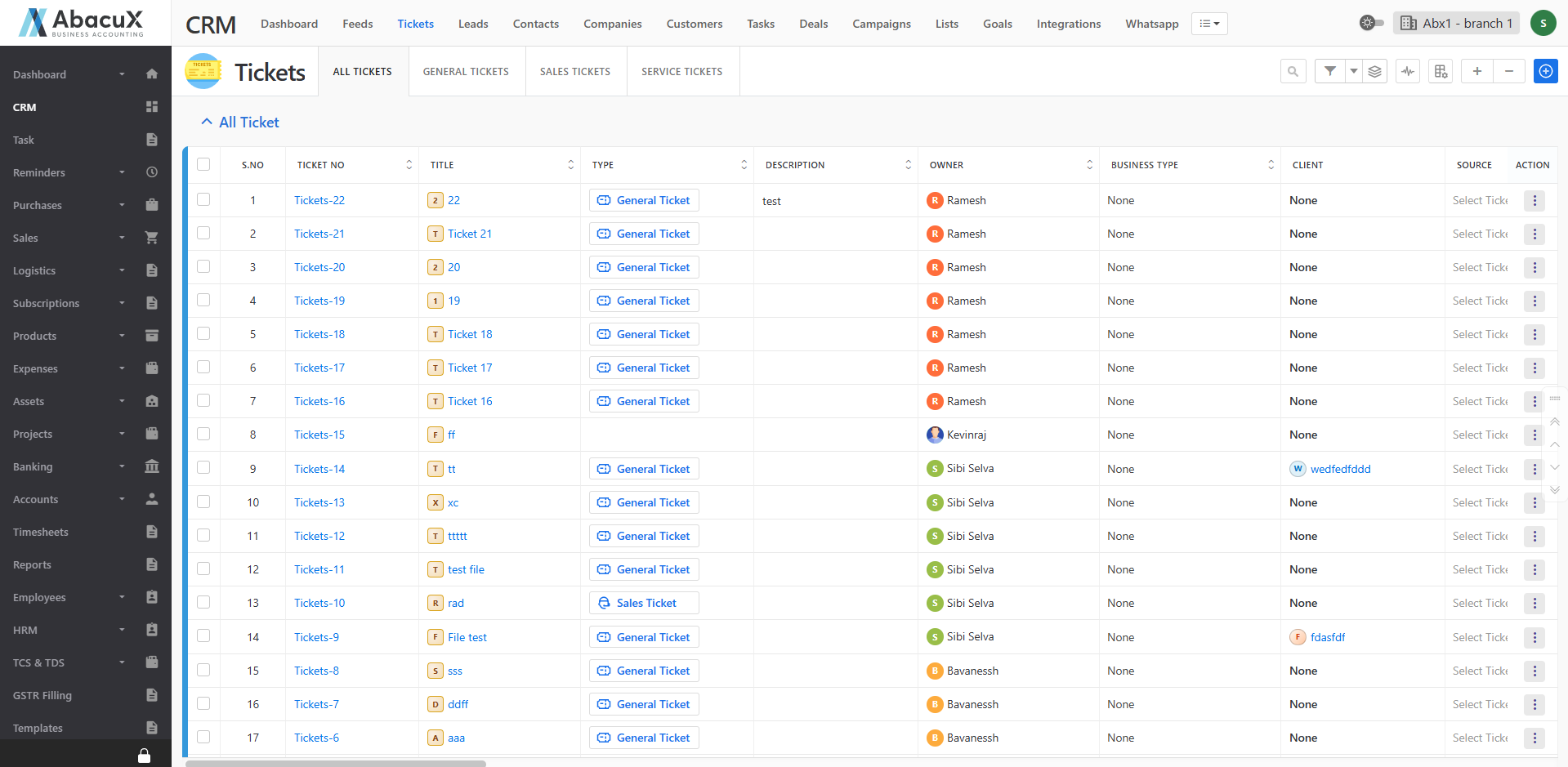
- Click on the Tickets menu to view the complete list of tickets.
-
Select the General Tickets tab to view all general tickets.
-
Select the Sales Tickets tab to view all sales-related tickets.
-
Select the Service Tickets tab to view all service-related tickets.
-
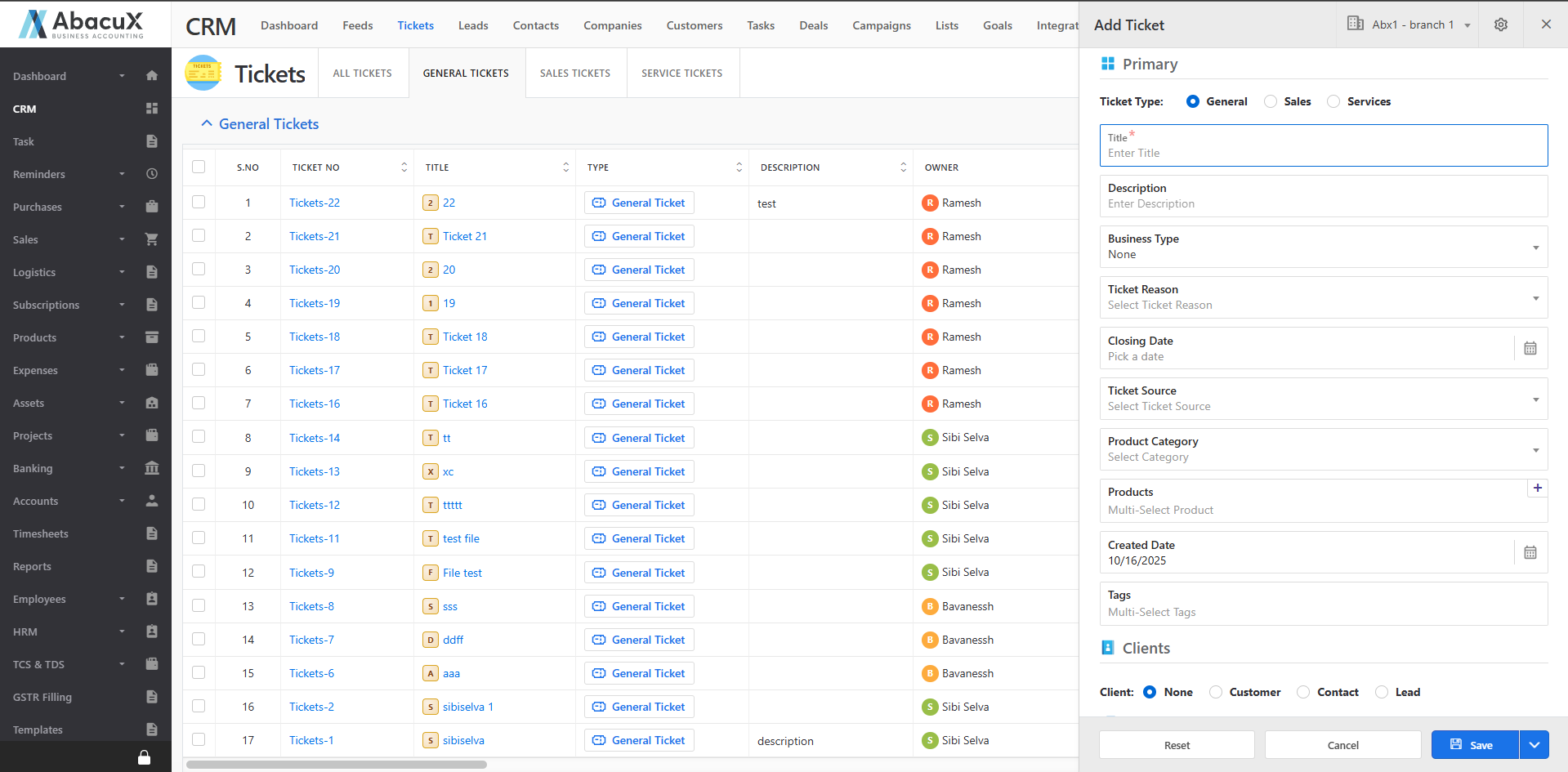
To add a new ticket, click the Add icon located at the top-right corner of the page.
-
A form will appear to capture the ticket details.
-
Fill in the required fields. You can then choose to Save, Save and Send via WhatsApp, Cancel, or Reset the form.
-
Upon successful save, a success message will appear on the listing page.
-
If an error occurs during saving, an error message will be displayed on the screen.
-
Click the Stack icon to group the ticket list based on the selected criteria.
-
To view all activities related to tickets, click the Beat icon.
-
The listing page also includes options for column customization, expand, and collapse views.
Ticket Profile
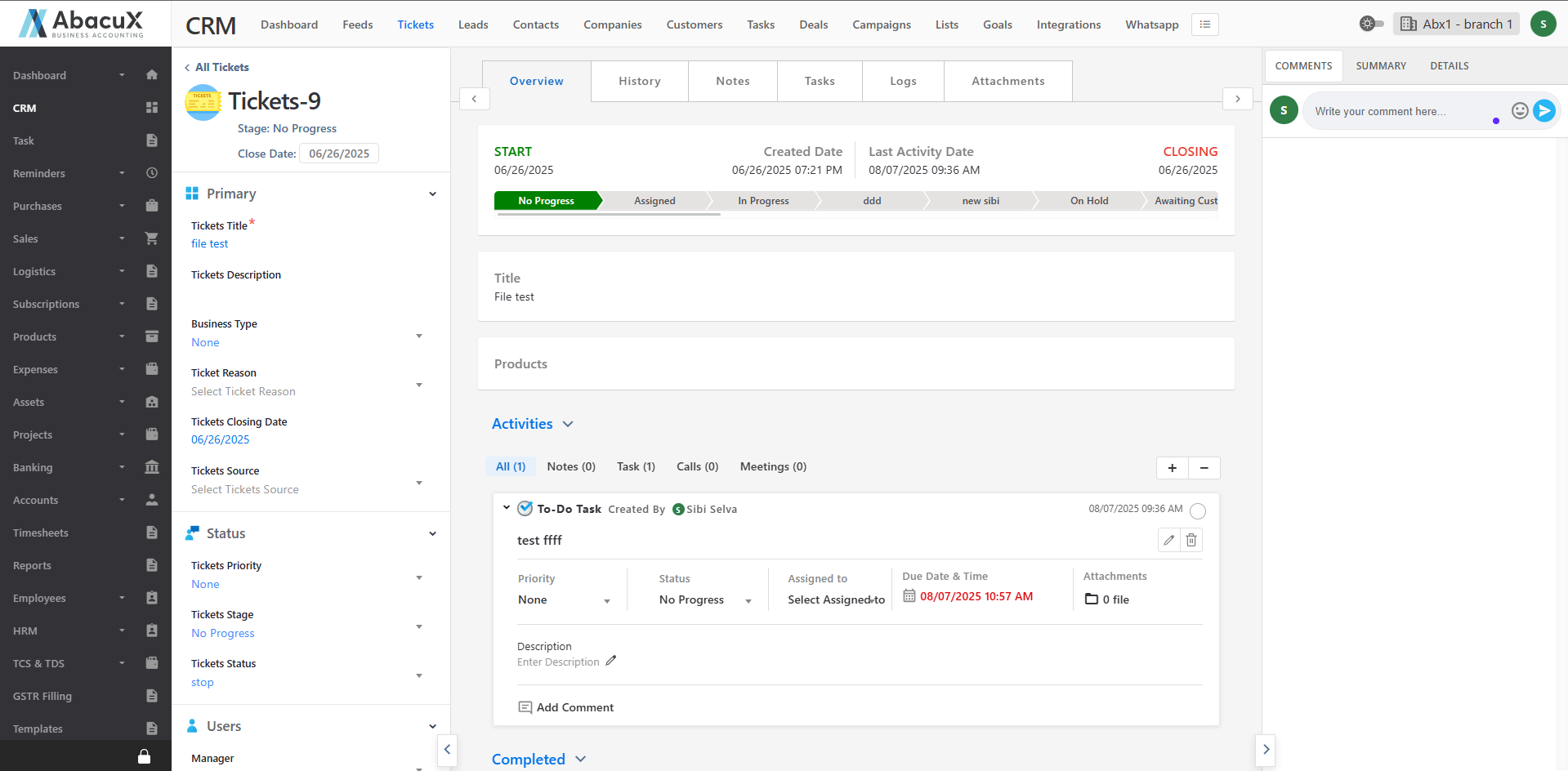
The Ticket Profile section provides a detailed view of each ticket, allowing users to access, manage, and update all relevant information in one place.
Steps to Access and Manage Ticket Profiles
-
Click on the Ticket Title from the ticket listing page to open the Ticket Profile page.
-
The profile page displays all details related to the selected ticket.
-
The page is divided into three main sections: Left Panel, Middle Panel, and Right Panel.
Left Panel
Displays all ticket fields with the option to edit and update them as needed.
Middle Panel
Contains the following tabs to manage and monitor ticket-related information:
-
Overview – Displays the current ticket status and a summary of all active and completed activities.
-
History – Shows the complete history of the ticket from its creation date to the present.
-
Notes – Allows users to create, view, and manage notes related to the ticket.
-
Tasks – Enables management of tasks associated with the specific ticket.
-
Logs – Provides access to call logs and meeting logs related to the ticket.
-
Attachments – Allows uploading and managing images, documents, videos, and audio files associated with the ticket.
Right Panel
Provides quick access to additional information and collaboration tools:
-
Comments – Allows users to post and manage comments related to the ticket.
-
Summary – Displays a summarized overview of the ticket’s progress and key details.
-
Details – Lists related entities such as the company, leads, and contacts linked to the ticket.