Leads
CRM Leads
The Leads module allows users to manage and track potential customers efficiently, from initial inquiry to conversion. This section outlines how to view, add, and organize leads within the CRM system.
Managing Leads
-
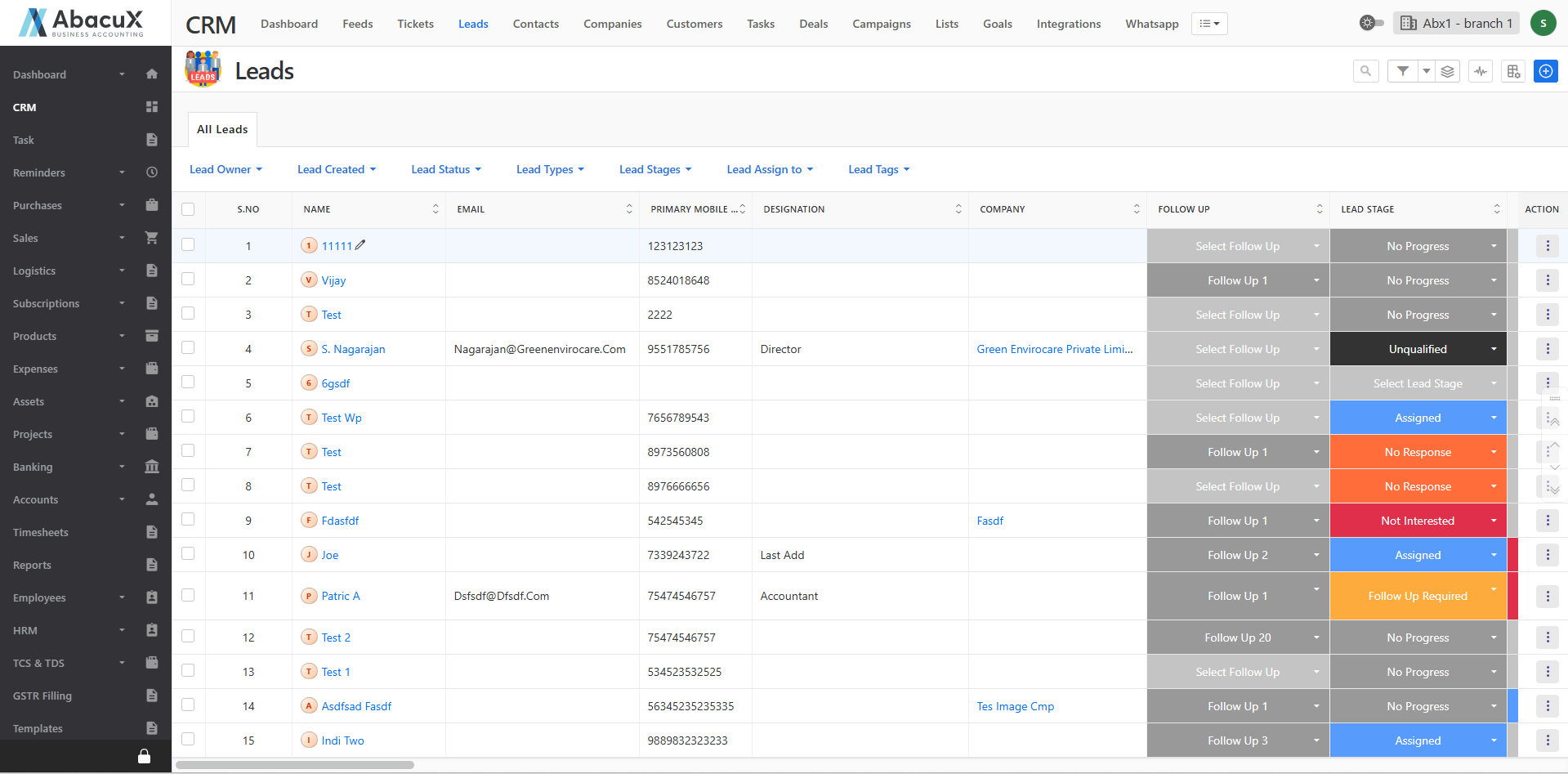
Click on the Leads menu under the CRM section to load the complete list of leads.
-
The leads list includes default filters at the top, such as Lead Owner, Lead Status, Lead Type, and others for easy navigation and segmentation.
-
To add a new lead, click on the “+” icon located at the top-right corner of the page.
-
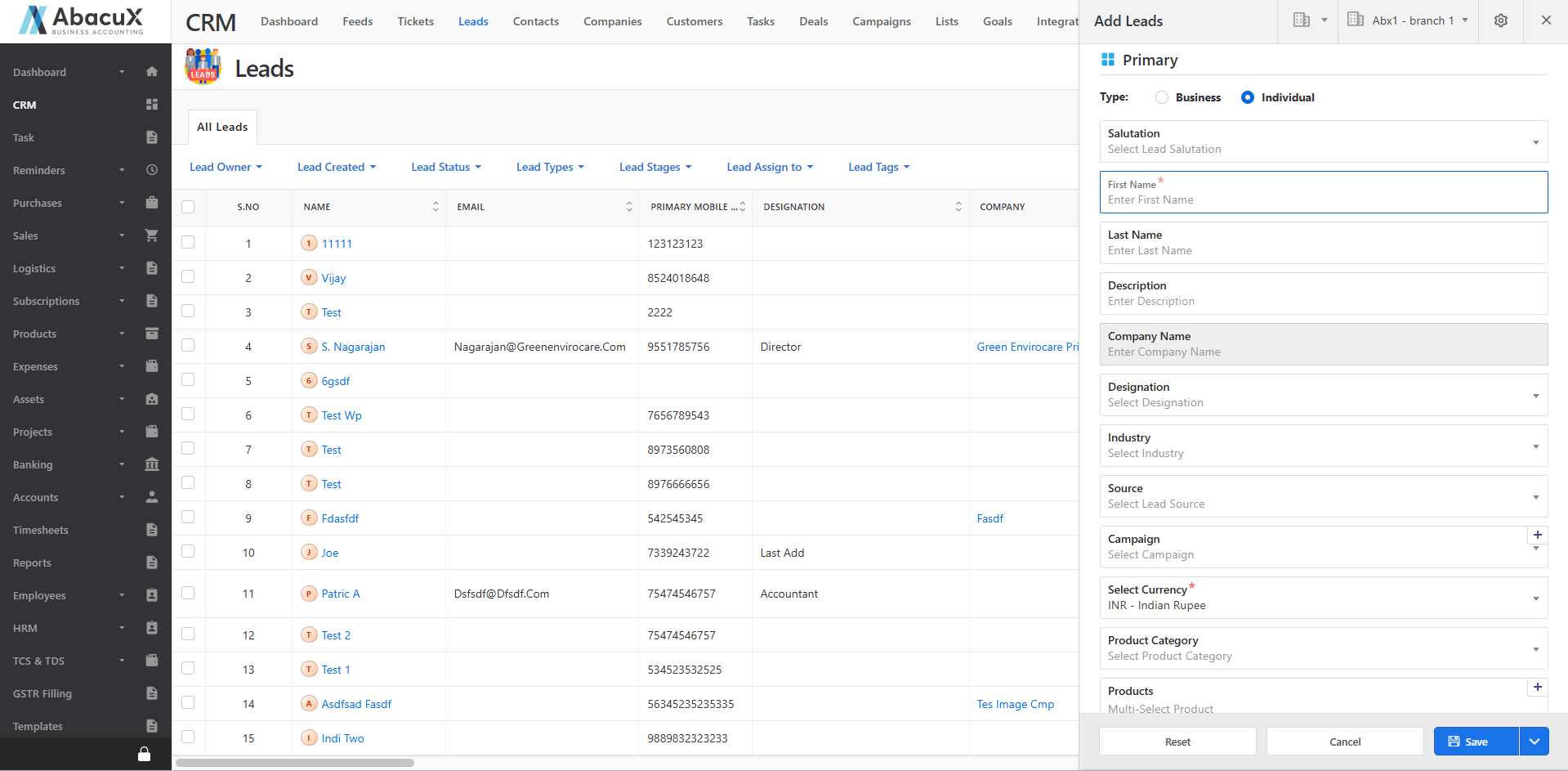
A lead entry form will open, allowing you to enter the required lead details.
-
Fill in the necessary fields, then choose one of the following options:
Save to record the lead details.
Save and Send to WhatsApp to share the lead information directly.
Cancel to close the form without saving.
Reset to clear the form entries.
-
Click the Stack icon to group the lead list based on selected criteria.
-
Click the Settings icon to customize the view by showing or hiding specific groups.
-
Click the Beat icon to view the overall lead-related activities and interactions.
Lead Profile
The Lead Profile page provides a detailed view of each lead, including their information, activity history, communication records, and related actions.
Accessing the Lead Profile
-
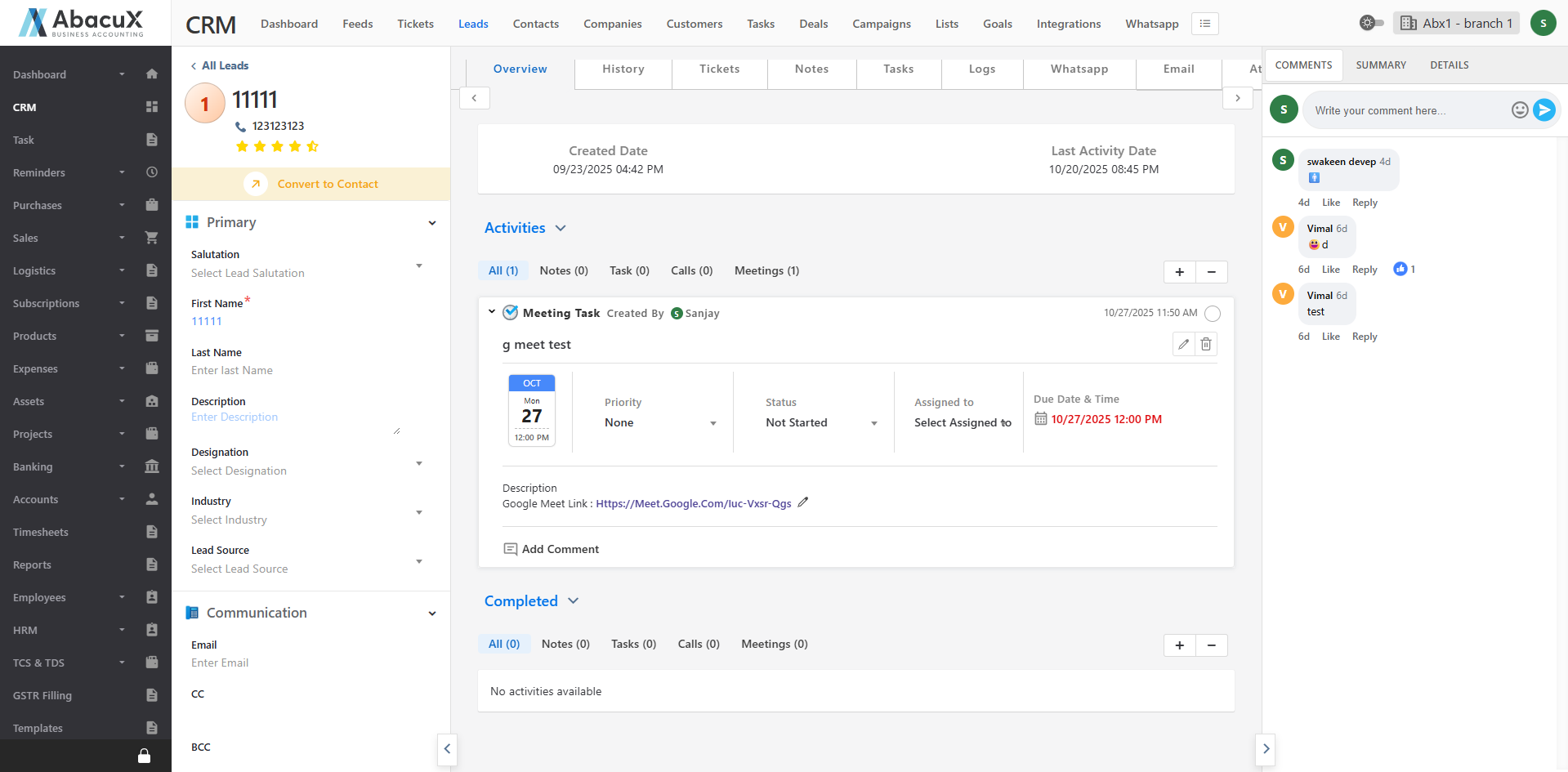
Click on any lead from the leads list to open its profile page.
-
The Lead Profile page displays all relevant information about the selected lead.
The Lead Profile page is divided into three main sections:
Left Panel
-
Displays complete lead details with an editable option.
-
Users can update or modify lead information directly from this panel.
Center Panel
Contains multiple tabs to manage and track lead activities and interactions:
Overview: Displays overall lead details, including completed and ongoing activities.
History: Shows the complete history and timeline of lead interactions.
Tickets: Allows management of tickets related to this lead.
Notes: Enables users to create and manage notes associated with the lead.
Tasks: Used for managing tasks assigned to this lead.
Logs: Maintains records of call logs and meeting logs related to the lead.
WhatsApp: Provides direct communication with the lead through the integrated WhatsApp feature.
Email: Allows sending emails directly to the lead’s registered email address.
Attachments: Lets users upload and manage files such as images, documents, videos, or audio files related to the lead.
Right Panel
Includes the following tabs:
Comments: Used to post and manage comments or discussions about the lead.
Summary: Provides a summarized view of the lead’s overall details and activities.
Details: Displays additional information, including company details and business card information.