Feeds
CRM Feeds
The Feeds section provides a unified view of all activity updates within the CRM, including posts and module-related data entries. It enables users to create new posts or add data directly to CRM modules using a simple and interactive editor.
Manage Feeds
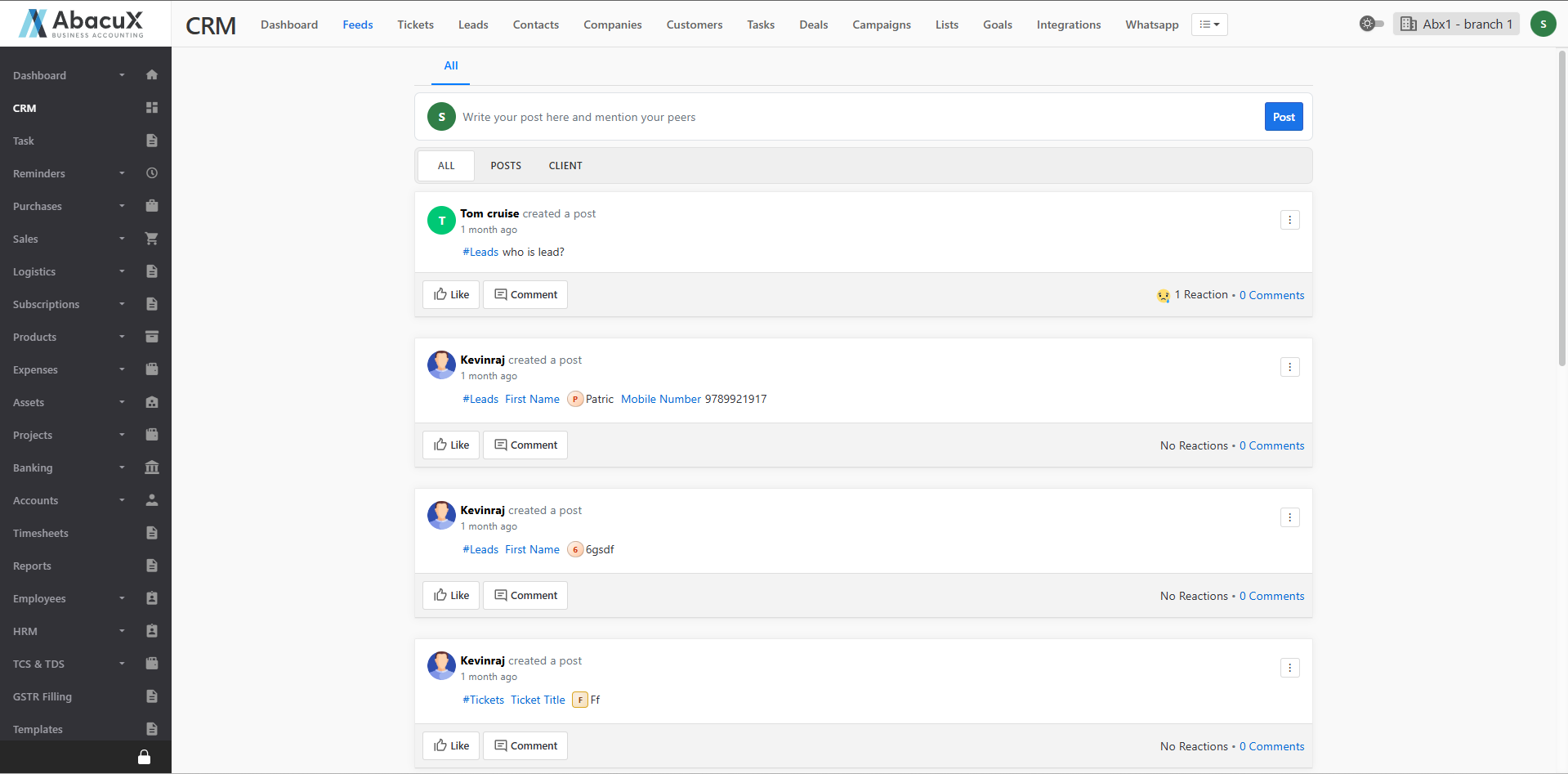
- Navigate to the Feeds menu to view all available feeds, including posts and module-related entries.
-
To add a new post or create a module entry, click on the text area at the top.
-
The text editor will expand, allowing you to compose your post or data entry.
-
Type # to select a specific module from the available list.
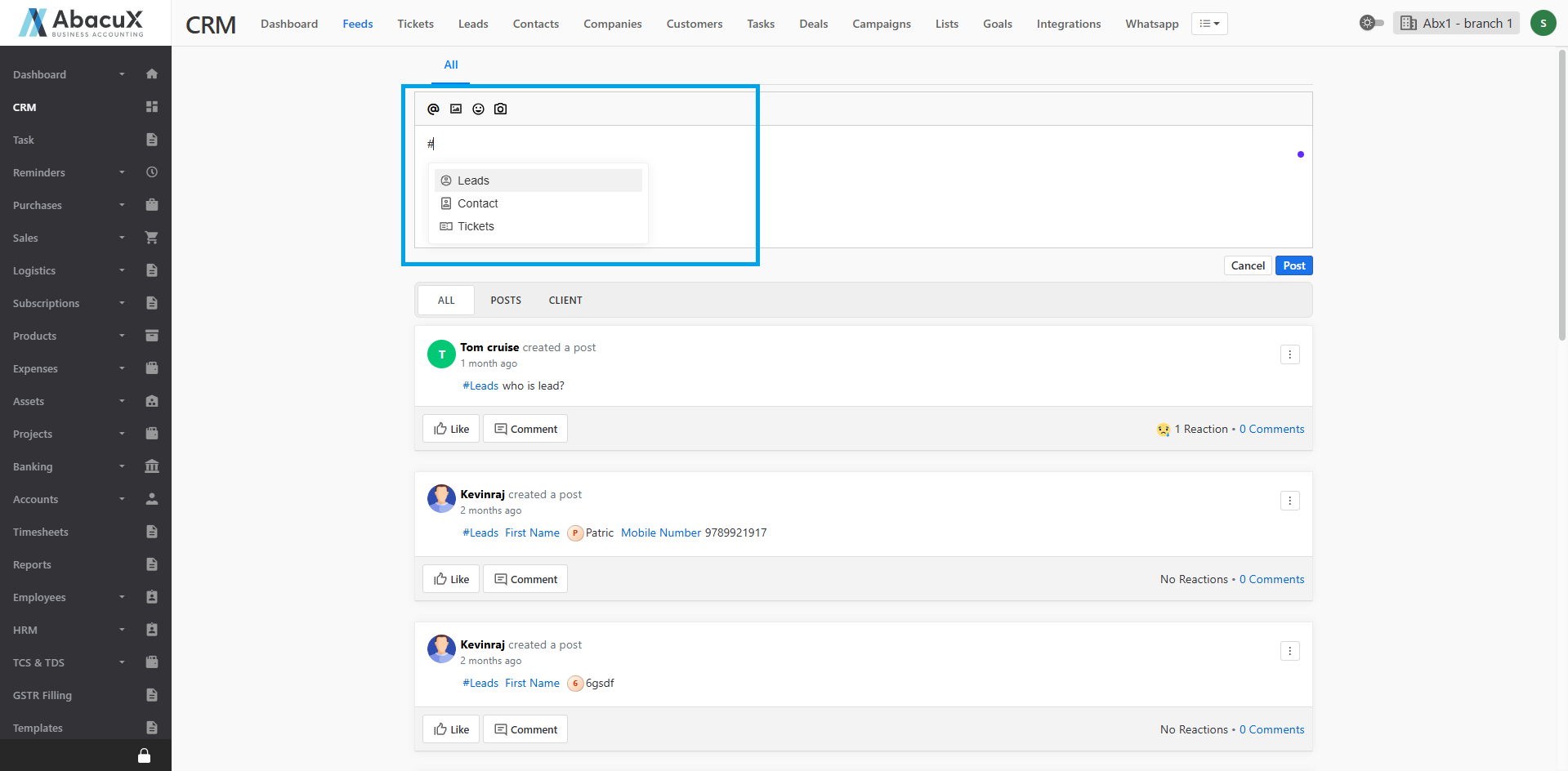
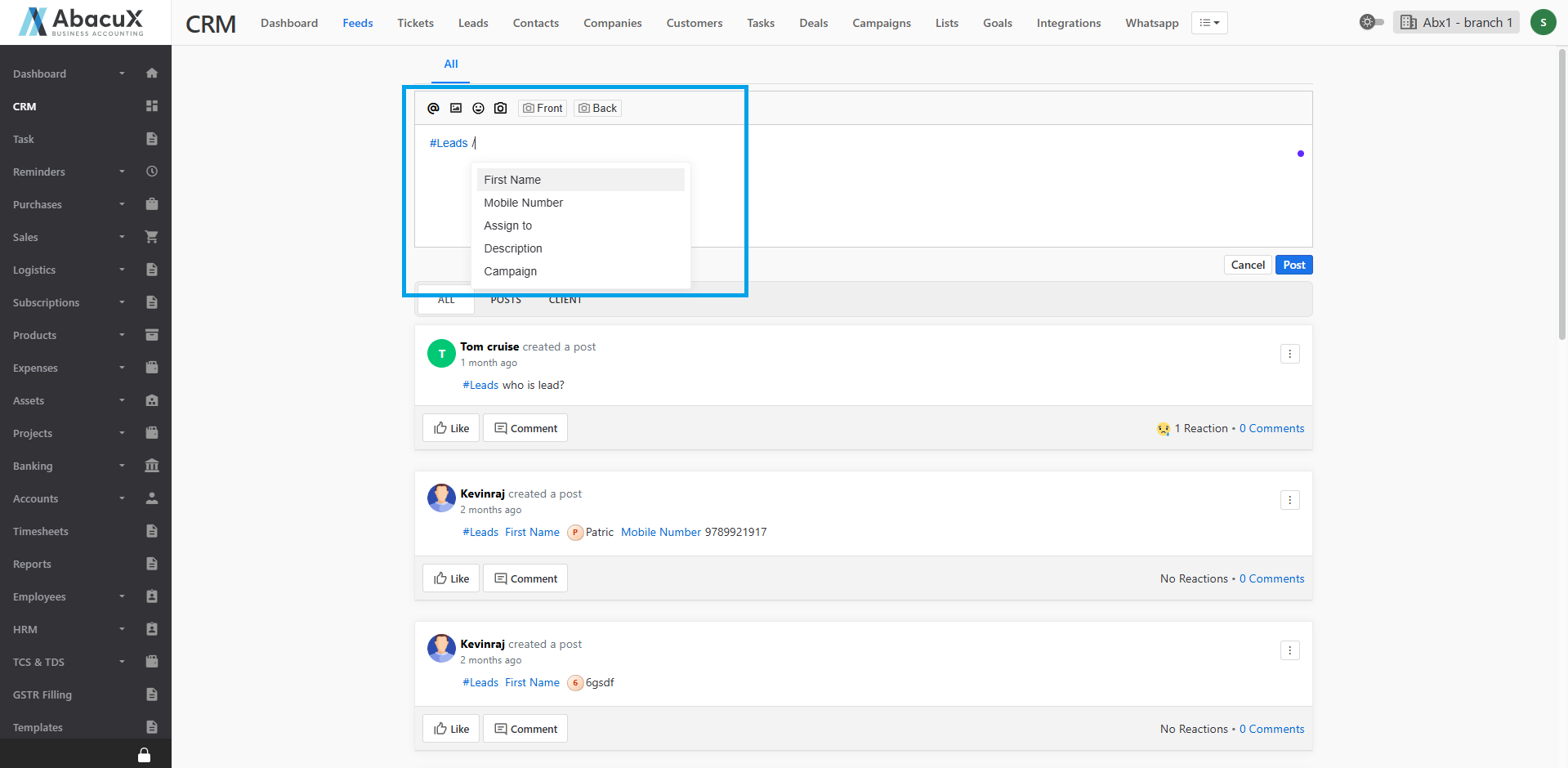
- After selecting a module, type / to choose a field within that module to enter a value.
-
You can include multiple modules and their corresponding fields with values in a single post.
-
Once all details are entered, click Post to submit your entry.
-
The system will automatically create records in the selected modules with the provided field values.
-
Click Posts to view only blog-style posts.
-
Click the Client menu to view entries related to specific modules or client data.
View Profile
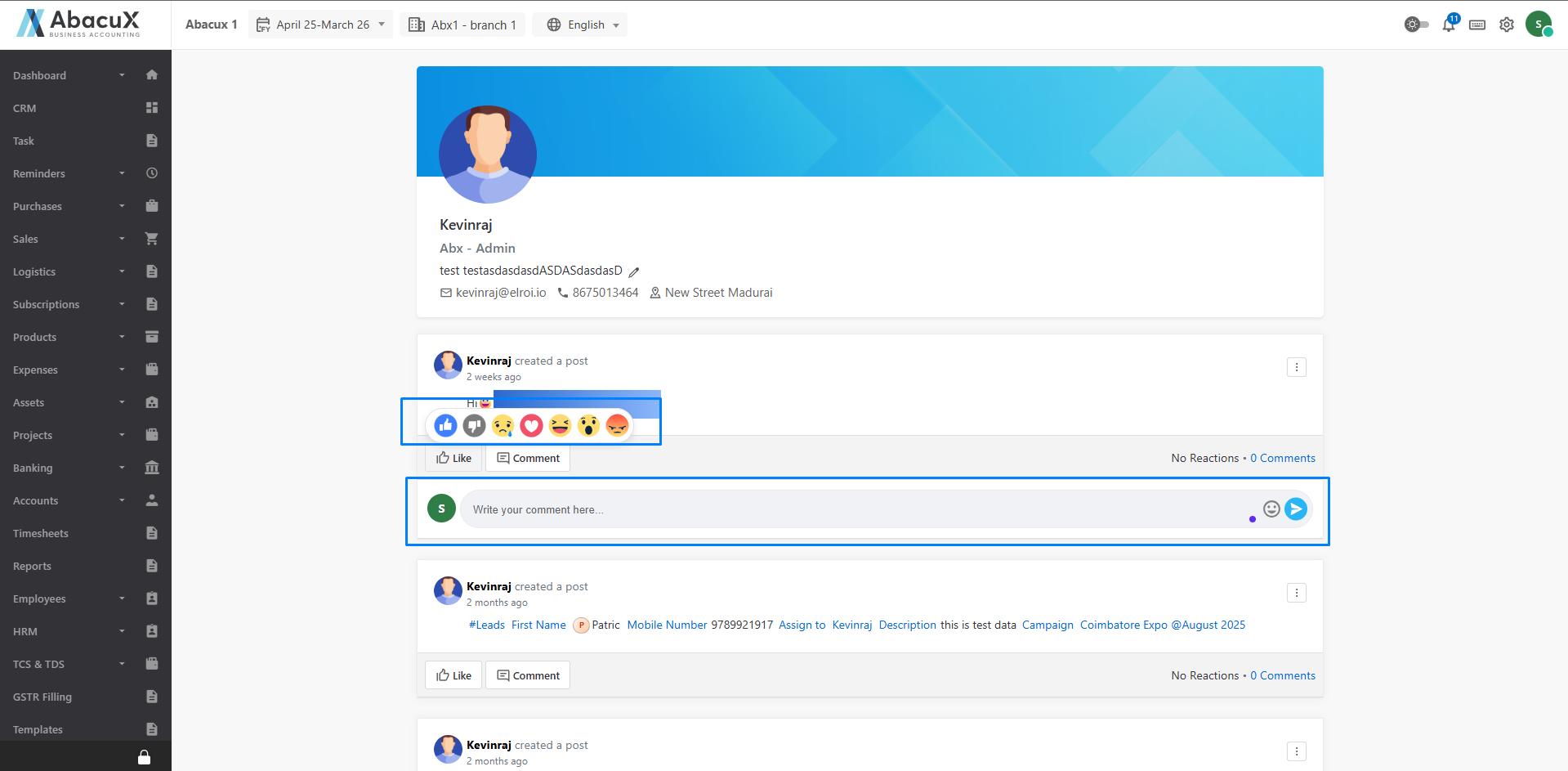
The View Profile section allows users to view and interact with posts made by a specific user within the Feeds module.
Steps to View and Interact
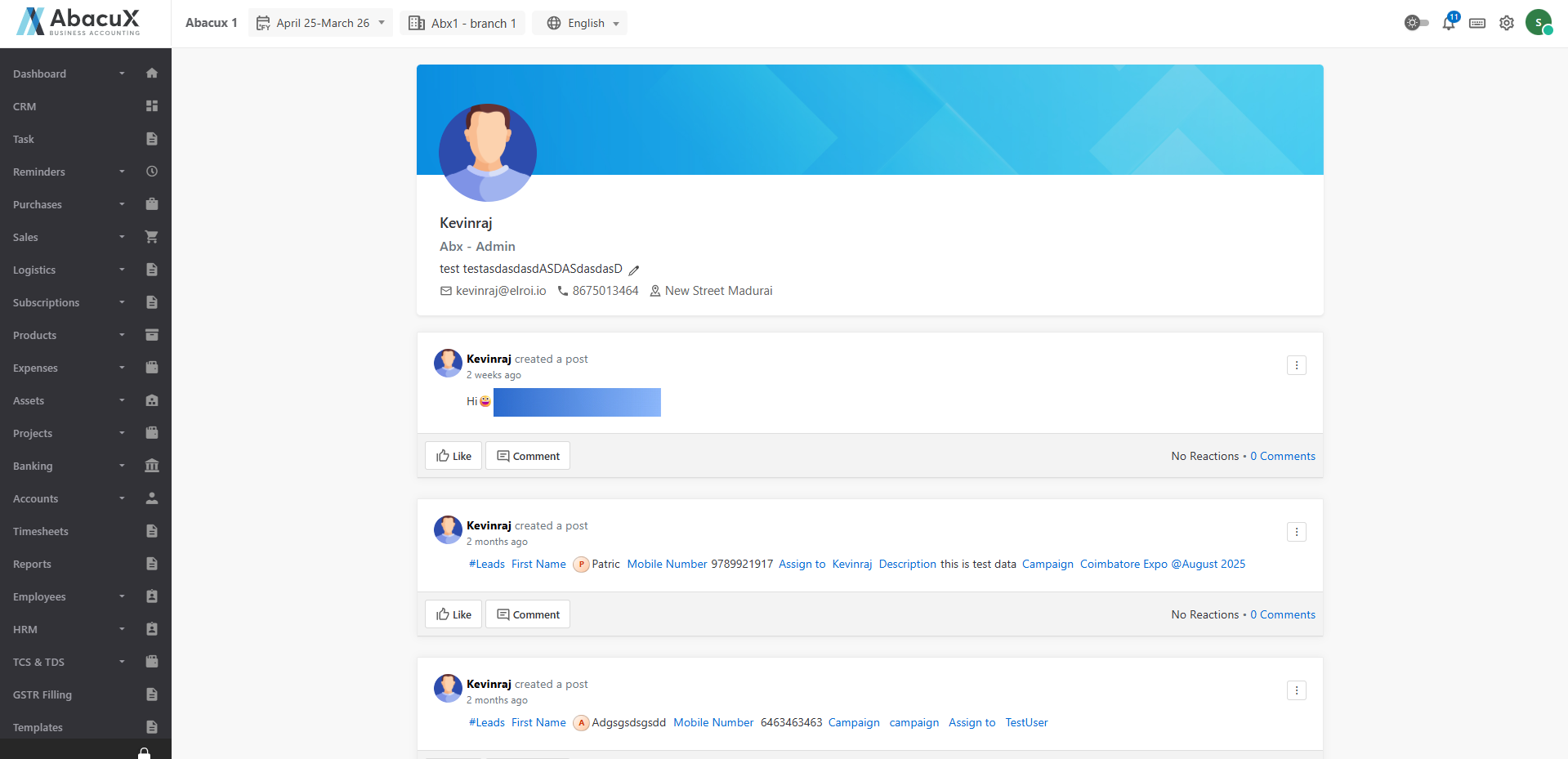
- Click on a user name in the feeds list to navigate to the profile page displaying all posts created by that user.
-
You can like a post using the available reaction options.
-
Click the Comment button to open the text area and enter your comments about the post.
-
You can also like or reply to existing comments on a post.
-
Each post displays a summary at the bottom section, showing the total reaction count and comment count.