Tasks
CRM Tasks
The Tasks module in the CRM allows users to create, manage, and track tasks efficiently. Each task can be associated with a Lead, Contact, Customer, or Company, ensuring all activities are properly organized and linked to the relevant entity.
Managing Tasks
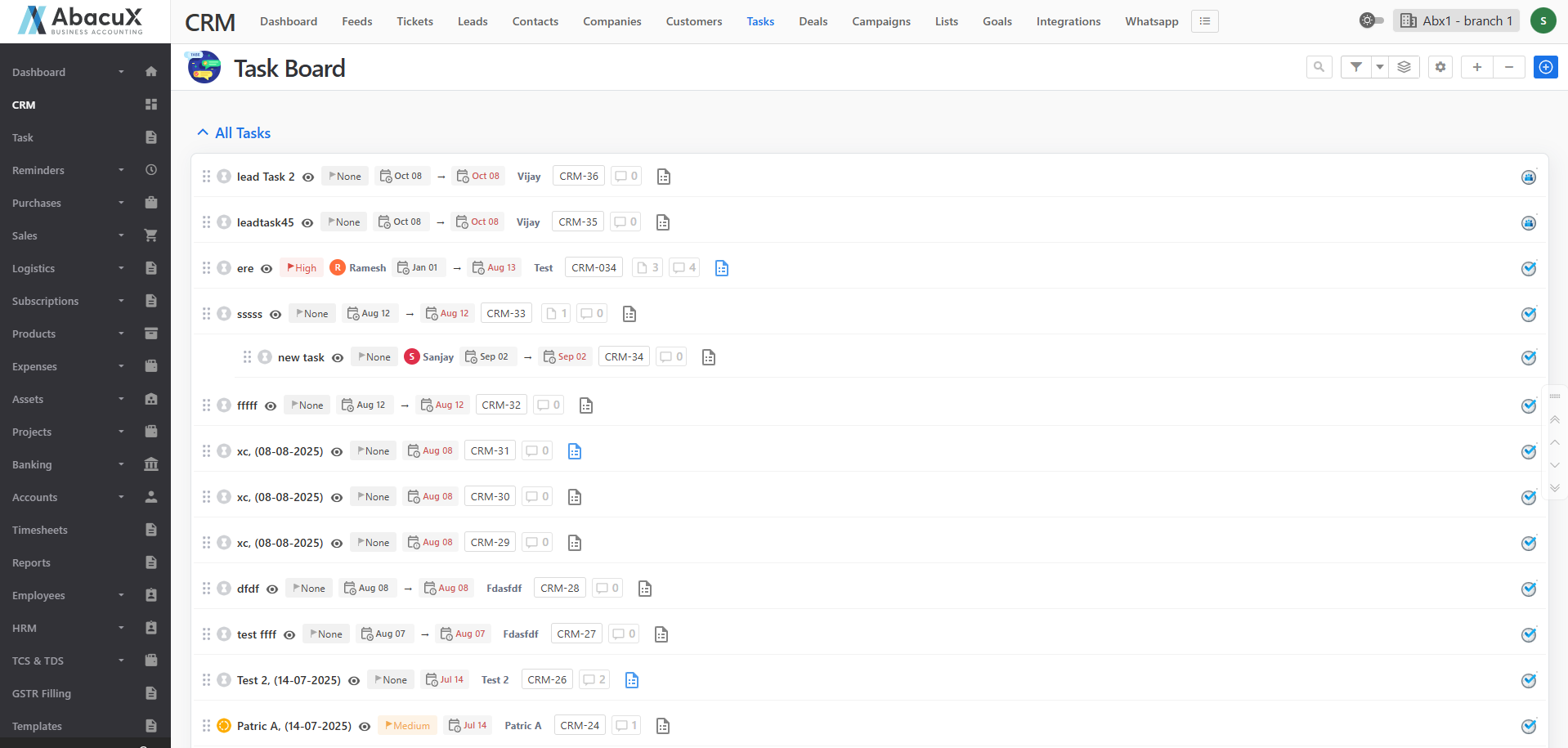
- Click on the Tasks menu in the CRM to view the list of all existing tasks.
-
To add a new task, click the “+” icon located at the top-right corner of the page.
-
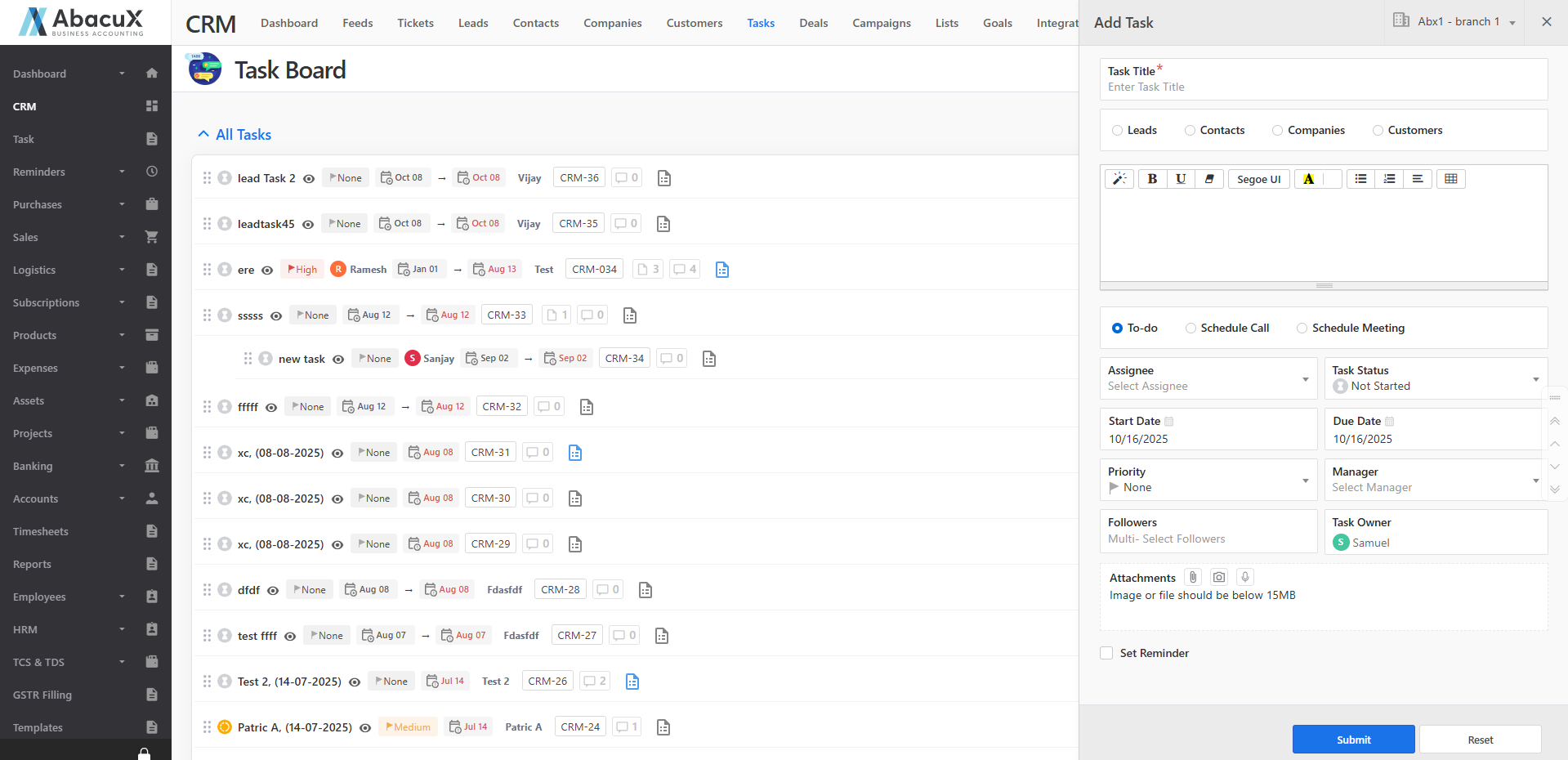
This will open a form where you can enter the task details.
-
Fill in all the required fields and click Save to create the task.
-
Upon successful saving, a success message will be displayed on the listing page.
-
If there is any issue while saving the form, an error message will appear.
-
Click the Stack icon to group the task list based on the selected criteria (e.g., status, owner, priority).
-
Click the Settings icon to customize your view by showing or hiding specific columns or groups.
-
Use the “+” and “–” icons to expand or collapse grouped task lists for easier navigation.
-
Tasks can only be associated with a Lead, Contact, Customer, or Company.
-
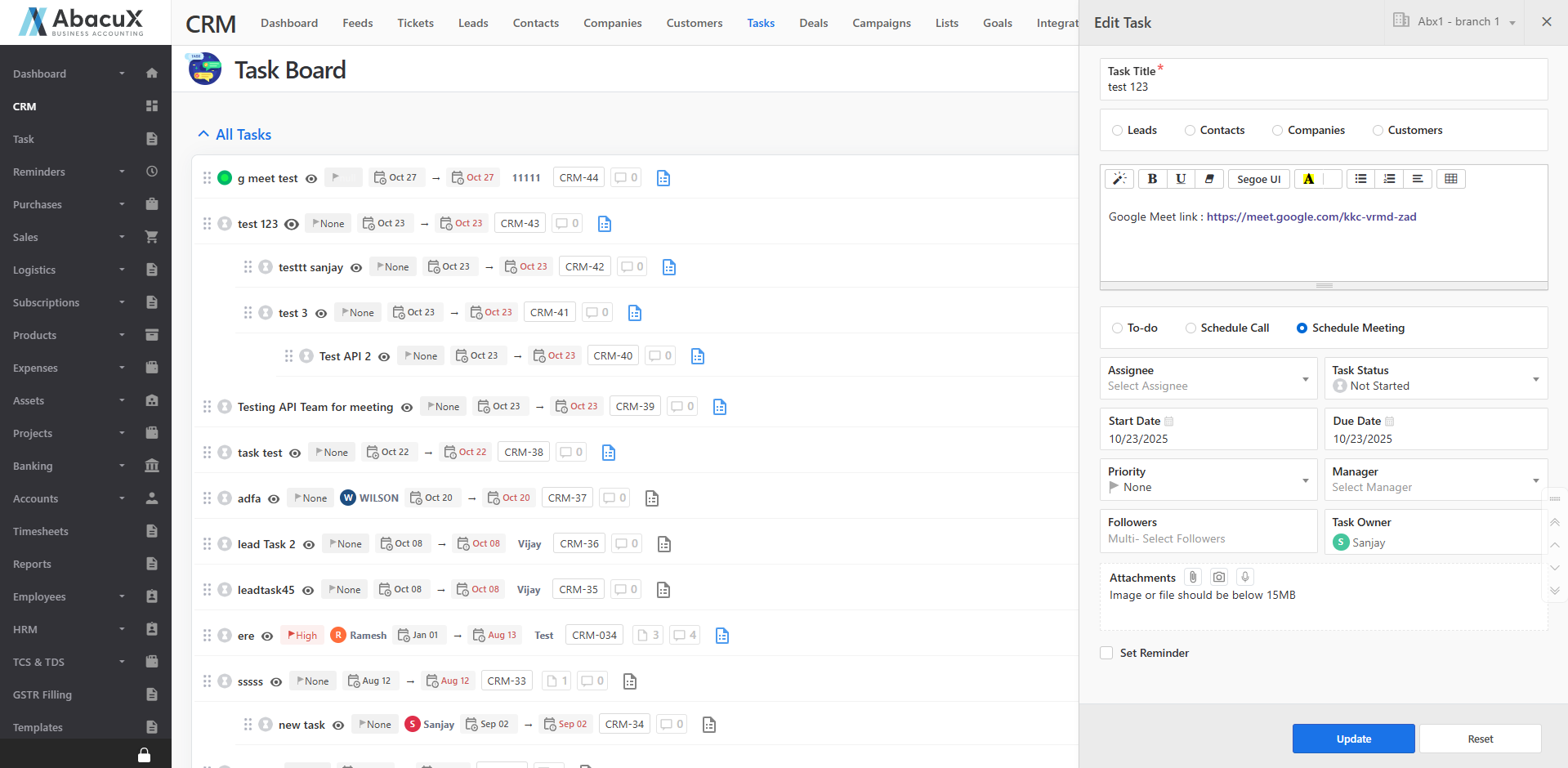
Clicking the Eye icon in the task list will open the related Lead, Contact, Customer, or Company profile page.
-
If a task is not associated with any main module, the Eye icon will open the editable task view directly.
-
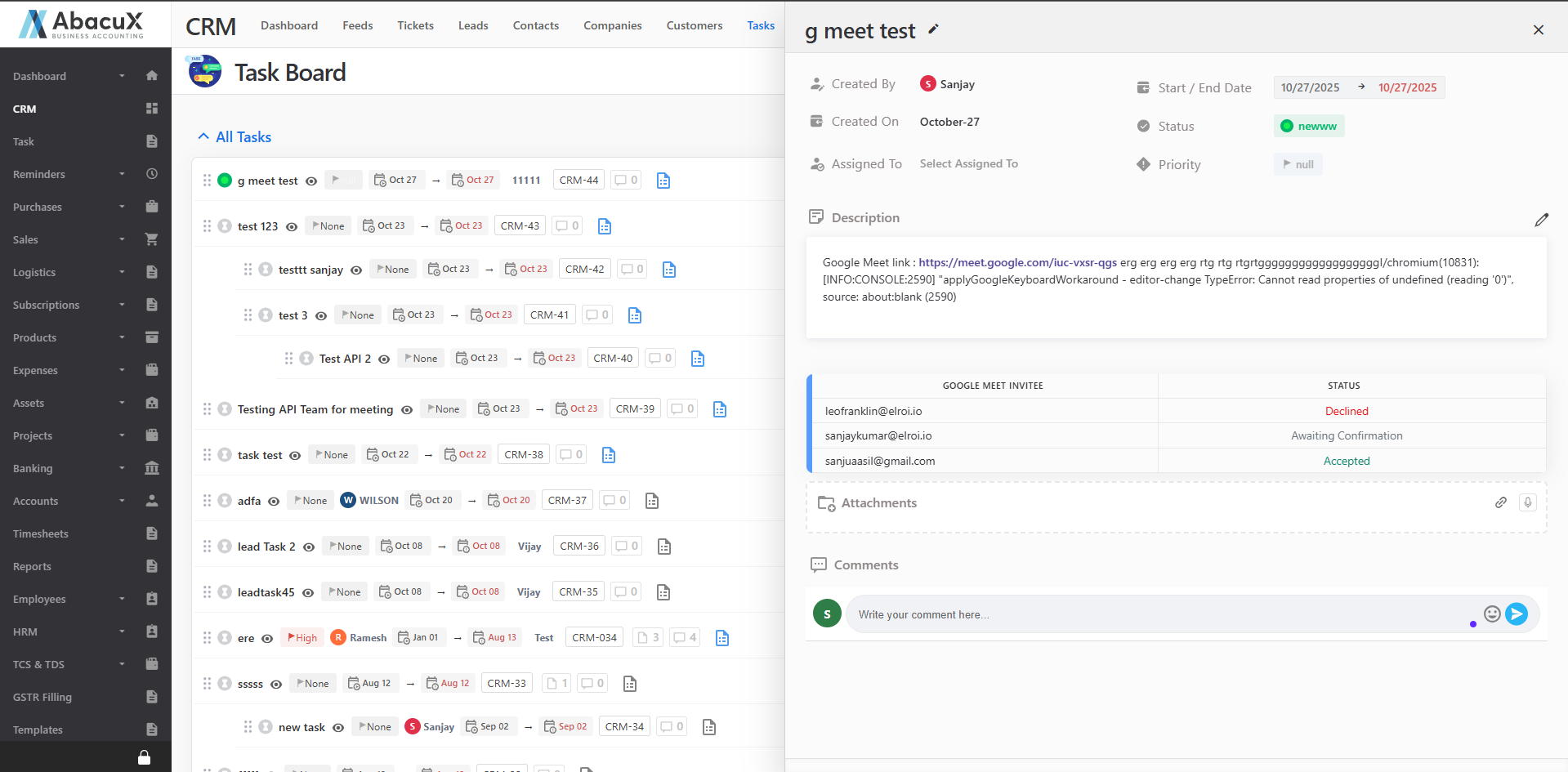
Clicking on the task name will open the detailed view screen of the selected task, displaying complete information and activity history.