Deals
CRM Deals
The Deals module in the CRM helps you manage potential business opportunities efficiently. You can create, track, and monitor all deals along with their related activities, notes, and transactions.
Managing Deals
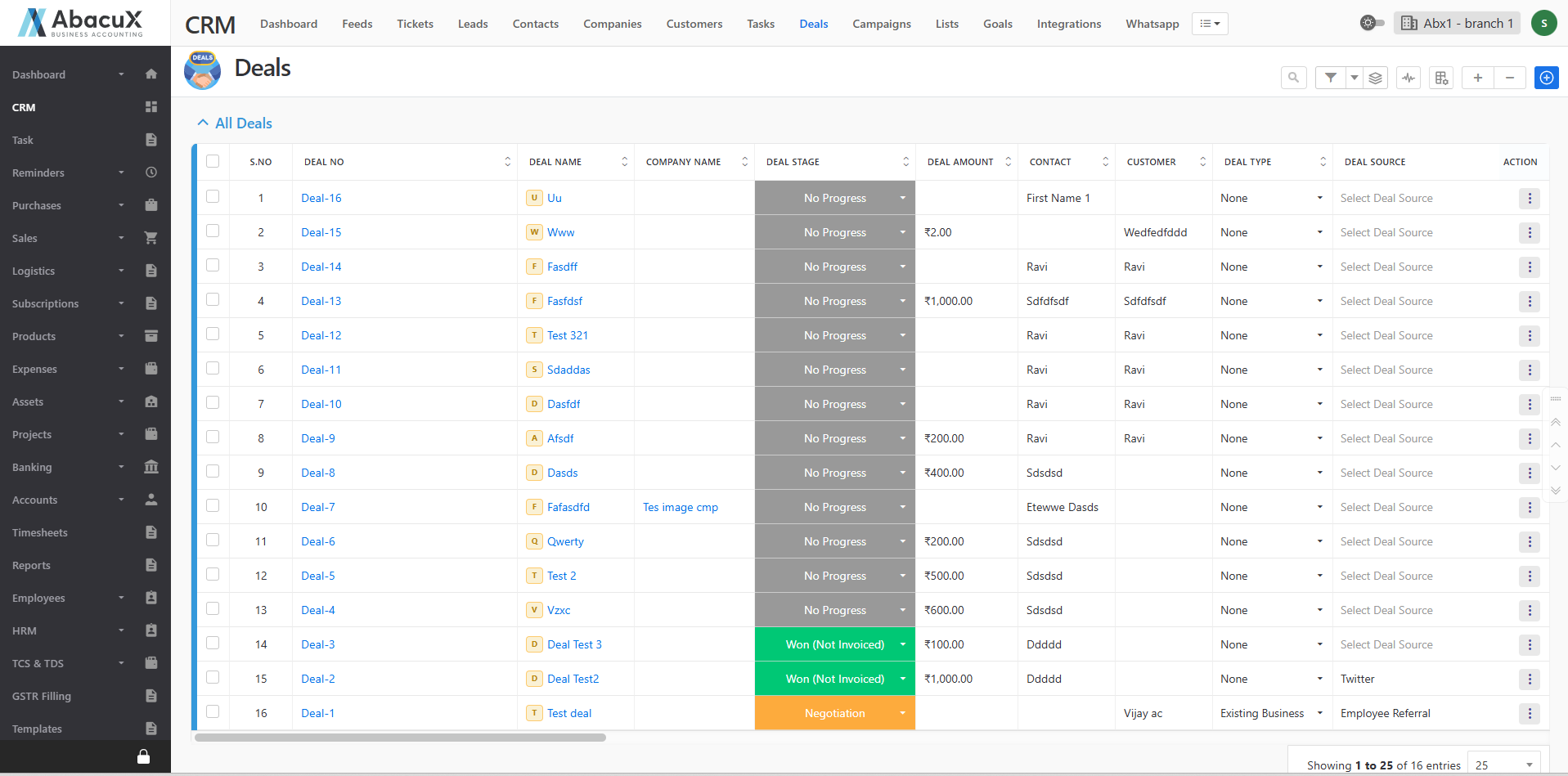
- Click on the Deals menu in the CRM to view the list of all existing deals.
-
To add a new deal, click the “+” icon located at the top-right corner of the page.
-
This will open a form to enter the deal details.

-
Fill in all the required fields and click Save to create the deal.
-
Upon successful saving, a success message will appear on the listing page.
-
If there is any issue while saving the form, an error message will be displayed.
-
The listing page includes search and filter options to help you quickly find specific deals based on different criteria.
-
Click the Stack icon to group deals based on the selected type or category.
-
Click the Beat icon to view all activities associated with the deals.
Deal Profile
-
Click on a deal name from the list to open the Deal Profile page.
-
The Deal Profile page is divided into three main sections:
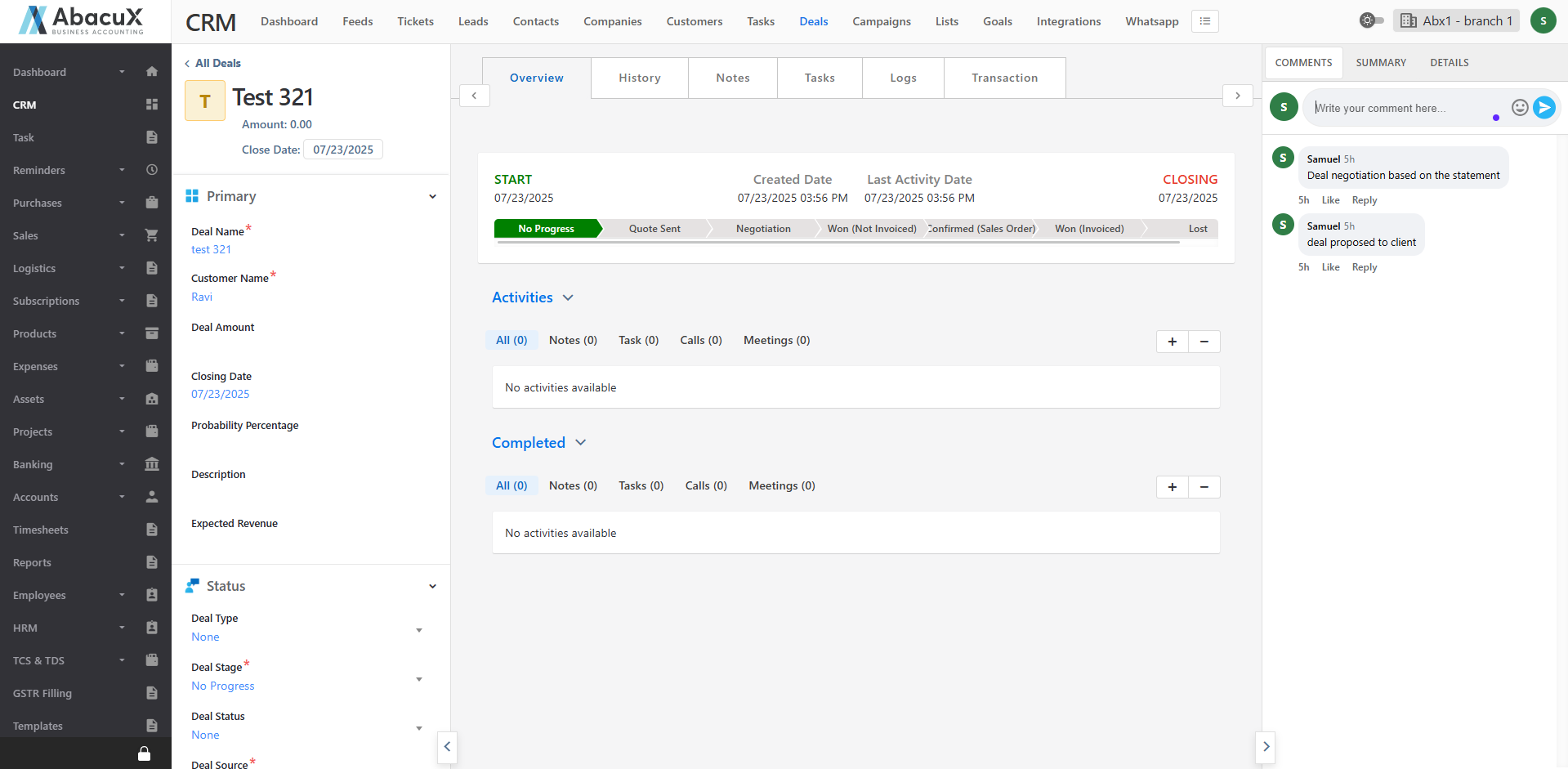
Left Panel
Displays the deal details with an editable option, allowing you to update information as needed.
Middle Panel
This section contains the following tabs:
Overview – Displays all completed and ongoing activities related to the deal.
History – Shows the complete transaction history of the deal.
Notes – Used to add and manage notes associated with the deal.
Tasks – Displays all tasks linked to the deal.
Logs – Shows the call logs and meeting logs related to the deal.
Transaction – Allows you to manage the associated quotes linked to the deal.
Right Panel
This section includes the following tabs:
Comments – Used to post and manage comments or discussions about the deal.
Summary – Provides a summarized view of the deal’s key details and activities.
Details – Displays additional information, including Company, Contact, Customer, and Quote details.