Debit / Credit Notes
Debit Notes
Overview
A Debit Note is a formal document issued by a buyer (your business) to a vendor to request a refund, credit, or adjustment for goods that are returned, damaged, or incorrectly billed. In the ERP system, the Debit Notes module enables users to manage such transactions efficiently by documenting the reasons and financial impact of returned or disputed goods.
Purpose
The Debit Notes feature helps businesses:
-
Maintain a clear record of purchase returns or disputes.
-
Request refunds or credit adjustments from vendors.
-
Ensure accurate financial reconciliation with supplier accounts.
-
Improve transparency and auditability in purchase processes.
When to Use a Debit Note
A Debit Note is typically issued in the following scenarios:
-
Goods received are damaged, defective, or expired.
-
The wrong items or excess quantity was delivered.
-
There is a pricing discrepancy on the purchase invoice.
-
Purchase return due to quality issues or order cancellation.
Key Features in ERP
Link to Purchase Bills
-
Debit Notes can be directly linked to the original purchase bill for easy tracking and reconciliation.
-
Supports both full and partial returns.
Item-Level Adjustment
-
Specify the returned or disputed items, quantities, and amounts.
-
Update stock levels automatically upon confirmation of the debit note.
Tax and Accounting Integration
-
Automatically calculates tax and updates vendor ledger balances.
-
Integrated with the accounting module to ensure accurate entries for purchase returns.
Reason and Reference Fields
-
Capture the reason for issuing the debit note (e.g., damaged item, incorrect price).
-
Add reference numbers (e.g., original purchase bill number, return invoice).
Status Tracking
-
Track the status of each debit note: Draft, Issued, Approved, or Settled.
-
Monitor whether the refund or credit has been received from the vendor.
Printable Format
- Generate and print professional debit note documents to share with vendors.
Example Workflow
Step 1: A purchase bill is created for 100 units of a product.
Step 2: Upon receiving the goods, 10 units are found to be damaged.
Step 3: The user creates a Debit Note linked to the original purchase bill, mentioning the 10 defective units and their value.
Step 4: The system adjusts the inventory, updates the vendor’s balance, and records the transaction.
Step 5: The Debit Note is printed and sent to the vendor for acknowledgment and processing.
Steps to Manage a Debit Note
Access the Debit Notes Section:
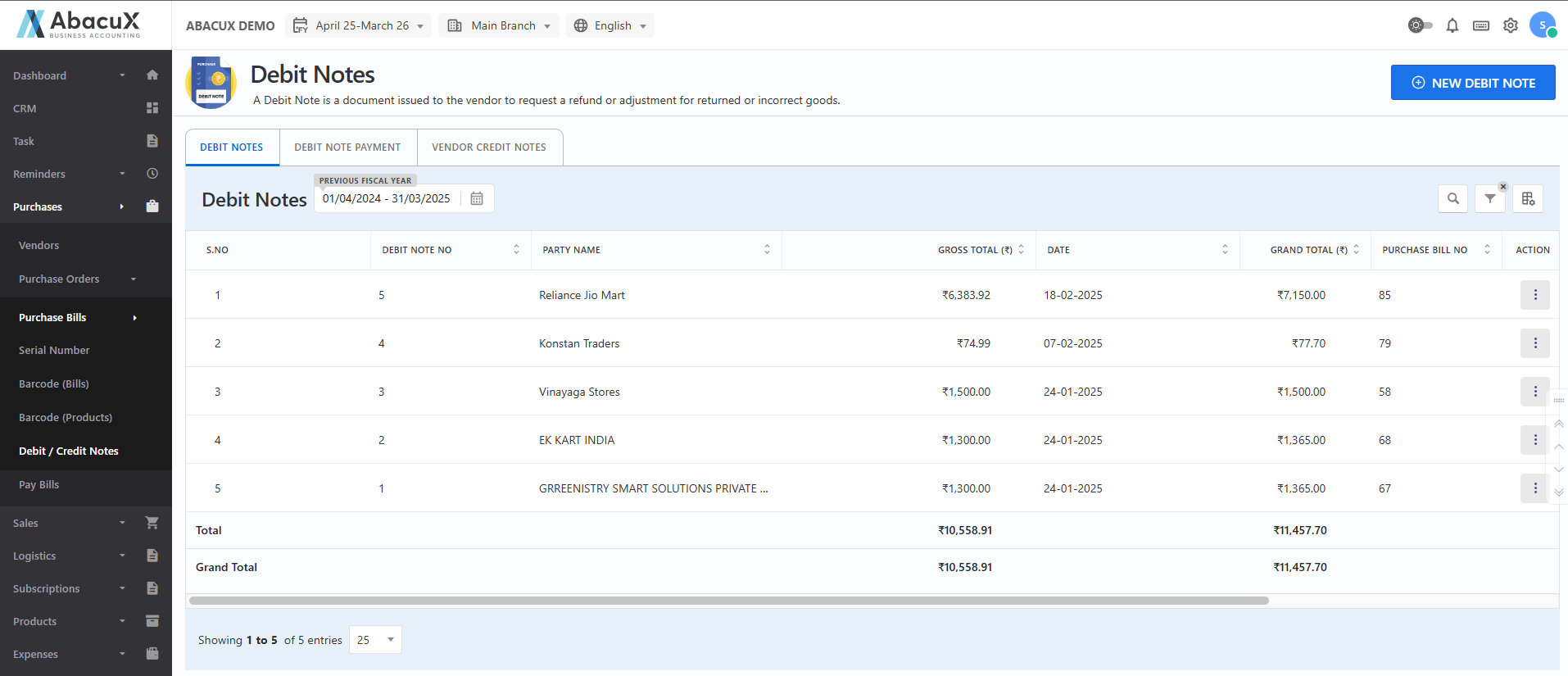
- Navigate to the "Credit / Debit Note" link from the appropriate menu. This will open the Debit Notes List view.
Create a New Debit Note:
- Click the "New Debit Note" button located at the top-right corner of the list page to initiate a new entry.
Enter Debit Note Details:
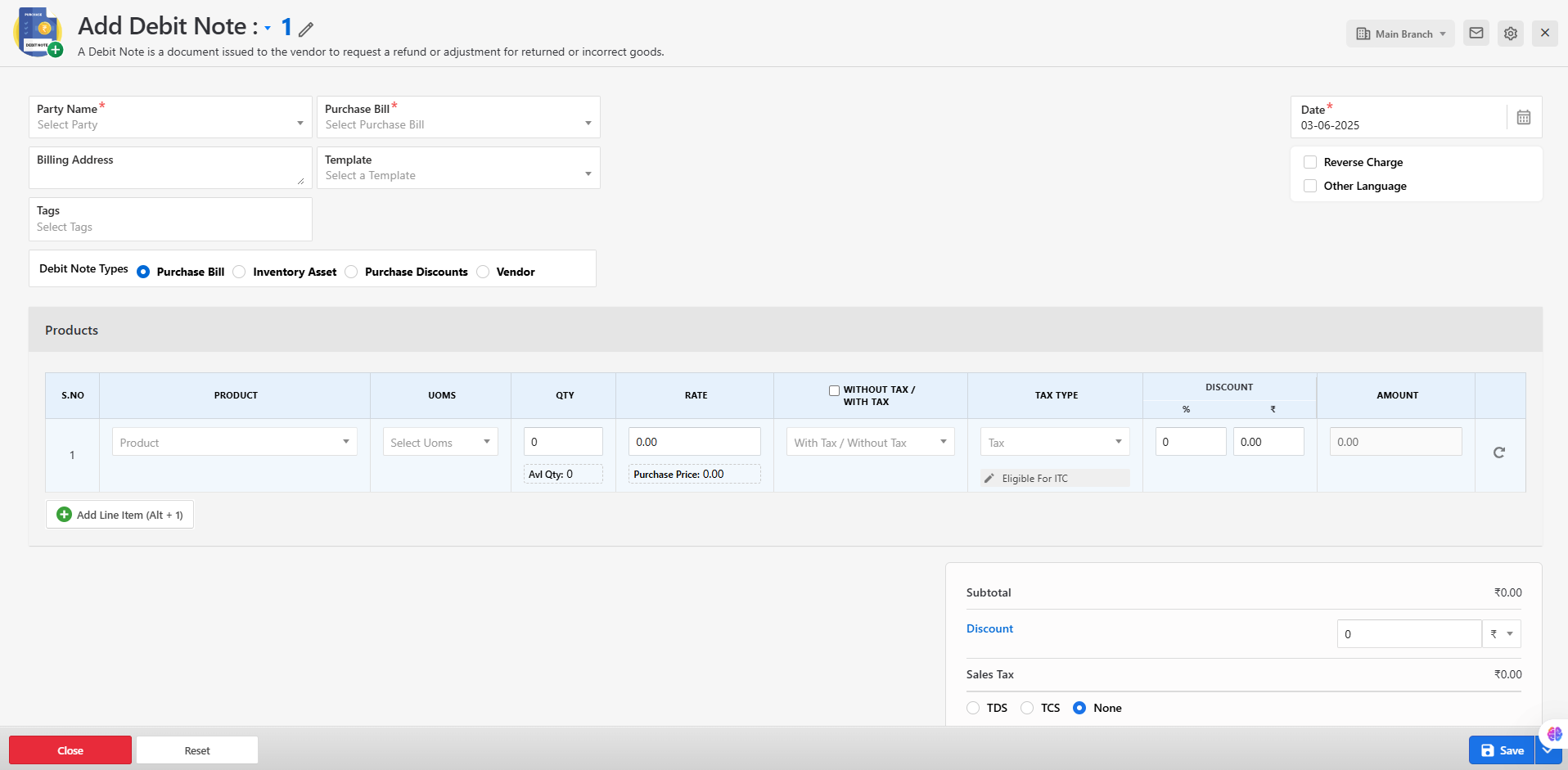
- A form will appear where you can input the necessary details such as vendor name, reference bill, item details, reason for return, amount, and tax information.
Save the Form:
- After completing all required fields, click the "Save" button to submit the form.
Successful Submission:
- If the form is saved successfully, a success message will appear and the new debit note will be visible in the list.
Error Handling:
- If any validation or system errors occur during submission, an error message will be displayed on the form itself, allowing you to correct the inputs.
Manage Existing Debit Notes:
From the debit notes list, you can perform the following actions on each entry:
Edit – Modify the debit note details.
Delete – Remove the debit note permanently.
Print – Generate a printable version of the debit note.
Download – Export the debit note in PDF or supported format.
Send Mail – Email the debit note directly to the vendor from the system.
Notes:
-
Ensure that the original purchase bill is referenced correctly when creating a debit note.
-
Only authorized users can delete or modify issued debit notes.
Benefits
Improved Vendor Communication: Clearly communicates discrepancies and expected adjustments.
Accurate Accounting: Ensures the general ledger and vendor statements are updated correctly.
Inventory Accuracy: Automatically reflects returned quantities in stock levels.
Compliance: Facilitates tax and audit compliance with proper documentation.
Integration with Other Modules
Purchase Module: Debit Notes are linked to original purchase entries.
Inventory Module: Automatically adjusts item quantities for returned goods.
Accounting Module: Vendor payables and tax accounts are updated accordingly.
Reports Module: Includes return summaries, vendor-wise debit note reports, and outstanding credits.
Conclusion
The Debit Notes feature in the ERP system provides a systematic and traceable way to handle vendor returns and billing disputes. It ensures financial accuracy, improves supplier communication, and supports better inventory and accounting management. This is an essential tool for maintaining purchase integrity and operational transparency.
Debit Note Payment
Overview
Debit Note Payment refers to the process of recording the payment or credit settlement made by a vendor in response to a Debit Note issued by your business. This module enables users to track and confirm vendor reimbursements—either as a direct refund or as an adjustment against future purchases—thus maintaining accurate and up-to-date financial records.
Purpose
The Debit Note Payment feature ensures:
-
Proper tracking of vendor responses to debit notes.
-
Accurate vendor ledger balances and financial reconciliation.
-
Clear audit trail for purchase returns, disputes, and credit settlements.
Key Scenarios Where Debit Note Payment is Used
-
A vendor refunds the amount related to a returned or disputed purchase.
-
The vendor provides a credit note that will be adjusted in a future purchase.
-
A bank transfer, cheque, or cash refund is received for the debit note amount.
-
The refund is applied partially or in installments, requiring multiple payment entries.
Key Features in ERP
Link to Existing Debit Notes
-
Debit Note Payments are directly associated with previously issued Debit Notes.
-
Ensures a one-to-one or one-to-many relationship between debit notes and payments.
Multiple Payment Modes
-
Record payments received via cash, cheque, bank transfer, or credit adjustment.
-
Add payment reference numbers, dates, and remarks for traceability.
Partial and Full Settlement
-
Supports partial payments, with the ability to track remaining balances.
-
System automatically updates the payment status (e.g., Unpaid, Partially Paid, Paid).
Vendor Ledger Integration
-
Updates the vendor's account balance in real-time.
-
Reflects in accounts payable and financial reports instantly.
Audit and History Logs
-
Maintains a history of all payments linked to each debit note.
-
Allows tracking of who recorded the payment and when.
Printable and Exportable Receipts
-
Generate acknowledgment receipts or reports for vendor confirmations.
-
Export payment records for audit or compliance purposes.
Example Workflow
Step 1: A Debit Note of ₹10,000 is issued to Vendor A for returned goods.
Step 2: Vendor A agrees to refund ₹10,000 via bank transfer.
Step 3: The user records the Debit Note Payment, selecting the relevant debit note and payment method.
Step 4: The system updates the vendor ledger, marks the debit note as “Paid,” and records the transaction in the accounts module.
Step 5: A confirmation receipt is generated and can be printed or emailed.
Steps to Manage a Debit Note Payment
Access the Debit Note Payment Section:
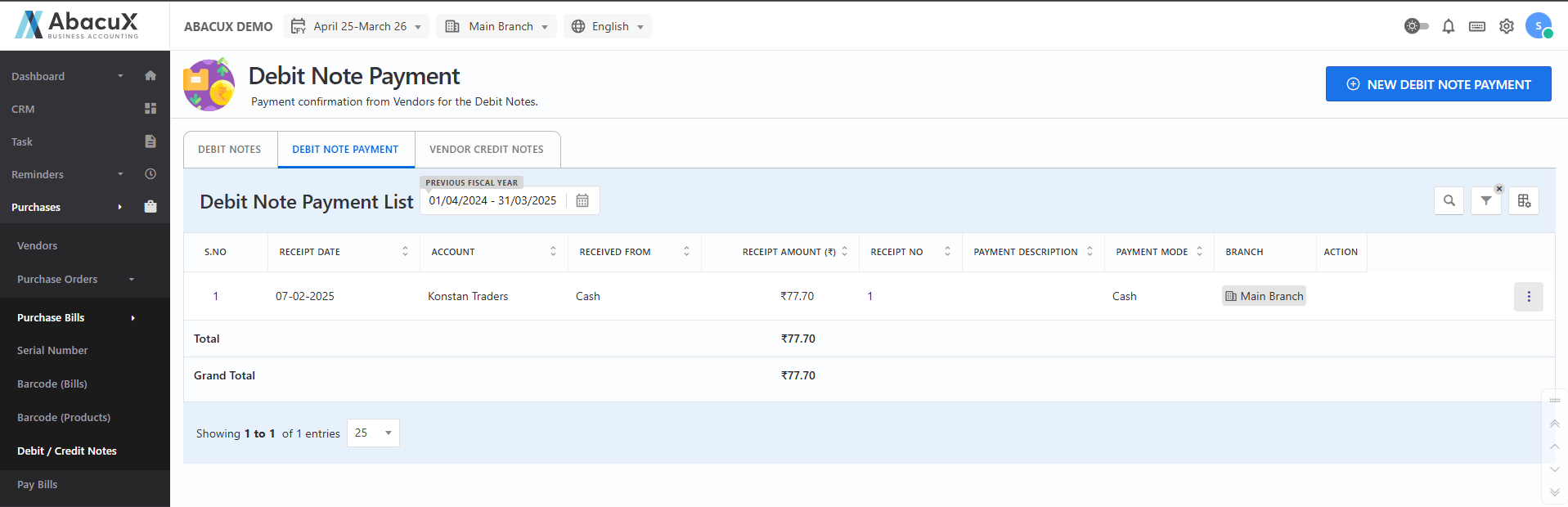
- Navigate to the "Debit Note Payment" tab. This will display the list of all recorded debit note payments.
Add a New Debit Note Payment:
- To record a new payment, click the "New Debit Note Payment" button located at the top-right corner of the list page.
Enter Payment Details:
-
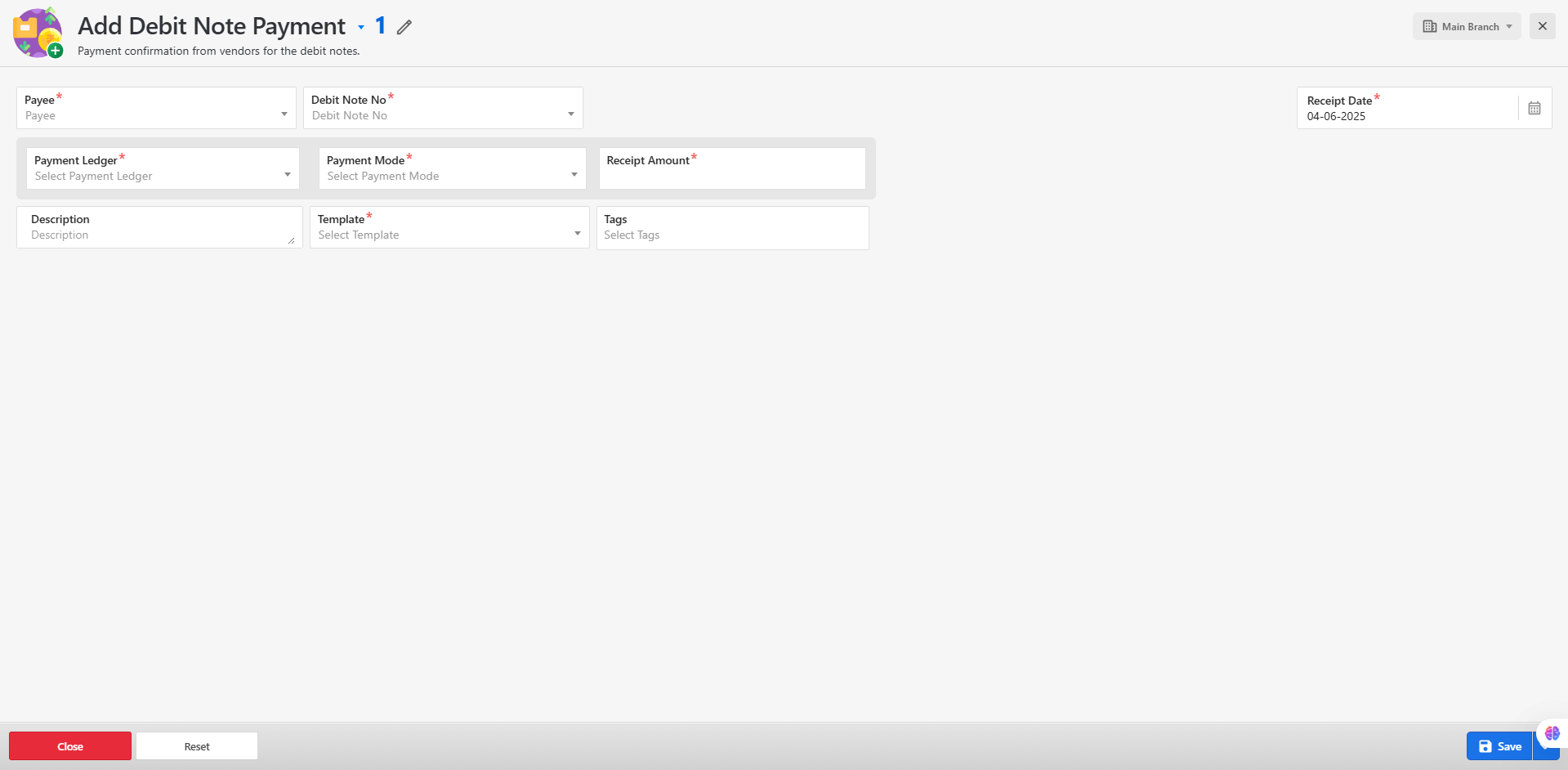
A form will appear for entering payment details such as:
-
Payee ( Vendor name )
-
Associated debit note
-
Payment mode
-
Receipt date
-
Receipt amount
-
Save the Form:
- After completing all required fields, click the "Save" button to submit the form.
Successful Submission:
- Upon successful submission, a success message will be displayed and the payment entry will appear in the list.
Error Handling:
- If any validation error occurs, an error message will be shown on the form, prompting you to correct the inputs before resubmission.
Manage Existing Payments:
- From the Debit Note Payment list, you can manage each entry using the following actions:
Delete – Remove the payment record.
Print – Generate a printable version of the payment confirmation.
Notes:
-
Ensure that the payment amount does not exceed the debit note value.
-
Payment records directly impact the vendor ledger and should be managed carefully.
Benefits
Accurate Reconciliation: Ensures all vendor refunds are tracked and settled properly.
Financial Transparency: Maintains clarity in vendor accounts and return settlements.
Time-Saving: Reduces manual efforts in tracking vendor credits or pending refunds.
Improved Vendor Relations: Clear documentation builds trust and supports dispute resolution.
Integration with Other Modules
Debit Notes: Directly linked to debit note entries created under the Purchase module.
Accounts Payable: Vendor balances are updated automatically upon payment recording.
Reports Module: Generate reports on unpaid, partially paid, and fully paid debit notes by vendor or date range.
Conclusion
The Debit Note Payment functionality plays a crucial role in closing the loop of the purchase return process. It ensures that all issued debit notes are appropriately acknowledged and financially settled by vendors, contributing to clean books of accounts and effective vendor management.
Vendor Credit Note
Overview
A Vendor Credit Note is an official document issued by a vendor in response to a purchase return, pricing discrepancy, or billing error. It confirms the acknowledgment of a refund or adjustment owed by the vendor to your business. In the ERP system, the Vendor Credit Note module helps you record, track, and apply credits provided by vendors, ensuring proper accounting and reconciliation of purchase-related transactions.
Purpose
The Vendor Credit Note feature allows businesses to:
-
Record official vendor-issued credit for returned or disputed goods.
-
Adjust outstanding bills or apply credits to future purchases.
-
Maintain accurate vendor ledgers and tax records.
-
Ensure audit readiness and transaction transparency.
When to Use a Vendor Credit Note
Vendor Credit Notes are typically issued and recorded when:
-
Goods purchased are returned to the vendor.
-
There is an overcharge or pricing mistake in the purchase invoice.
-
Quantity discrepancies or damaged items are identified post-delivery.
-
The vendor provides a settlement in the form of a credit rather than a direct refund.
Key Features in ERP
Link to Purchase Bills or Debit Notes
-
Associate vendor credit notes with specific purchase bills or debit notes for traceability.
-
View complete transaction history for each return or adjustment.
Credit Note Entry
-
Record credit note details including reference number, date, vendor name, reason for issue, item details, and amount.
-
Supports itemized credit entries and tax breakup.
Balance Adjustment
-
Apply vendor credit notes against future purchases or outstanding bills.
-
System automatically updates vendor ledger balances and payable accounts.
Status Tracking
-
Monitor the usage of credit notes: Available, Partially Used, or Fully Applied.
-
Track remaining credit balances per vendor.
Accounting and Tax Integration
-
Automatically posts journal entries to reflect credit adjustments.
-
Handles applicable tax reversals or credit adjustments based on return type.
Printable Format
- Generate and print professional credit note documents for records or vendor communication.
Example Workflow
Step 1: Your business returns goods worth ₹8,000 to Vendor X due to damage.
Step 2: Vendor X issues a Credit Note for ₹8,000.
Step 3: In the ERP system, the user records the Vendor Credit Note, linking it to the related debit note or purchase bill.
Step 4: The system updates the vendor's account and marks the related transactions accordingly.
Step 5: In the next purchase from Vendor X, the credit note is applied to reduce the invoice amount payable.
Steps to Manage a Vendor Credit Note
Access the Vendor Credit Note Section:
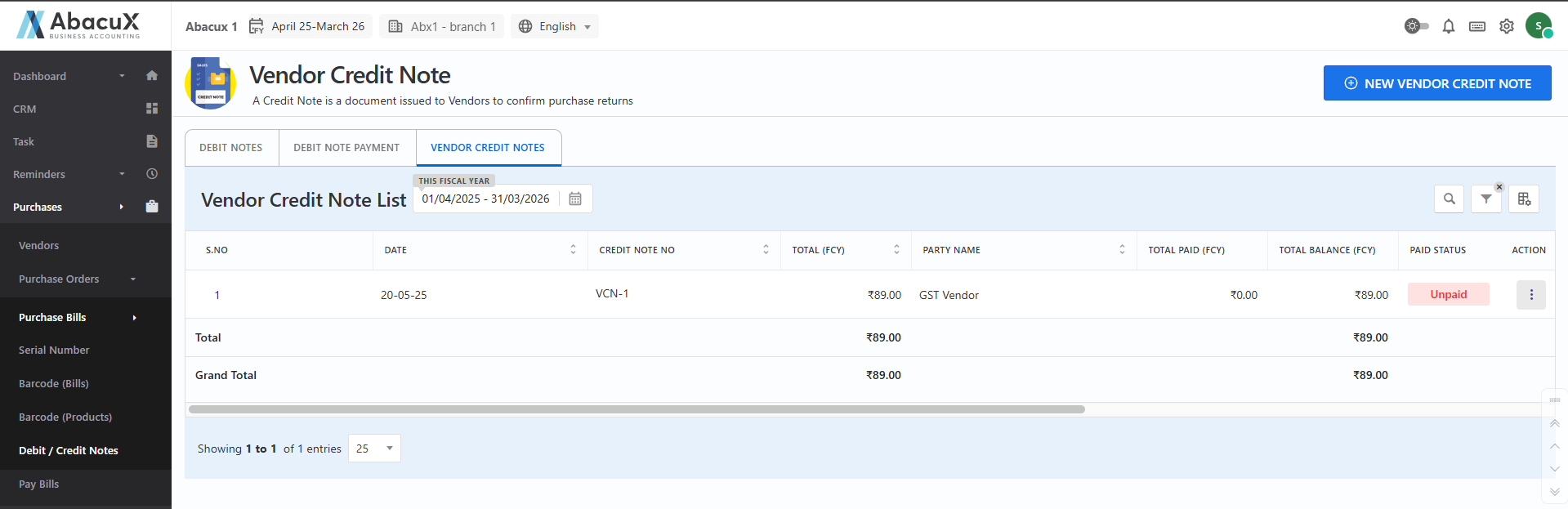
- Navigate to the "Vendor Credit Note" tab to view the list of all recorded vendor credit notes.
Add a New Vendor Credit Note:
- Click the "New Vendor Credit Note" button located at the top-right corner of the list page to initiate a new entry.
Enter Vendor Credit Note Details:
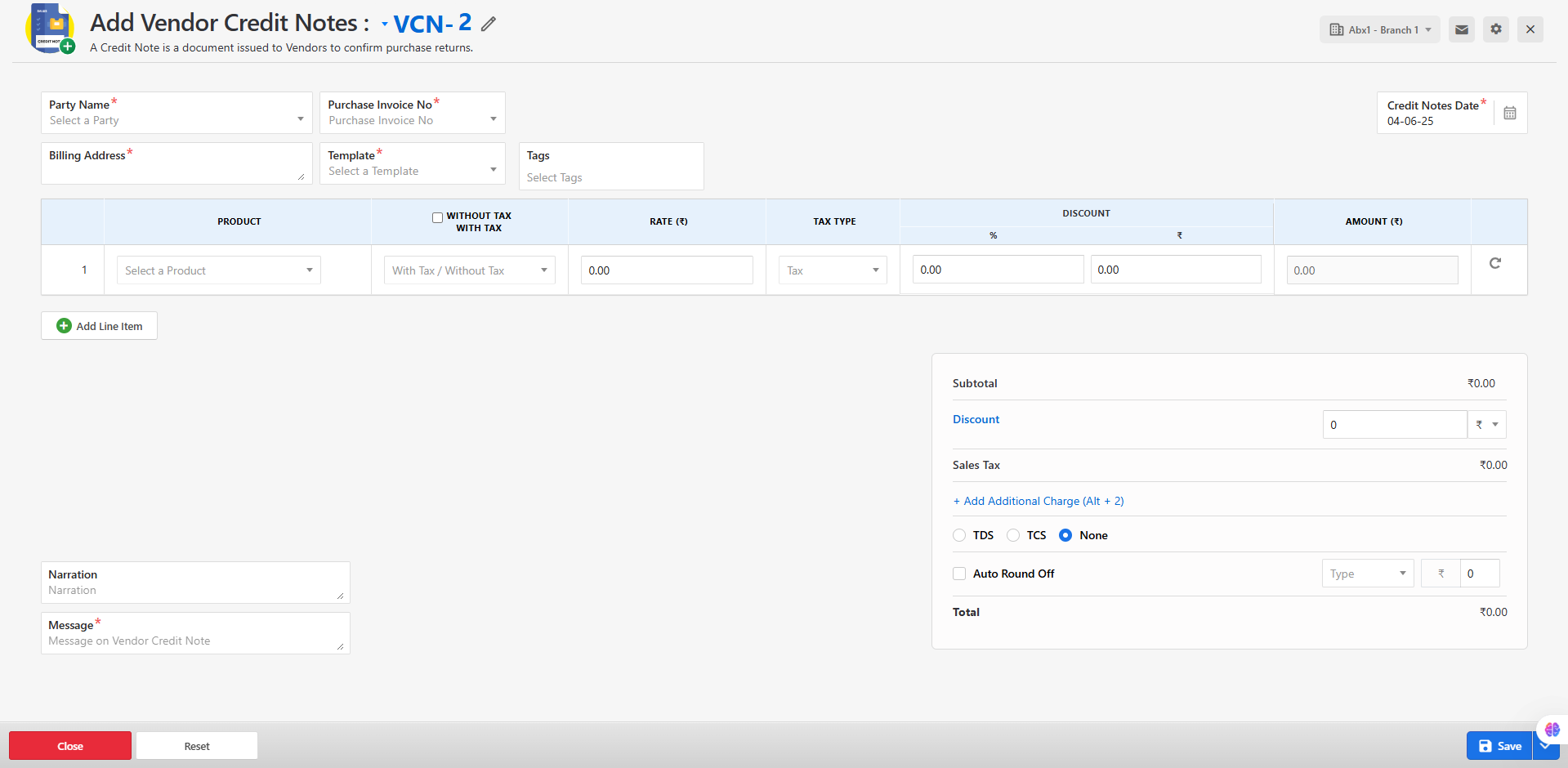
- A form will appear where you can enter the necessary details, such as:
-
Vendor name
-
Reference purchase or return note
-
Items and quantities
-
Reason for return
-
Credit amount and tax details
-
Save the Form:
- After filling in all required fields, click the "Save" button to submit the form.
Successful Submission:
- If the form is saved successfully, a success message will be displayed, and the credit note will appear in the list.
Error Handling:
- If any errors occur during submission, an error message will be shown on the form, indicating the necessary corrections.
Manage Vendor Credit Notes:
- From the list view, you can perform the following actions for each credit note:
Edit – Modify the credit note details.
Delete – Remove the credit note from the system.
Print – Generate a printable version of the credit note.
Download – Export the credit note as a PDF or supported format.
Send Mail – Email the credit note directly to the vendor.
Notes:
-
Ensure that the credit note corresponds accurately to the returned goods and reference documents.
-
Only authorized users should be allowed to edit or delete vendor credit notes for audit and traceability purposes.
Benefits
Accurate Vendor Account Management: Ensures correct tracking of amounts owed or credited.
Better Cash Flow Control: Allows businesses to apply vendor credits against future purchases.
Reduced Errors: Prevents duplicate or missed credit entries.
Compliance and Audit Readiness: Maintains proper records of vendor acknowledgments and return settlements.
Integration with Other Modules
Purchase Module: Directly linked with purchase orders, bills, and debit notes.
Accounting Module: Automatically updates ledgers and journal entries.
Reports Module: View credit note summaries, vendor-wise credit balances, and applied/unapplied credits.
Conclusion
The Vendor Credit Note module in your ERP application provides a reliable and transparent system to manage purchase returns and adjustments. By enabling you to record and track vendor-issued credits, it helps maintain clean financials, streamline procurement workflows, and strengthen vendor relationships.