Barcode (Bills)
Overview
The Barcode (Bills) module in the AbacuX application allows users to automatically generate barcodes for items listed in Purchase Bills. This feature streamlines inventory handling, improves stock traceability, and enhances accuracy in item identification during goods inward, sales, transfers, and stock audits.
Purpose
The main objective of generating barcodes from Purchase Bills is to:
-
Simplify the process of labeling purchased items.
-
Enable easy scanning and retrieval of product data.
-
Facilitate faster and error-free inventory management.
How It Works
When a Purchase Bill is created and finalized in the system, all items listed in that bill become available for barcode generation. The system fetches the item details—including quantity, product name, SKU, and batch/serial number (if applicable)—and allows you to generate corresponding barcodes.
Key Functionalities
Automatic Item Listing
-
Once a purchase bill is saved, items eligible for barcode generation are listed.
-
Supports both standard and serial-enabled items.
Custom Barcode Configuration
-
Configure what details appear on the barcode label (e.g., item name, SKU, MRP, purchase price, batch number, serial number, expiry date).
-
Choose barcode type (e.g., Code128, QR Code, EAN13) based on label and scanner compatibility.
Batch or Individual Barcode Printing
-
Generate barcodes for each unit (individual) or in bulk based on item quantity.
-
Print directly from the system using integrated label templates.
Serial Number Integration (if applicable)
-
For serial-tracked items, each barcode can be linked to a unique serial number.
-
Ensures complete traceability throughout the item's lifecycle.
Label Customization & Template Support
-
Multiple label sizes and layouts can be predefined.
-
You can design label templates with your logo, company name, and custom fields.
Example Workflow
Step 1: Create and save a Purchase Bill with items (e.g., 10 USB drives, 5 Monitors).
Step 2: Navigate to the Barcode (Bills) section.
Step 3: The system lists the bill items automatically.
Step 4: Select items and quantity for which barcodes are required.
Step 5: Choose barcode format and label design.
Step 6: Click Generate & Print – barcodes are created and ready for printing or export.
How to Generate Barcodes from Purchase Bills
Follow the steps below to generate and print barcodes based on purchase bills:
Navigate to Barcode (Bills):
- From the main menu, go to Purchase > Barcode (Bills). This will display the list of all purchase bills available for barcode generation.
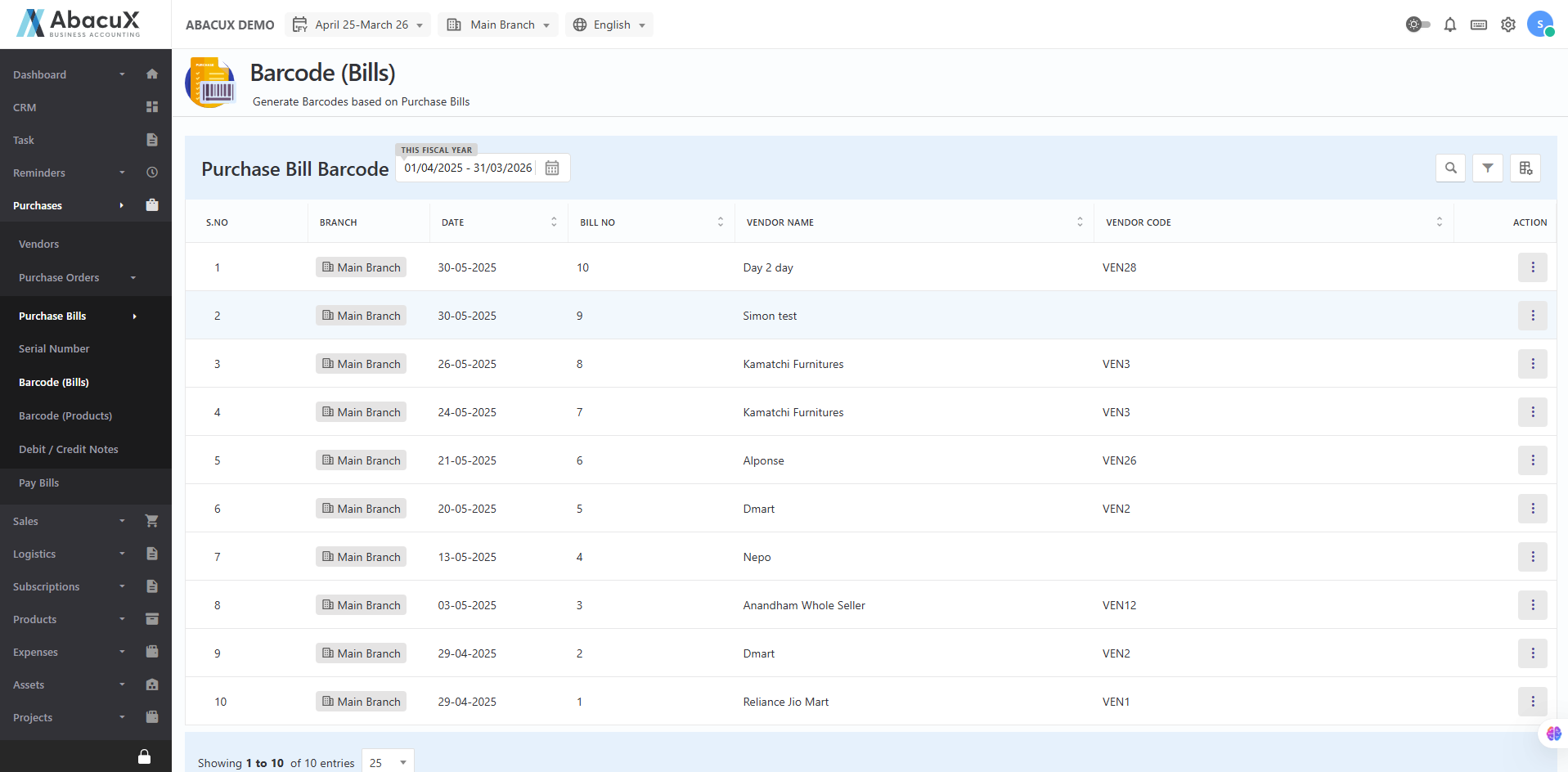
View Purchase Bills:
- The system will display a list of purchase bills along with an Action column. Each row will show whether the barcode generation option is available or not for the respective bill.
Check Barcode Availability:
- If barcode generation is applicable for a particular purchase bill, the "Print Barcode" action link will be visible. If not applicable, it will be marked as "Not Available".
Open Barcode Print Popup:
- Click on the "Print Barcode" link. A popup window will appear to configure barcode printing options.
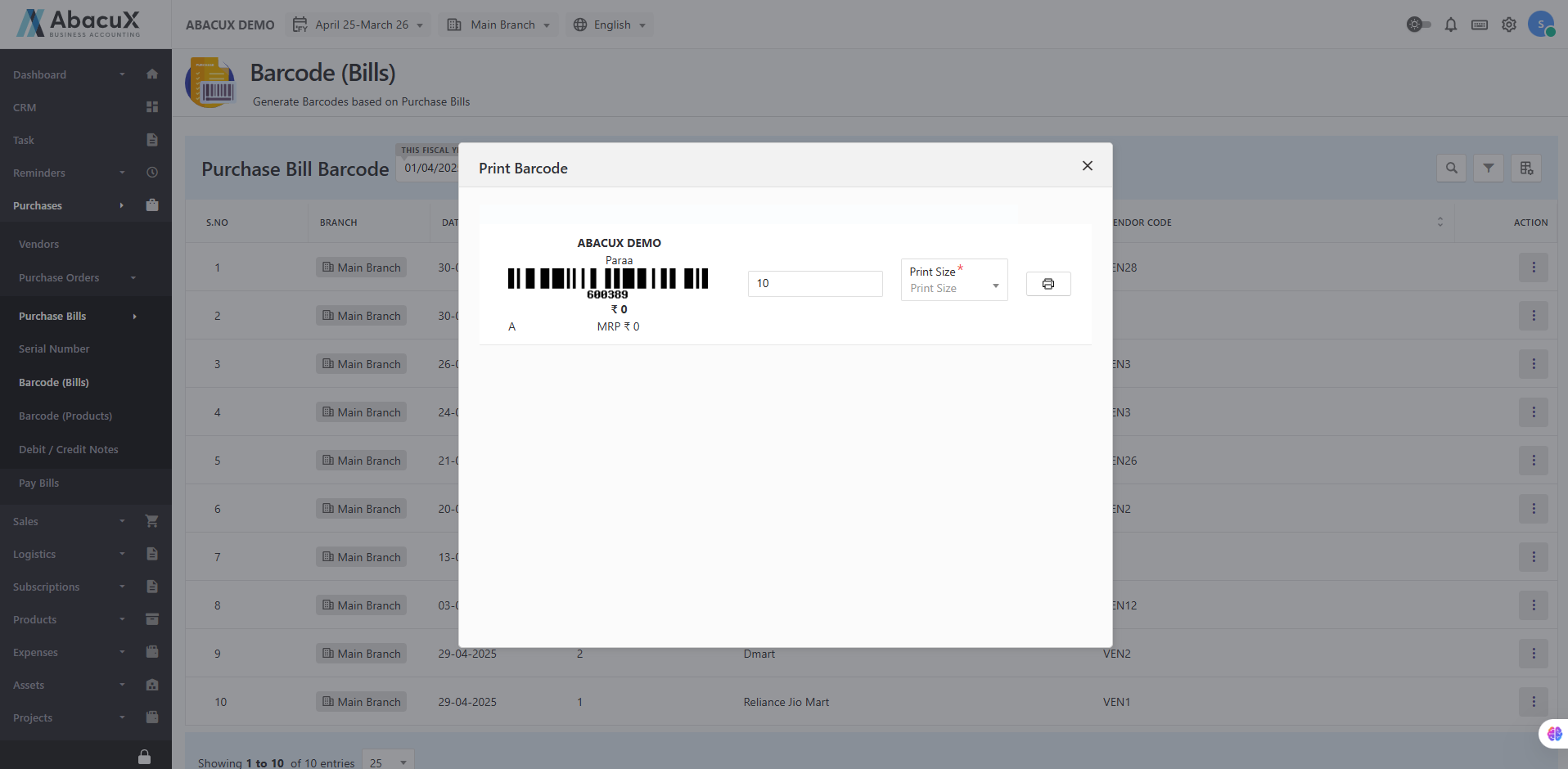
Set Barcode Details:
-
In the barcode popup window, you can:
-
Select the barcode size (e.g., 110 MM * 22 MM, 107 MM * 27 MM).
-
Enter or confirm the barcode value (auto-generated or editable based on settings).
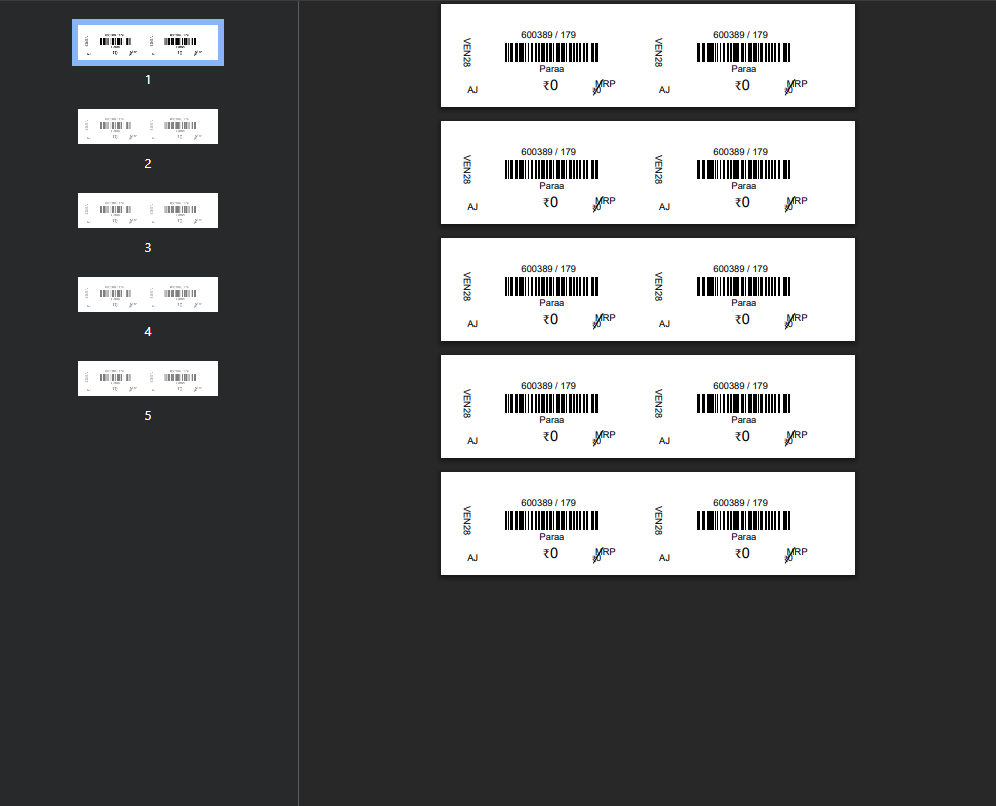
Print the Barcode:
- After setting the barcode size and value, click the "Print" button in the popup. The system will generate a printable barcode label based on your configuration.
Note:
-
Barcode generation is only enabled for items or bills marked as serial or barcode-enabled.
-
Ensure that printer settings are configured correctly to support barcode printing formats.
Benefits
-
Fast Barcode Generation: Eliminates the need for manual data entry or barcode creation.
-
Improved Stock Control: Scannable barcodes simplify goods receipt, transfers, and sales.
-
Reduced Errors: Minimizes human error during inventory operations.
-
Compliance & Traceability: Supports labeling standards and tracking down to serial level.
Use Case Scenarios
Retail/Wholesale: Label all incoming products with barcodes for quick billing and shelf management.
Manufacturing: Tag raw materials and components with purchase-linked barcodes for production use.
Warehouse Operations: Streamline inward scanning and location tracking of purchased items.
Conclusion
The Barcode (Bills) feature enhances operational efficiency by linking barcode generation directly to Purchase Bills. It ensures that every purchased item can be tracked accurately from the moment it enters inventory, laying the foundation for robust inventory control and automation.