Barcode (Products)
Overview
The Barcode (Products) module in the AbacuX application enables users to generate and print barcodes directly from product master records. This feature is designed to facilitate consistent labeling of items, improve inventory control, and ensure quick product identification during operations such as purchasing, sales, stock transfers, and audits.
Purpose
The main objectives of product-based barcode generation are to:
-
Provide each product with a scannable and unique identifier.
-
Enable faster and more accurate stock handling.
-
Standardize labeling across all inventory items.
-
Ensure barcode availability even before purchase or manufacturing processes.
Key Features
Barcode Generation from Product Master
-
Users can generate barcodes for individual products directly from the product catalog.
-
Suitable for labeling products that are frequently used, sold, or transferred.
Barcode Format and Configuration Options
-
Choose from various barcode types such as Code128, EAN13, QR Code, etc.
-
Define the barcode content: product name, SKU, product code, MRP, price, category, etc.
Single or Bulk Barcode Creation
-
Generate barcodes for a single product or select multiple products for batch barcode creation.
-
Ideal for mass labeling during product setup or catalog updates.
Custom Label Templates
-
Design barcode labels to include your company logo, product details, and layout preferences.
-
Support for multiple label sizes and print formats (thermal printers, A4 sheets, etc.).
Inventory Integration
-
Generated barcodes can be used for inventory movements, billing, and reporting across the ERP system.
-
Seamlessly works with barcode scanners and mobile stock-taking devices.
Example Workflow
Step 1: Navigate to the Products module and select a product (e.g., “Bluetooth Speaker”).
Step 2: Click on the Generate Barcode option.
Step 3: Select the barcode format and choose the details to include on the label.
Step 4: Define the number of labels to print (based on stock or manually entered).
Step 5: Click Generate & Print – the barcode label is ready for printing or export.
How to Generate Barcodes for Products
Follow the steps below to generate and print barcodes for individual products:
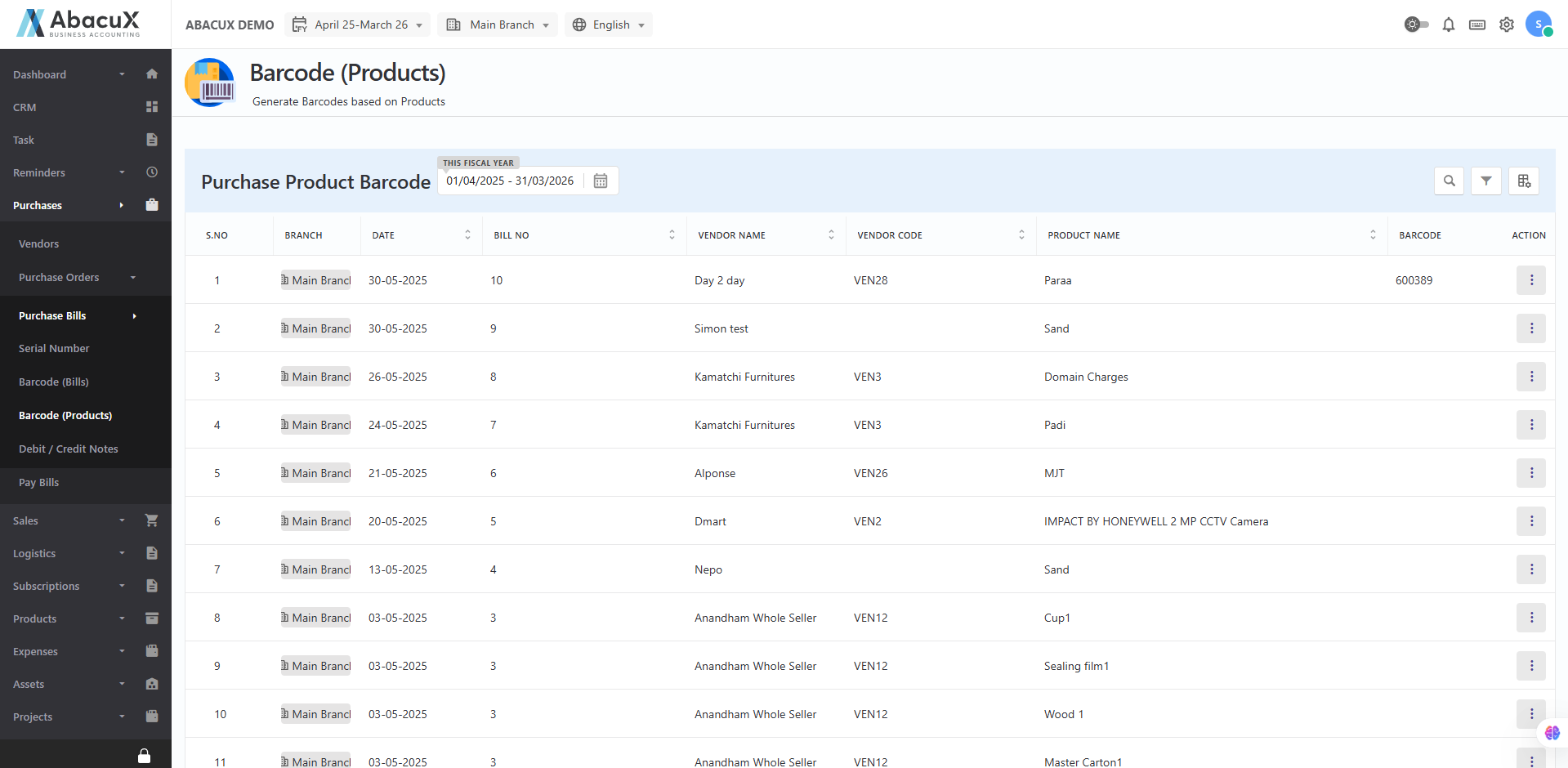
Access the Barcode (Products) Menu:
- Navigate to Purchase > Barcode (Products) from the main menu. This will open the product list screen for barcode generation.
View Product List:
- A list of all available products will be displayed, along with an Action column. Each product row indicates whether the barcode option is available or not.
Check Barcode Availability:
- If barcode generation is applicable for a product, the "Print Barcode" action button will be visible. For products that are not eligible for barcode generation, the action will display as "Not Available".
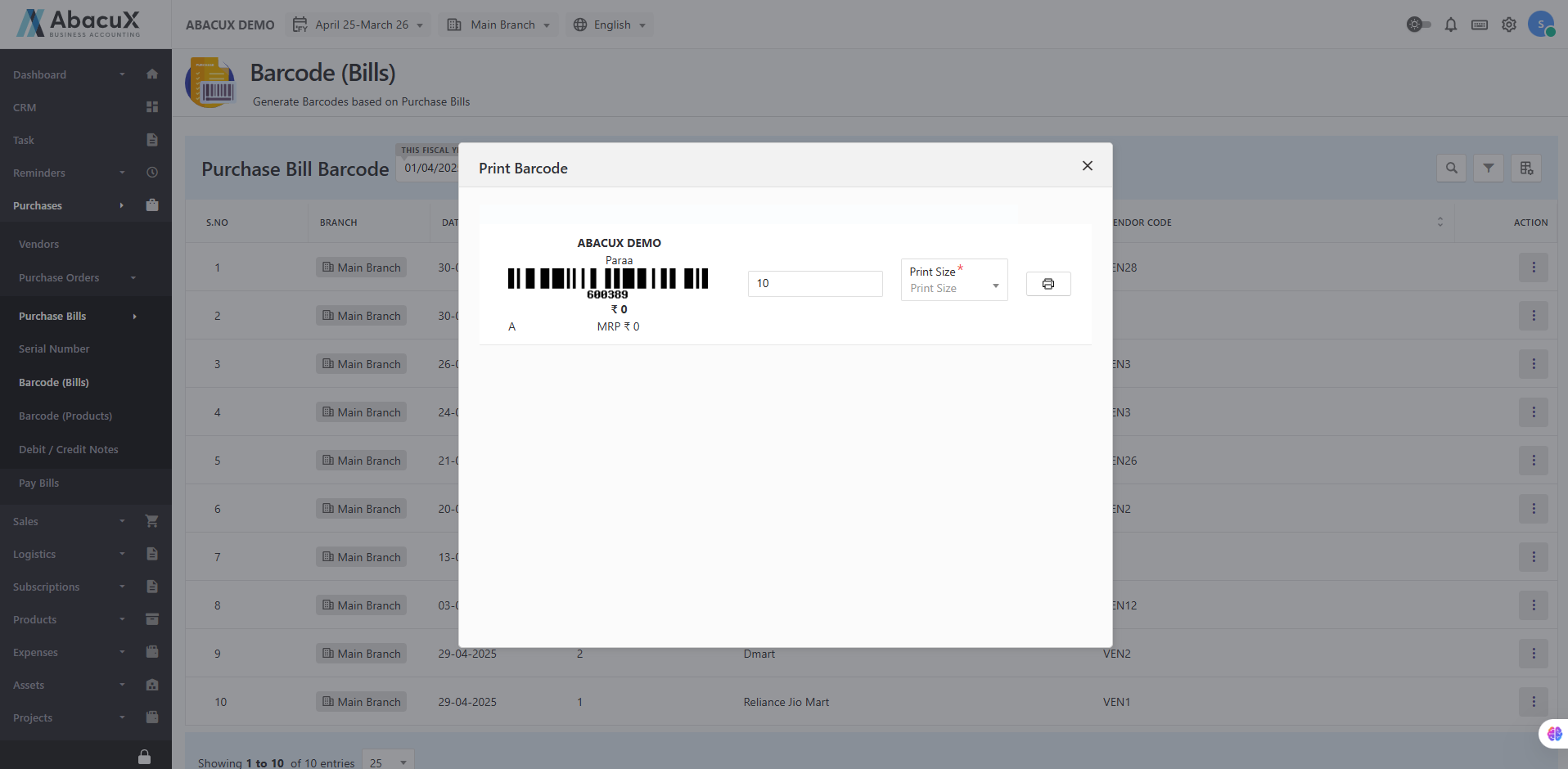
Open the Barcode Print Popup:
- Click on the "Print Barcode" button. A popup window will appear, allowing you to configure the barcode details.
Configure Barcode Settings:
In the popup window, you can:
-
Choose the barcode size (e.g., 110mm * 22mm, 107mm * 27mm ).
-
Enter or confirm the barcode value, which may be auto-filled based on the product code or serial number.
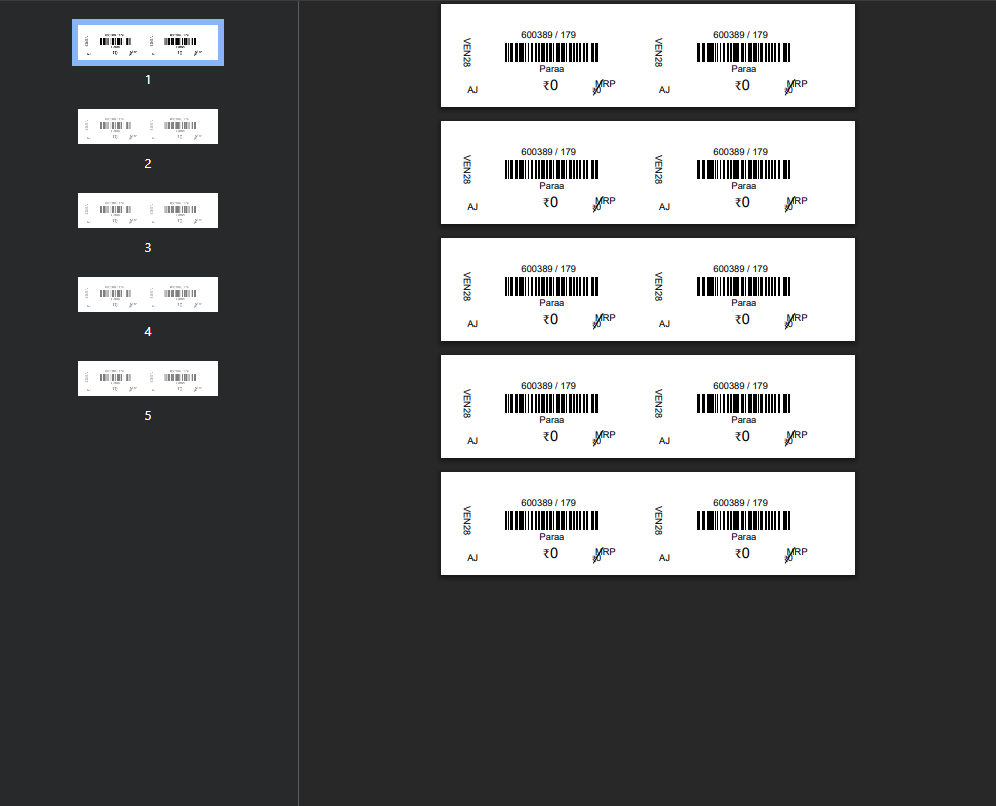
Print the Barcode:
- After setting the barcode parameters, click the "Print" button. The system will generate a printable barcode label according to your settings.
Notes:
-
Barcode printing is only available for products marked as barcode-enabled in the product configuration.
-
Ensure that barcode printers or label printers are correctly configured to support the selected size and format.
Use Case Scenarios
Retailers: Generate barcodes during product setup to ensure uniform shelf labeling.
Warehouses: Use pre-labeled items to streamline storage, picking, and dispatching.
Manufacturers: Tag finished products with barcodes before packaging and delivery.
Benefits
Improved Accuracy: Reduces manual entry errors during transactions.
Operational Efficiency: Speeds up sales, inventory management, and audits.
Flexibility: Generate barcodes for any product at any stage—purchase, manufacturing, or manual addition.
Consistency: Ensures uniform barcode standards across all items.
Integration with Other Modules
Sales: Barcodes can be scanned directly during billing.
Purchase & Manufacturing: Pre-generated product barcodes simplify post-receipt labeling.
Inventory: Enables barcode-based inward/outward movement and stock audits.
Conclusion
The Barcode (Products) feature plays a critical role in optimizing product traceability and inventory management. By allowing barcode generation directly from product master data, this module empowers businesses to maintain a well-organized, scannable, and standardized inventory system—essential for fast-paced and error-free operations.