Agent Collections
Agent Collections
The Agent Collections module is designed to record and manage payments collected by sales agents from customers. These collections may include payments toward outstanding invoice dues or advance payments. This feature ensures accountability, transparency, and accurate tracking of field collections made on behalf of the company.
Purpose
-
Agent Collections enable businesses to:
-
Track cash and cheque payments collected by agents.
-
Record advance payments and invoice settlements received through agents.
-
Ensure proper reconciliation between agent collections and customer ledgers.
-
Monitor individual agent performance and collection history.
Key Features
Invoice and Advance Collection Support:
- Allows agents to collect payments either against specific invoices or as advance payments from customers.
Multi-Mode Payment Entry:
- Supports recording collections in various payment modes such as cash, cheque, UPI, and bank transfers.
Agent-wise Tracking:
- Enables filtering and reporting collections based on agent names or codes.
Audit Trail & History:
- Maintains a detailed log of each collection entry for audit and review purposes.
Integration with Receipts and Ledger:
- Automatically reflects collections in customer ledgers and sales receipt records.
Benefits
-
Enhances field collection accountability.
-
Simplifies reconciliation between field agents and office accounts.
-
Provides clear visibility of payment collection against invoices or advances.
-
Reduces errors and manual tracking of agent-collected payments.
Invoice Due Collection
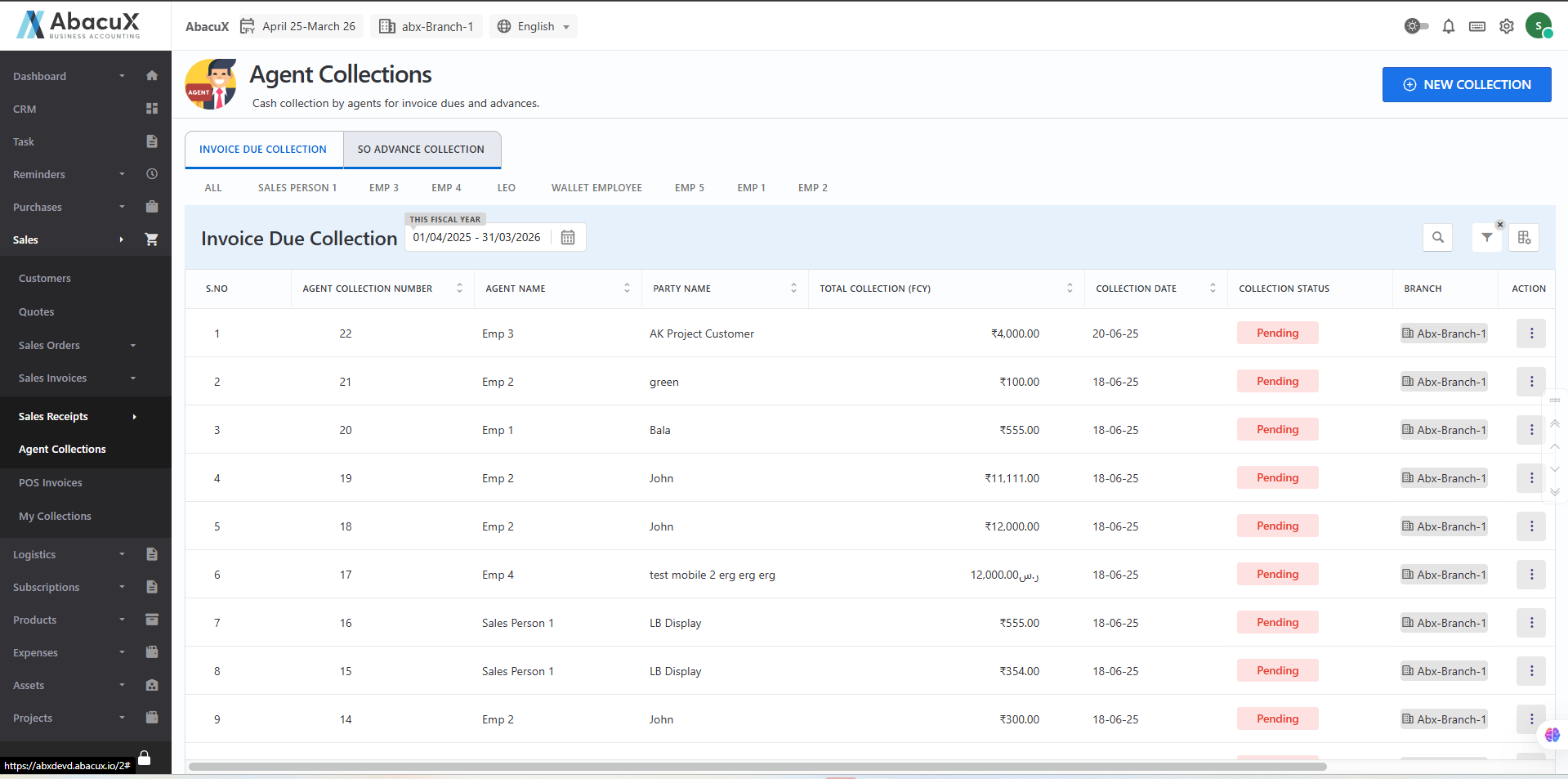
The Invoice Due Collection feature under the Agent Collections module allows users to manage and track payments collected by sales agents against outstanding customer invoices. This functionality provides a clear overview of each agent's collections and ensures accurate reconciliation of pending dues.
Steps to Access and Manage Invoice Due Collections
- Navigate to Sales > Sales Receipts > Agent Collections to view the Invoice Due Collection list, organized by collection agents.
-
Click on the "All" tab to view invoice collections from all agents.
-
To view collections for a specific agent, click on the agent’s name. This will filter the list to show only the invoice due collections made by that agent.
-
To add a new invoice due collection, click the "New Collection" button located at the top-right corner of the page.
-
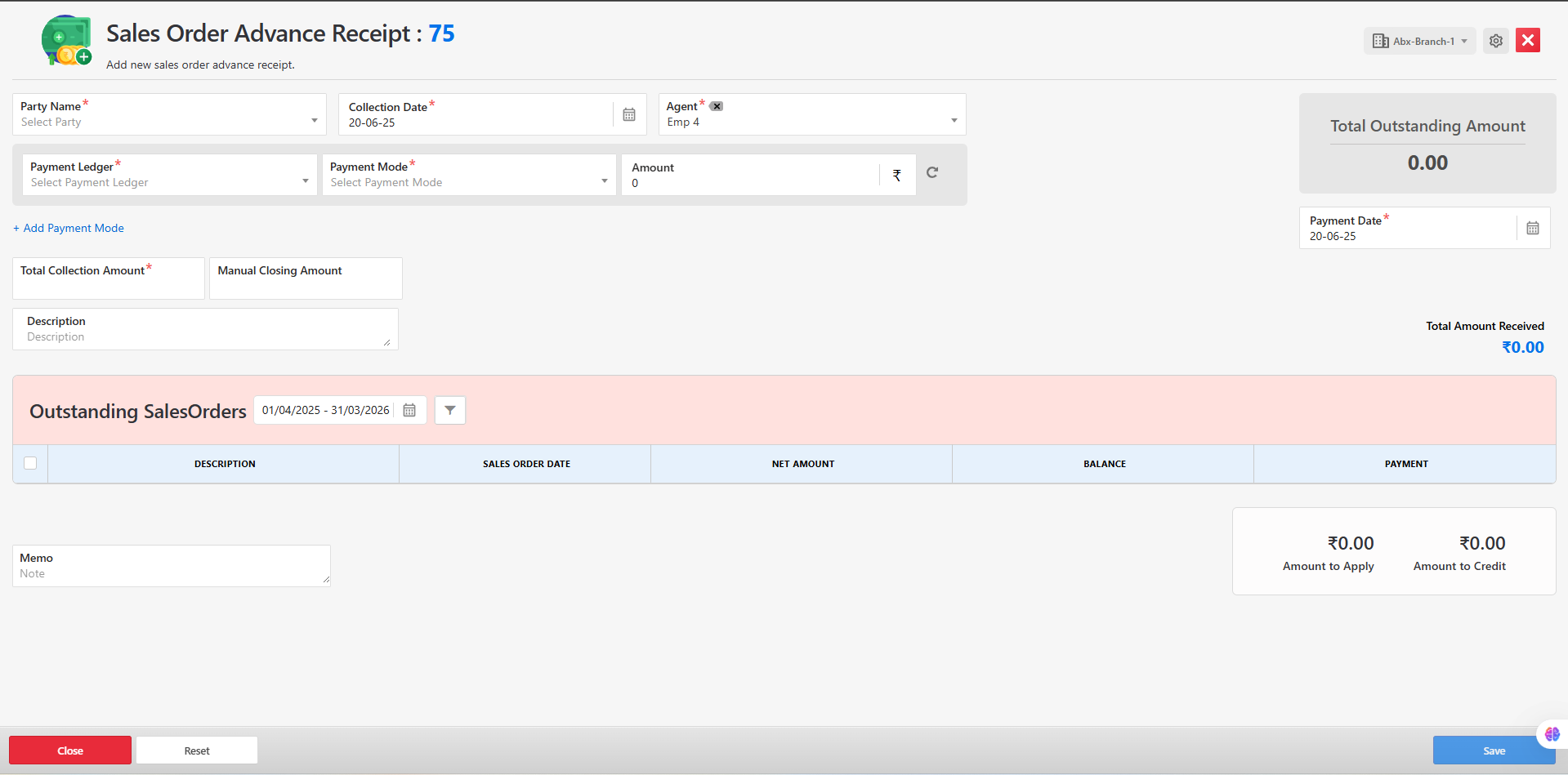
A Collection Entry Form will appear. Enter the required details, including:
-
Agent name
-
Customer name
-
Collection date
-
Payment mode (cash, bank, UPI, etc.)
-
Collected amount
-
Description (if any)
-
-
After filling in the required information, click Save to submit the form.
-
Upon successful submission, a confirmation message will appear, and the new entry will be displayed in the collection list.
-
If there are any errors during submission, the system will highlight them on the form for correction.
Available Actions in the Collection List
You can manage each invoice due collection entry using the following actions:
Edit – Modify existing collection details.
Receive – Mark the collection as received and confirmed in the system.
Delete – Remove the collection entry if created in error.
Benefits
-
Provides a centralized view of invoice dues collected by agents.
-
Streamlines reconciliation between customer dues and actual payments.
-
Enhances field-level accountability for collections.
-
Improves financial accuracy and audit readiness.
Sales Order (SO) Advance Collection
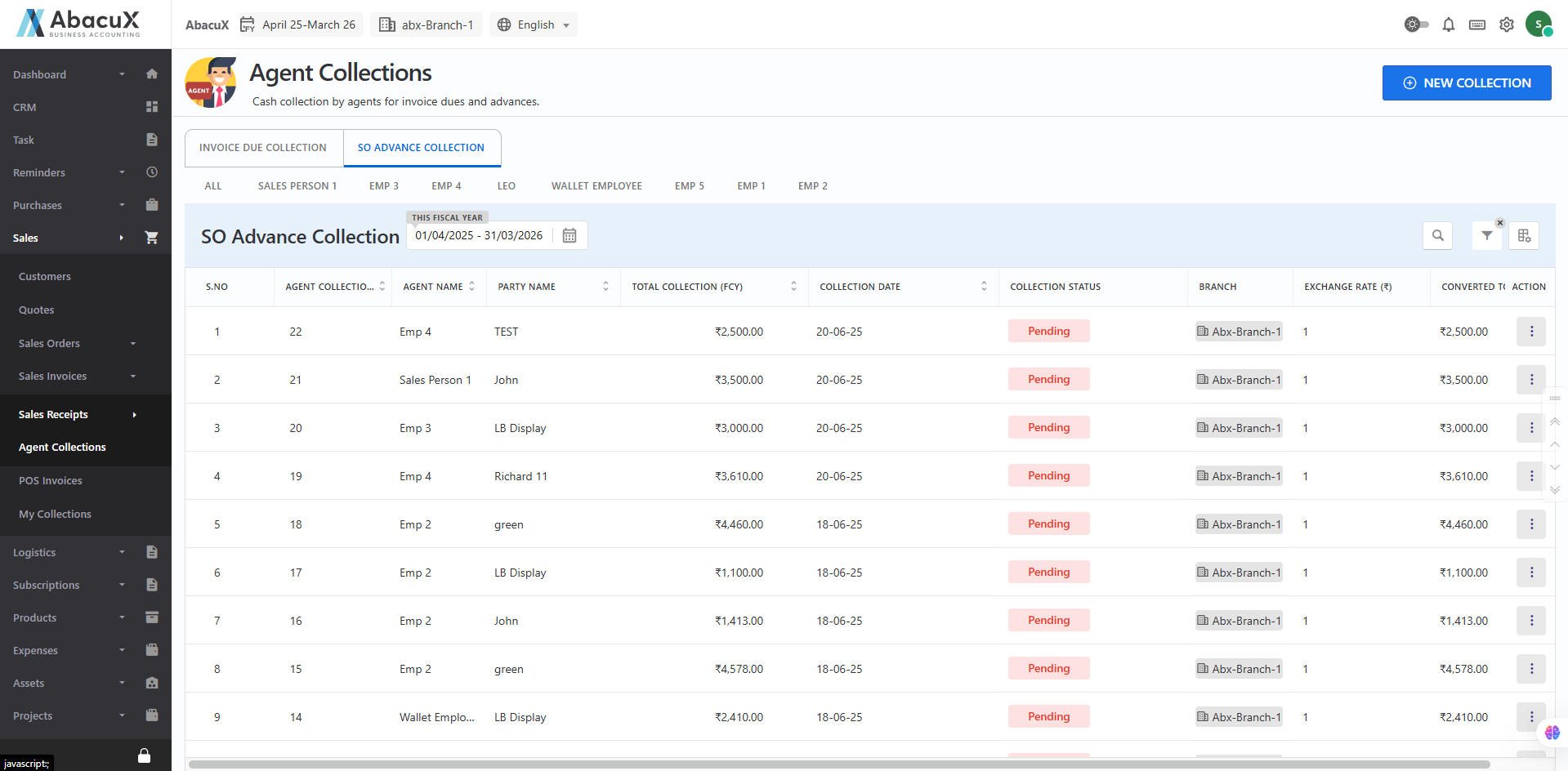
The SO Advance Collection feature under the Agent Collections module allows users to record and manage advance payments collected by agents from customers against Sales Orders. This ensures proper tracking of advance amounts and helps maintain accurate financial records agent-wise.
Steps to Access and Manage SO Advance Collections
- Navigate to the "SO Advance Collections" tab under Agent Collections to view the advance collection list grouped by agent.
-
Click on the "All" tab to display SO advance collections from all agents.
-
To view collections specific to an agent, click on the desired agent's name. The list will filter to show only that agent's SO advance collection entries.
-
To add a new collection, click the "New Collection" button located at the top-right corner of the page.
-
This will open the SO Advance Collection Entry Form.
-
Fill in the required details, including:
-
Agent name
-
Customer name
-
Collection date
-
Payment mode (Cash, Bank Transfer, UPI, etc.)
-
Amount collected
-
Description
-
-
Click Save to submit the form.
-
If the form is saved successfully, a success message will be displayed, and the new entry will appear in the list.
-
If there are any validation errors during submission, error messages will be shown on the form for correction.
Available Actions in the SO Advance Collection List
You can manage each SO advance collection entry with the following actions:
Edit – Modify the details of the collection entry.
Receive – Confirm the receipt of the advance payment in the system.
Delete – Remove an entry that was created in error.
Benefits
-
Allows efficient tracking of advance payments collected in the field.
-
Provides visibility into agent-wise SO advance collections.
-
Helps maintain accurate customer and agent financial records.
-
Supports proper application of advances to future invoices or deliveries.