POS Invoices
POS Invoices
A Point of Sale (POS) Invoice is a commercial document generated at the time of a retail transaction to record the sale of goods or services to a customer. The POS Invoice module in the ERP application is designed for fast-paced, front-desk billing where the transaction is completed instantly, and payment is typically collected at the same time.
Purpose
The POS Invoice module facilitates:
-
Real-time billing at the point of sale.
-
Quick and efficient checkout experience for retail customers.
-
Instant tax calculation, discount handling, and stock deduction.
-
Immediate printing and issuance of invoices.
Key Features
User-Friendly Interface:
- Optimized for quick billing with product search, barcode scanning, and auto-calculations.
Real-Time Inventory Update:
- Automatically deducts stock upon invoice generation to keep inventory accurate.
Multiple Payment Modes:
- Supports Cash, Card, UPI, Wallet, and Split Payments.
Tax & Discount Management:
- Automatically applies configured taxes and allows manual or preset discounts.
Customer Selection:
- Enables billing to walk-in customers or registered clients.
Instant Invoice Printing:
- Offers one-click printing for physical receipts in various formats (Original, Duplicate, Triplicate).
Integration with Accounting & Ledger:
- Reflects the POS sale in financial reports and customer ledger (if applicable).
Managing POS Invoices
The POS Invoice module is designed to facilitate fast and efficient retail billing directly at the point of sale. It supports real-time invoice creation, barcode scanning, category-based product selection, and printing options tailored for both standard POS and Kitchen Order Ticket (KOT) systems.
Steps to Access and Create a POS Invoice
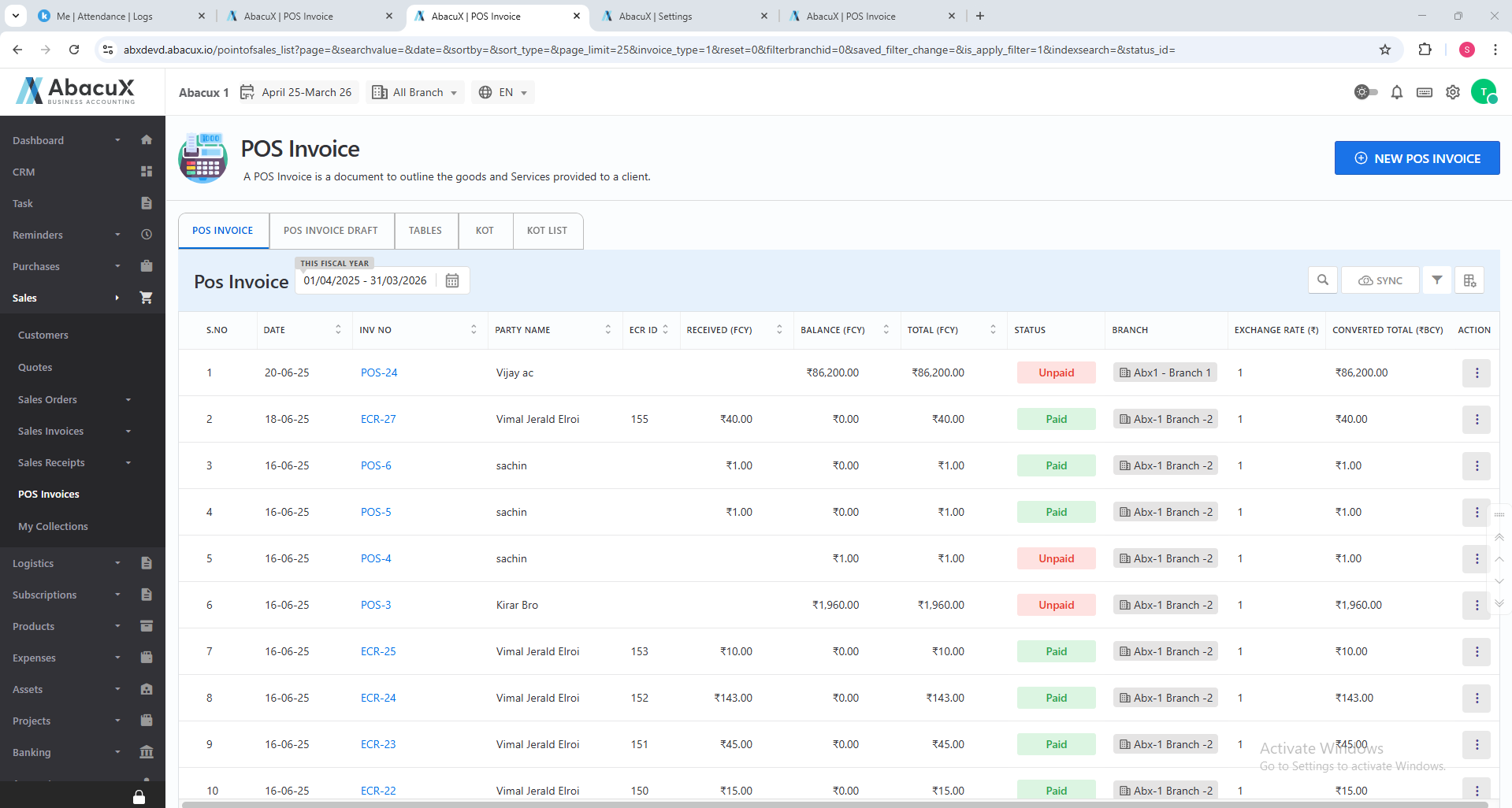
- Navigate to Sales > POS Invoice to view the list of previously created POS invoices.
-
To create a new POS invoice, click the "New POS Invoice" button located at the top-right corner.
-
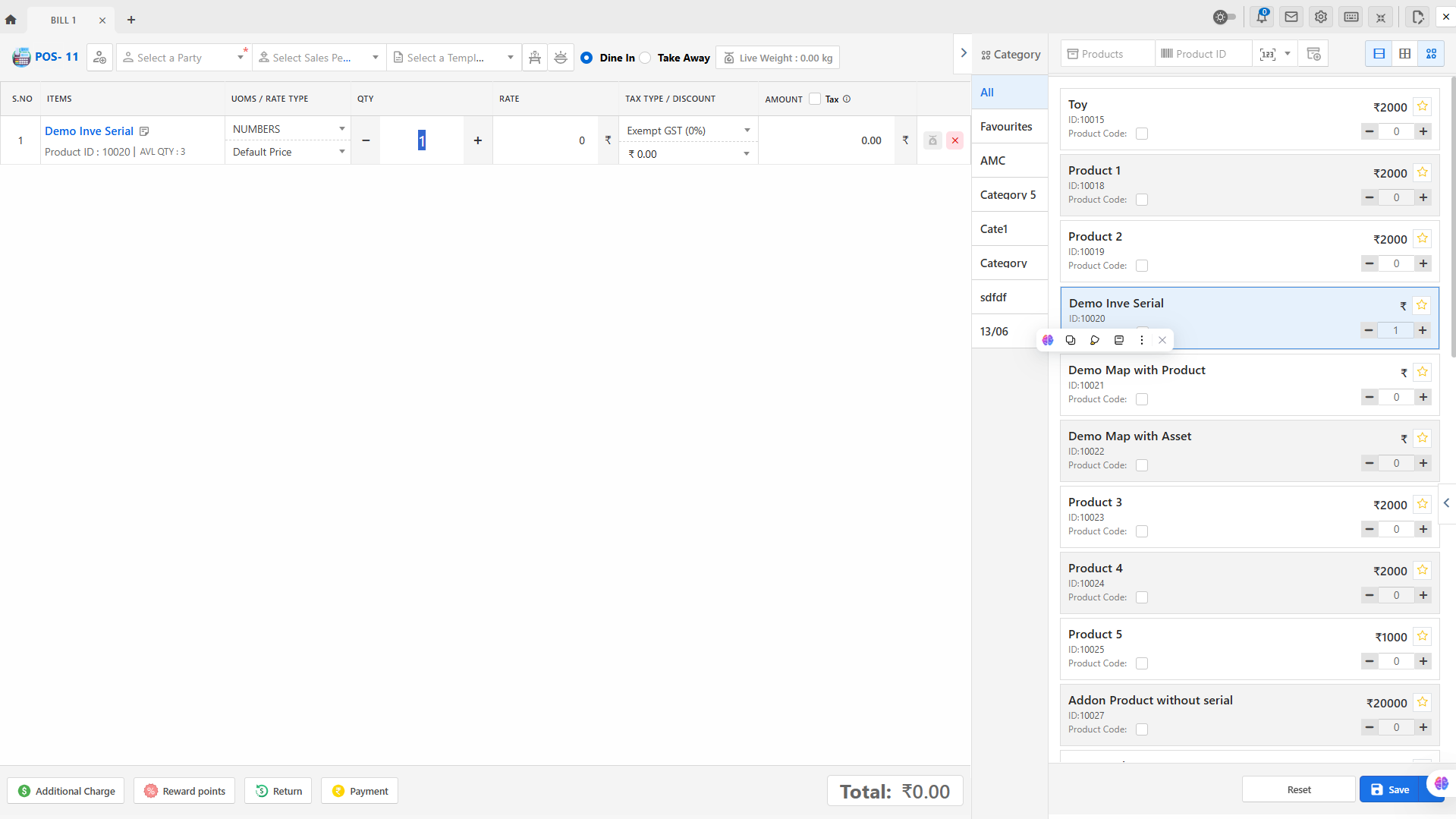
This opens the POS invoice screen, which displays the available product list categorized for easy selection.
-
You can browse and select products based on categories, with support for:
-
Category-wise view
-
Table view
-
Card view
-
-
The system supports peripheral device integration such as:
-
Barcode Scanners
-
Weighing Scales
-
Touch Screen Terminals
-
-
You can manage multiple bills simultaneously, with each bill opened as a separate tab.
-
The module supports both Standard POS and KOT (Kitchen Order Ticket) workflows.
-
Saving Options
Once all items are added to the bill, and required details are filled in, the user can select from the following save actions:
-
Save
-
Save KOT & Print KOT
-
Send KOT
-
Save & Print
-
Save as Draft
-
-
Upon successful saving, a success message will be displayed, and a new bill tab will be opened automatically.
-
If there is any issue during submission, an error message will appear on the screen with guidance for correction.
Available Actions for POS Invoices
From the POS invoice list, users can manage each invoice using the following actions:
Edit – Modify the existing invoice.
View – Display invoice details.
Delete – Remove an invoice (if permitted).
Cancel – Void an invoice due to errors or returns.
Download – Export invoice as PDF.
Thermal Print – Generate a thermal receipt.
Receipt – View or print the receipt document.
Send Mail – Email the invoice directly to the customer.
Benefits
-
Accelerates checkout process and reduces customer wait time.
-
Ensures billing accuracy with real-time tax and discount application.
-
Integrates with stock, accounting, and customer modules.
-
Supports retail stores, service counters, and counter-sales operations.
POS Invoice Drafts
The POS Invoice Draft feature allows users to temporarily save invoices that are not yet finalized. This is especially useful in high-traffic environments where transactions may need to be paused or modified before completion. Drafts can be reviewed, edited, or deleted as needed.
Steps to Access and Manage POS Invoice Drafts
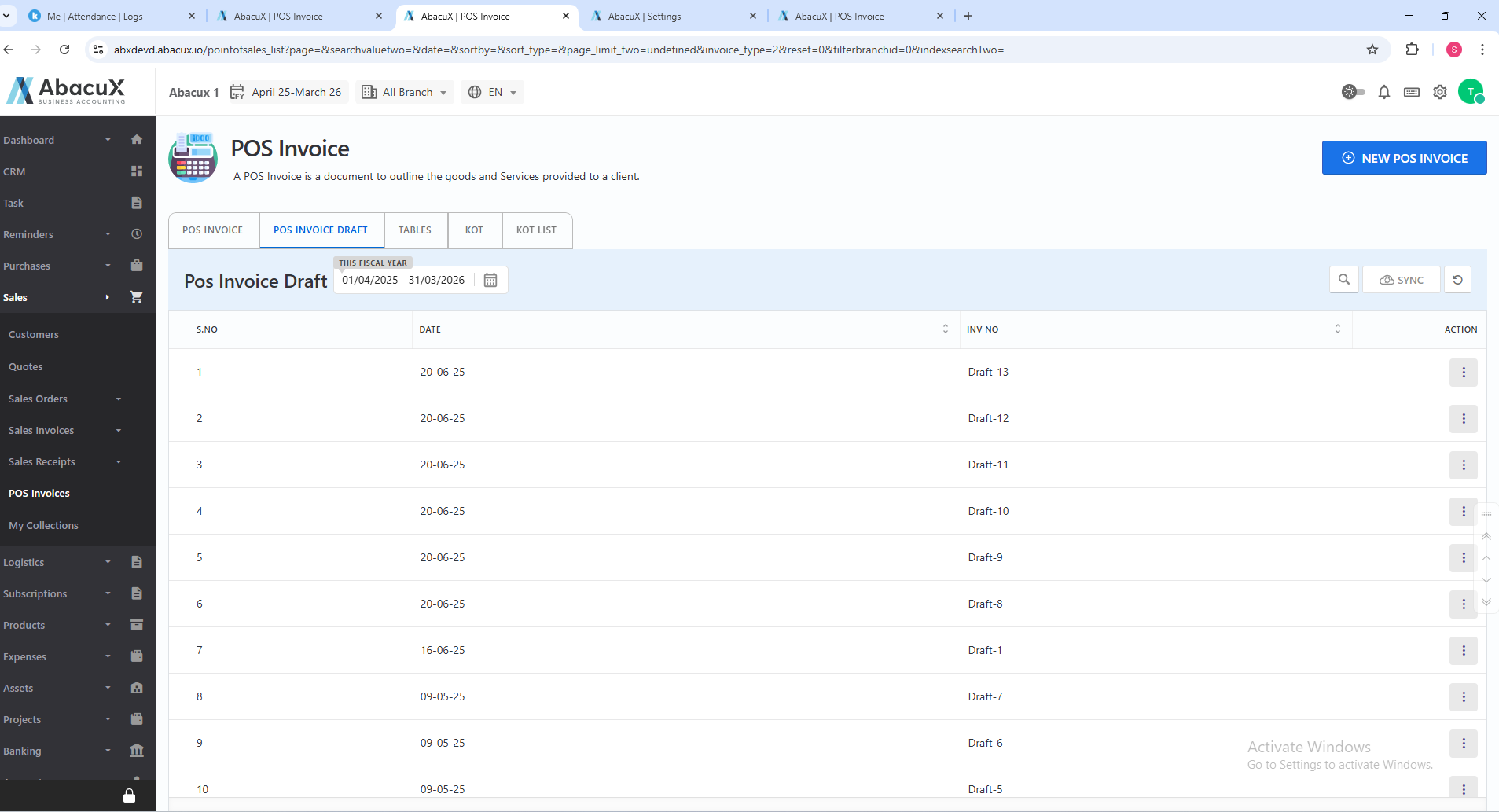
- Click on the "POS Invoice Draft" tab to view the list of all saved draft POS invoices.
-
From the draft list, you can manage each entry using the following actions:
-Edit Draft – Open and modify the draft invoice before finalizing or printing.
-Delete Draft – Permanently remove a draft that is no longer needed.
Benefits
-
Enables users to temporarily hold bills and resume later without data loss.
-
Improves efficiency in managing multiple customer transactions.
-
Prevents errors by allowing review and confirmation before final submission.
Tables (POS Floor Management)
The Tables module provides a visual interface to manage floor-wise seating arrangements in a restaurant or similar service-based environment. It helps users easily assign and manage tables for customers during POS billing.
Steps to Access and Manage Tables
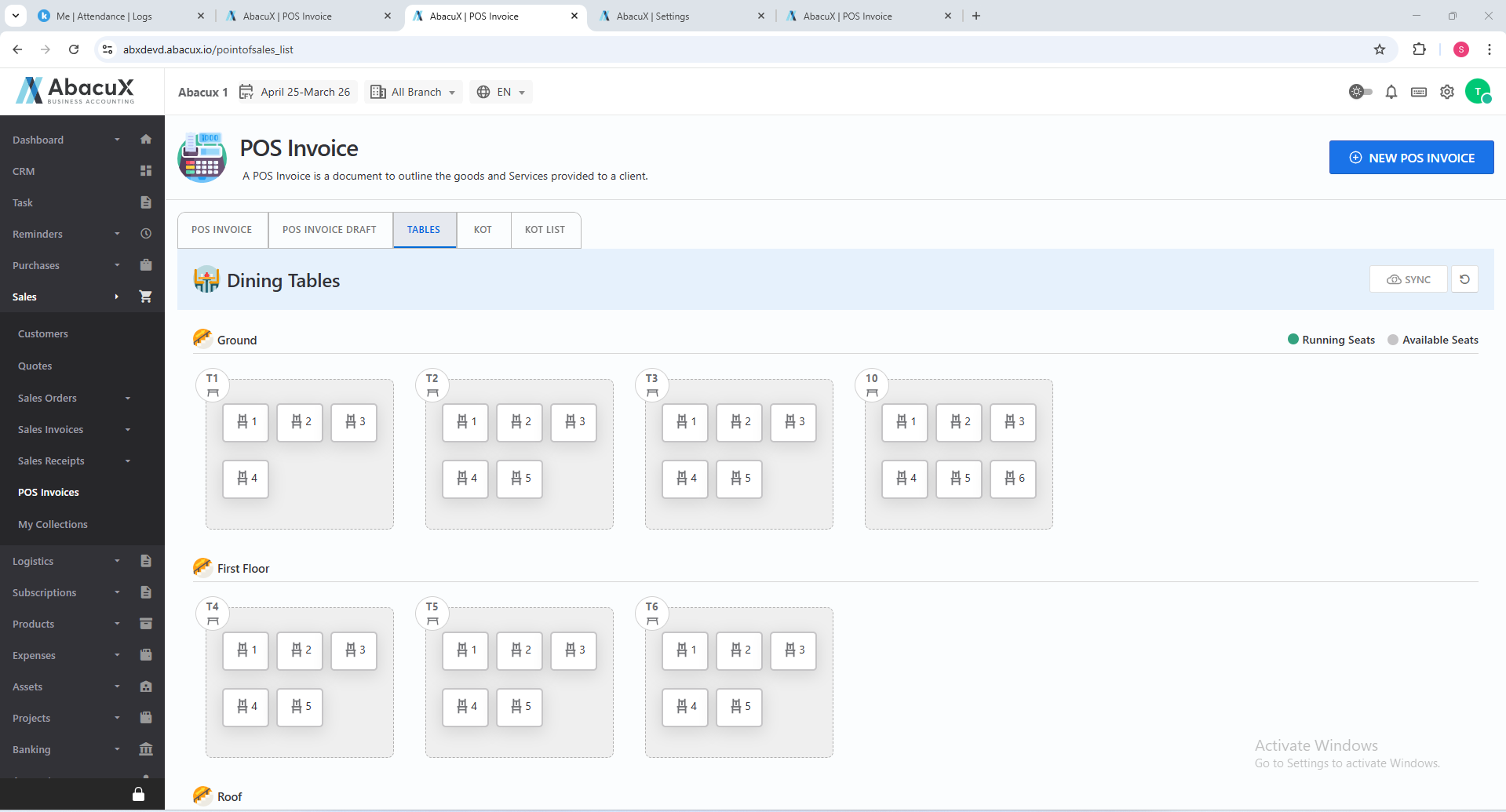
- Click on the "Tables" tab to view the layout of tables categorized by floor.
-
The interface displays occupied and available seats using distinct color indicators for quick identification:
Occupied tables – Shown in a different color (e.g., green).
Available tables – Shown in another color (e.g., grey).
-
Select one or more available tables based on the customer's seating preference or party size.
-
Once the tables are selected, you can proceed directly to the POS billing screen to start the invoice.
Benefits
-
Provides real-time visibility into table occupancy.
-
Streamlines table selection and order initiation.
-
Enhances operational efficiency for dine-in services.
-
Supports multi-floor restaurant or service environments.
Kitchen Order Tickets (KOT)
The Kitchen Order Ticket (KOT) module provides a streamlined interface for kitchen staff to view and manage incoming orders generated from the POS system. It helps ensure timely preparation and delivery of items, improving overall service efficiency.
Steps to Access and Manage KOTs
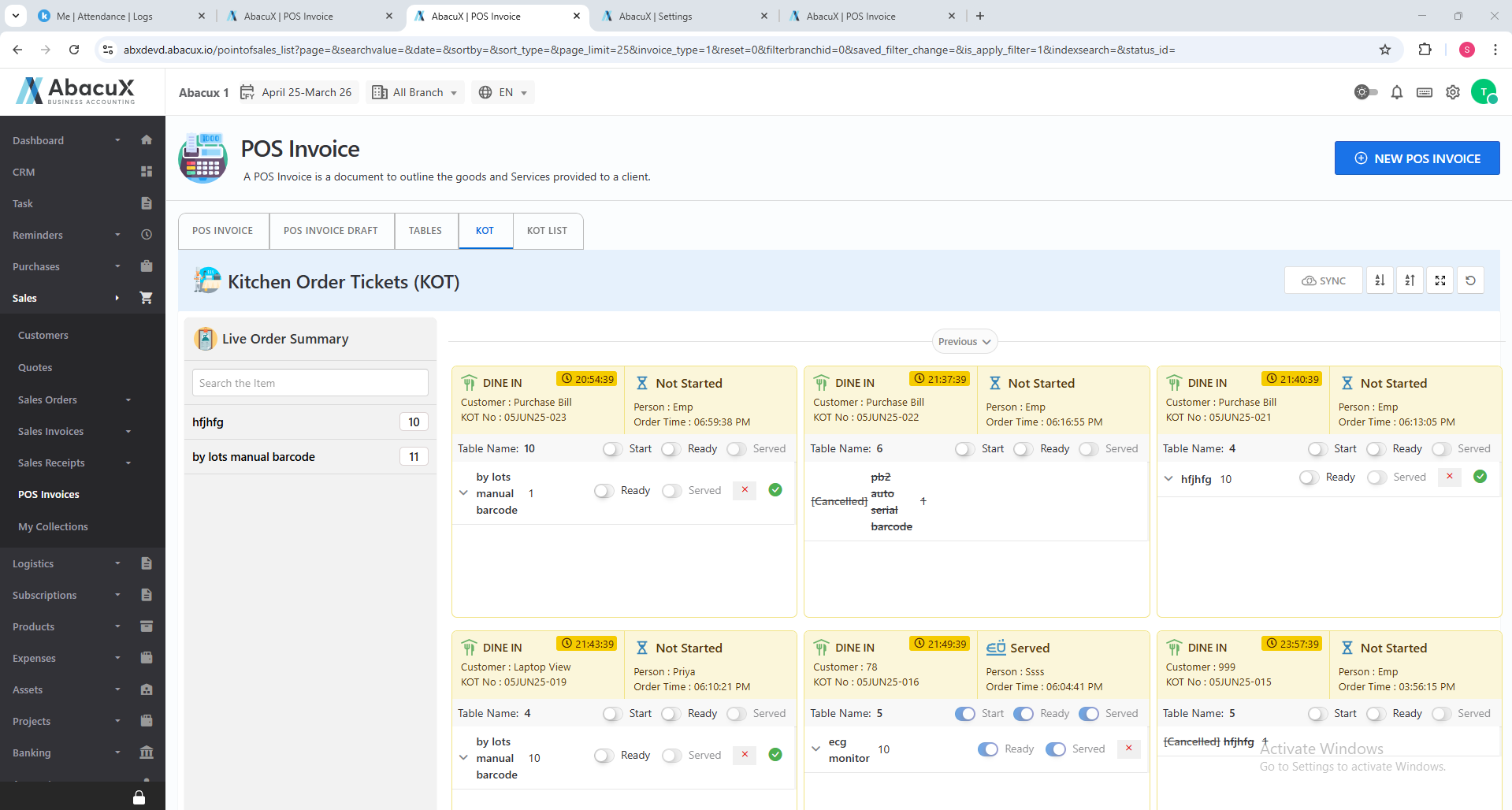
- Click on the "KOT" tab to access the list of Kitchen Order Tickets in card view.
-
Each KOT card displays comprehensive order details, including:
-
Customer Name
-
KOT Number
-
Order Time
-
Served By / Person Responsible
-
Duration Since Order
-
Table Name
-
Order Status (e.g., Pending, In Progress, Completed)
-
-
Users can view and manage the order details directly from each card, including updating the status or marking it as served.
-
Based on system settings, KOTs are displayed in time-based slots for better kitchen planning. For example:
-
Orders can be grouped in 15-minute intervals for the last 1 hour, or In 30-minute intervals for the last 1 hour, depending on configuration.
-
Orders beyond the current time slot range are displayed under the “Previous Orders” section for reference and audit.
Benefits
-
Ensures kitchen visibility for all active orders.
-
Enables efficient workload distribution based on time slots.
-
Minimizes order delays and improves customer satisfaction.
-
Provides real-time updates on the status of each order.
KOT List
The KOT List tab provides a comprehensive view of all Kitchen Order Tickets (KOTs) generated through the POS system. It allows users to manage, view, and convert KOTs efficiently for billing and kitchen operations.
Steps to Access and Manage KOTs
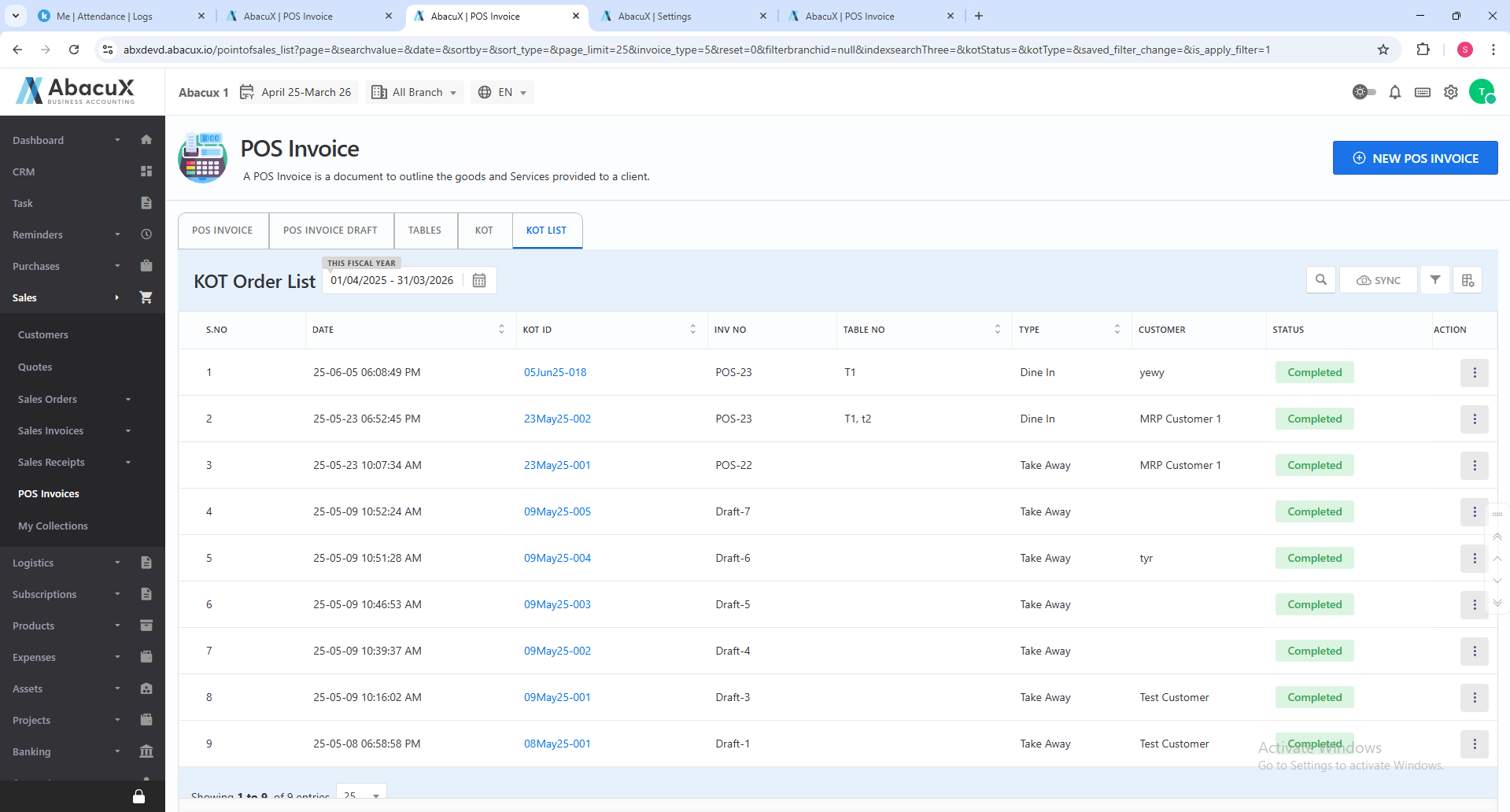
- Click on the "KOT List" tab to view the list of all KOT orders in tabular format.
-
Each KOT entry in the list displays key order details such as KOT number, table name, order time, and order status.
-
You can manage KOTs using the following available actions:
Convert to POS Invoice – Generate a POS invoice directly from the selected KOT.
KOT Print – Print the KOT for kitchen processing.
KOT View – View the full order details, including items and quantity.
Benefits
-
Streamlines the process from kitchen order to invoice generation.
-
Provides a centralized list for tracking all active and completed KOTs.
-
Ensures better coordination between kitchen and billing staff.
Benefits
-
Supports high-speed billing in retail or restaurant environments.
-
Enhances user productivity through category-based navigation and quick actions.
-
Provides flexibility with multi-tab billing and multiple save/print options.
-
Integrates seamlessly with hardware devices and ERP financial modules.