Quotes
Quotes
A Quote (also known as a Sales Quotation or Estimate) is a formal document provided to a potential customer to outline the proposed prices for goods or services before a sale is confirmed. Quotes play a vital role in the sales process by enabling customers to review costs and terms prior to placing an order.
Purpose
-
The Quotes module in the ERP system is used to:
-
Create, manage, and share price estimates for customers.
-
Track both finalized and drafted quotes.
-
Streamline the conversion of quotes into sales orders or invoices.
-
Provide a clear and professional pricing document to clients.
Tabs Overview
The Quotes section includes two tabs to manage the quotation lifecycle efficiently:
Quotes Tab: Displays all finalized and active quotes that are ready to be shared or acted upon.
Draft Quotes Tab: Displays saved draft versions of quotes that are still under review or require further editing before finalization.
Key Features
-
Create new quotes using a detailed form.
-
Save quotes as draft or send to approval.
-
Modify or delete draft quotes.
-
Convert approved quotes into sales orders or invoices.
-
Download, print, or email quotes to customers.
-
Filter and search quotes based on customer, status, date, or quote number.
Steps to Create a New Quote
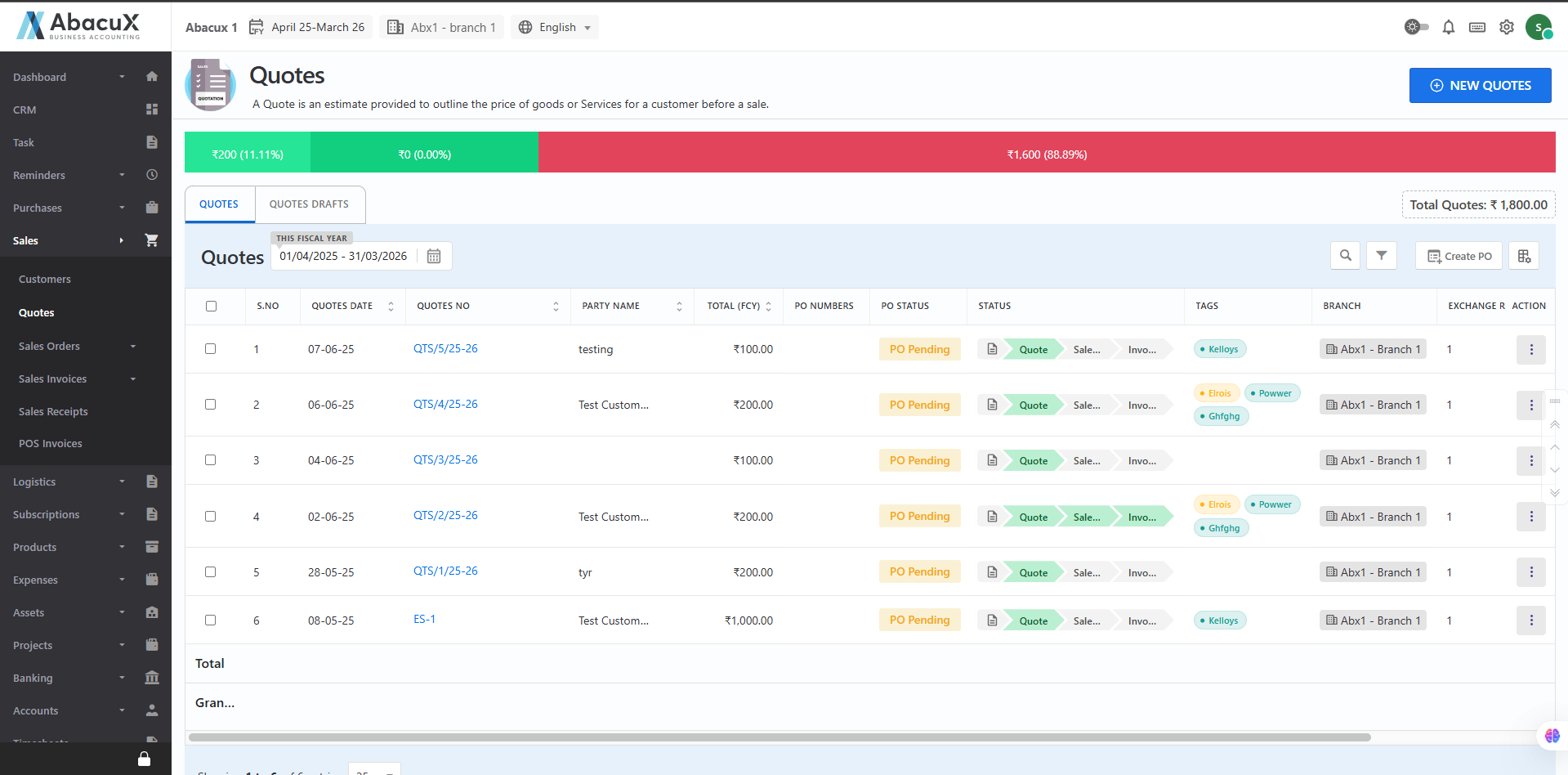
- Navigate to Sales > Quotes.
-
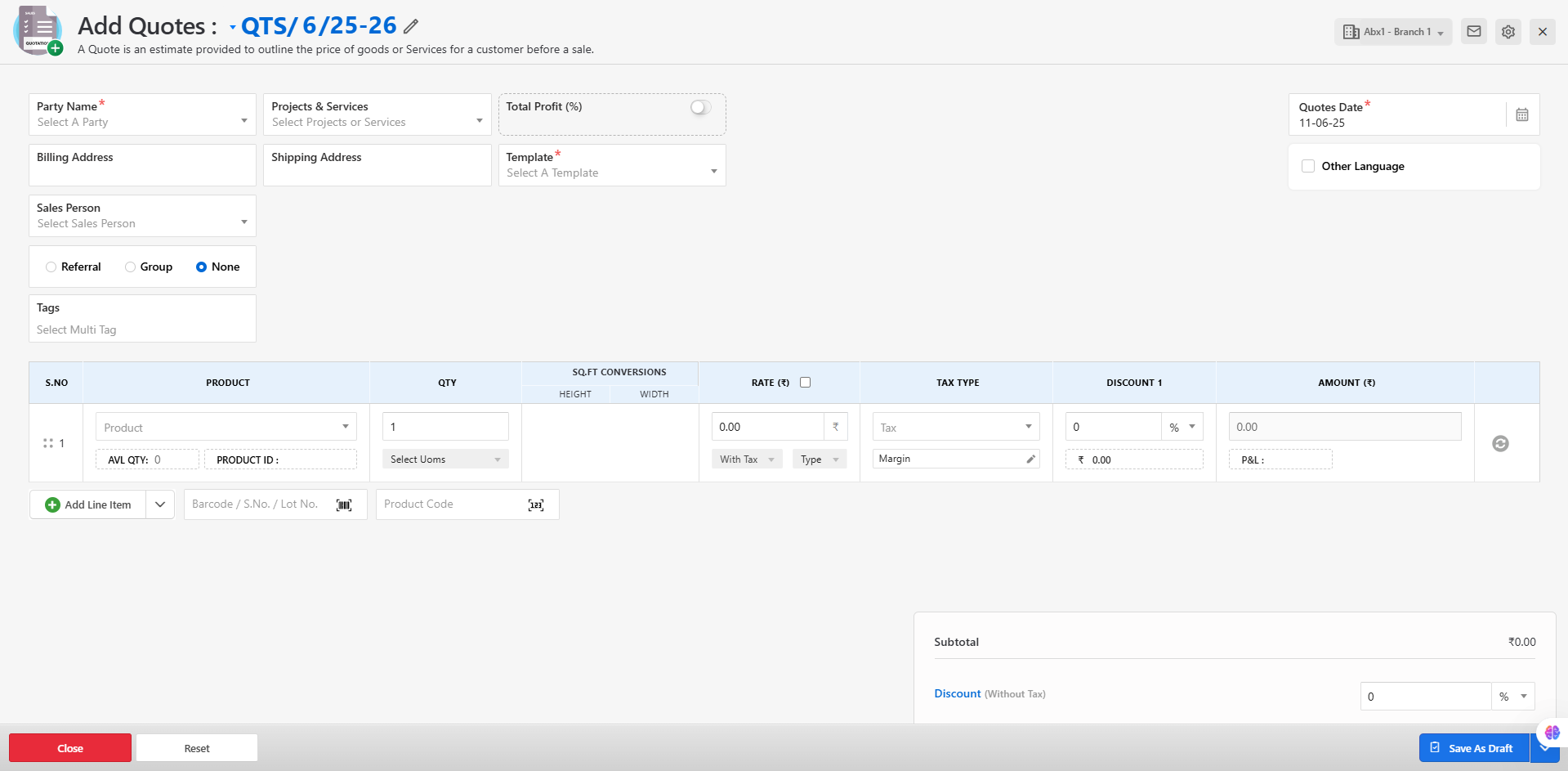
Click on "New Quote" to open the quote creation form.
-
Enter Customer Details:
-
Select the customer from the dropdown or add a new one.
-
Set the quote date.
-
Add Product or Service Items:
- Choose products or services, set quantities, prices, discounts, and applicable taxes.
-
Review Totals and Terms:
-
Automatically calculate subtotals, taxes, and grand totals.
-
Add any notes or description.
-
-
Choose to Save as Draft or Send to Approve:
-
Click “Save as Draft” to store the quote for future editing under the Draft Quotes tab.
-
Click “Send to Approve” to send the quote to approval.
-
Managing Quotes
From the Quotes list, users can perform various actions to manage and process sales quotations efficiently. Below is a description of each available option:
-
Edit - Modify the details of an existing quote. This includes updating customer information, products/services, prices, taxes, or terms before finalization or approval.
-
Duplicate - Create a new quote by duplicating an existing one. Useful when preparing similar quotes for different customers or for recurring services/products.
-
View - View the detailed summary of the quote in a read-only format, including all line items, taxes, totals, and additional notes.
-
Delete - Permanently remove a quote from the system. This action is typically restricted to quotes that are in draft or not yet approved status.
-
Create Sales Invoice - Convert an approved quote into a Sales Invoice directly. This streamlines the billing process by using the quote’s data for invoicing.
-
Create Sales Order - Generate a Sales Order from the quote. This is commonly done once the customer confirms the quote and the order is ready for processing.
-
Print - Print a physical copy of the quote using a predefined template for customer distribution or internal records.
-
Download - Download the quote in PDF format for offline sharing or archiving.
-
WhatsApp - Send the quote directly to the customer via WhatsApp, enabling fast and convenient communication.
-
Send Email - Email the quote to the customer along with any attachments or notes, using the system’s integrated email functionality.
Drafted Quotes
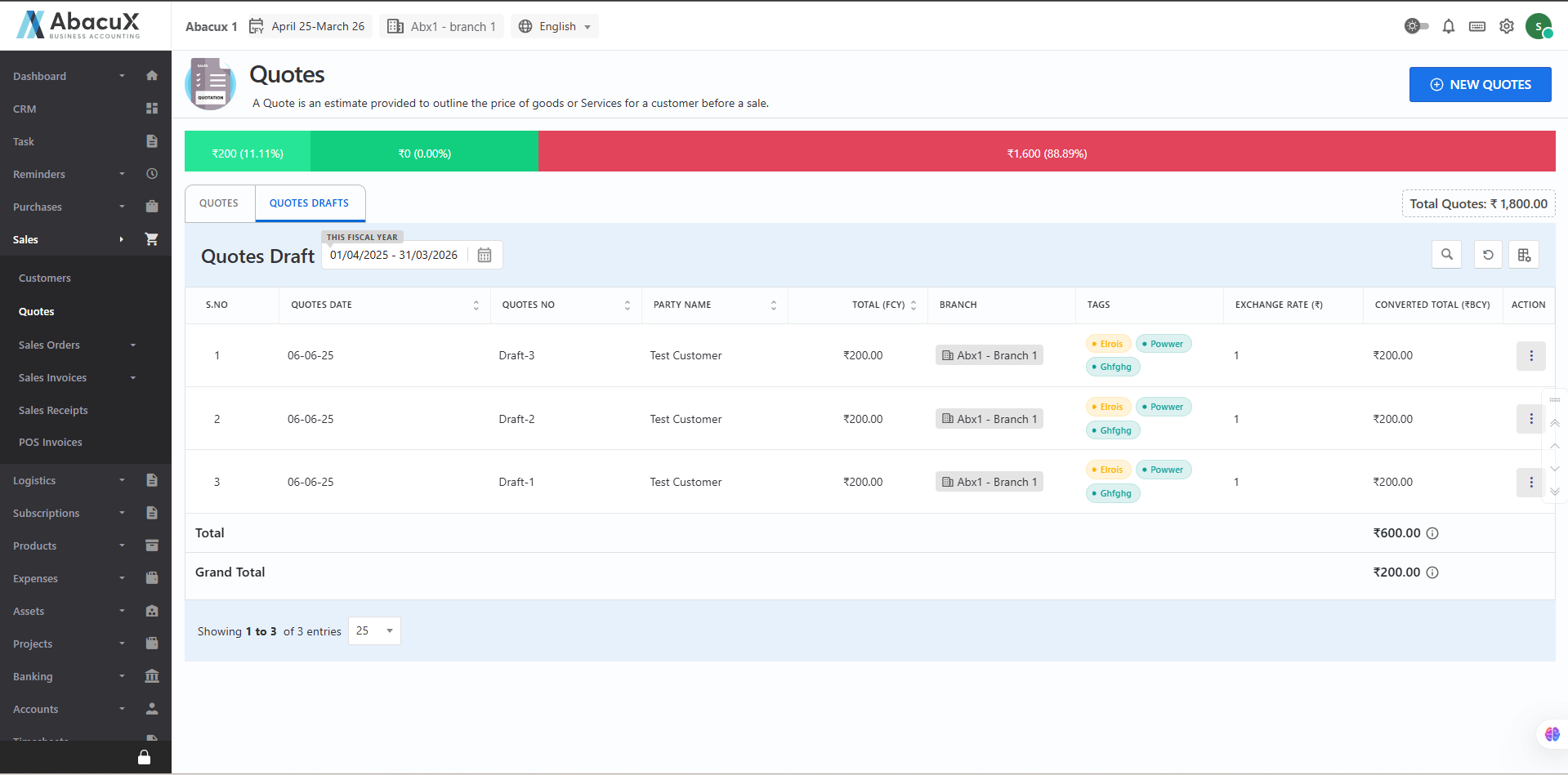
The Drafted Quotes tab displays all sales quotations that are saved but not yet finalized. These drafts can be reviewed, edited, or submitted for approval before being shared with the customer.
Steps to Manage Drafted Quotes
- Click on the "Quotes Draft" tab to view the list of all saved draft quotes.
-
From the draft list, you can perform the following actions:
-
Send for Approval – Submit the quote for managerial or customer approval before finalization.
-
Delete – Remove unwanted or obsolete draft quotes from the system.
-
Note
Only draft quotes can be send to approval or deleted. Once a quote is approved and finalized, it will be moved to the Quotes tab for further processing.
Create Purchase Order (PO) from Quotes
The Create PO functionality allows users to generate a Purchase Order directly from one or more selected quotes.
Steps to Create a PO
-
Select one or more quotes from the quotes list that you wish to include in the Purchase Order.
-
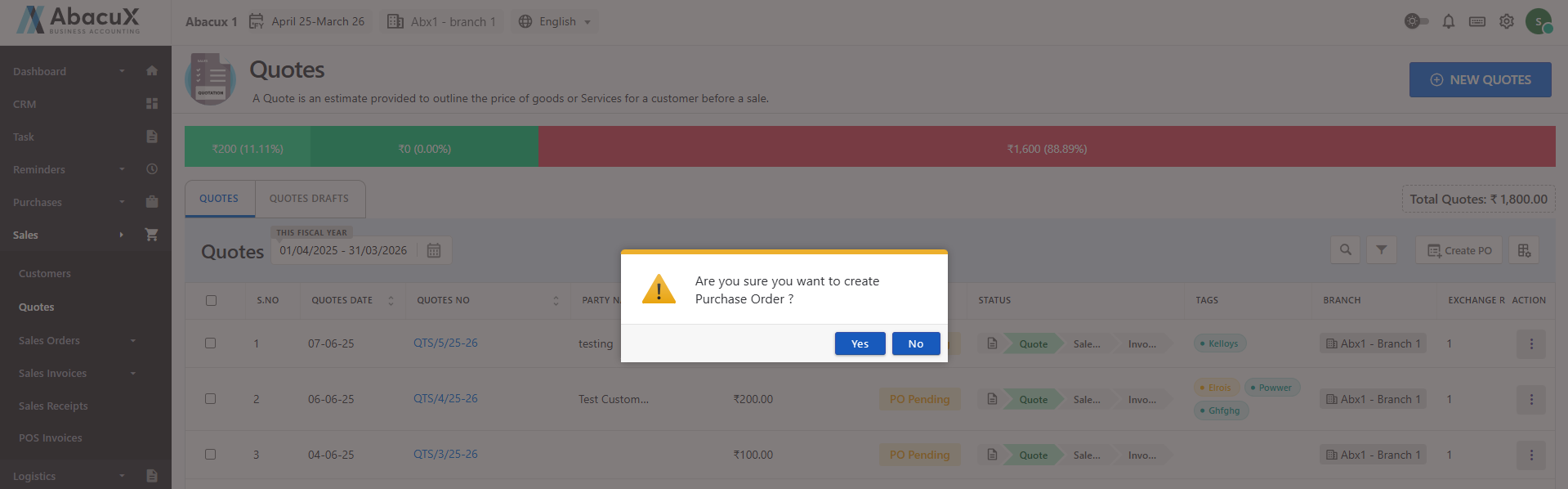
Click on the "Create PO" button to begin the PO creation process.
-
If no quotes are selected, an alert message will appear prompting you to select at least one quote to proceed.
-
If quotes are selected, a confirmation prompt will appear asking you to confirm the action. Click "OK" to proceed.
- Once the Purchase Order is successfully created, a success message will be displayed on the quotes list page.
Note
-
Ensure that the selected quotes are finalized and approved before attempting to create a PO.
-
The system may consolidate multiple quotes into a single PO, depending on configuration.
Best Practices
-
Always review the quote details before finalizing.
-
Use draft quotes for internal review or client approval discussions.
-
Set expiry dates on quotes to manage pricing validity.
-
Maintain consistency in terms and branding across all quotes.