My Collections
My Collections
The My Collections module is designed for sales agents or collection agents to view, manage, and track the cash collections they have made from customers. This module provides a personalized dashboard that lists all collections—both invoice due collections and advance payments—associated with the logged-in agent.
Purpose
-
The My Collections feature serves as a centralized space for agents to:
-
Monitor their individual cash collection activities.
-
Record new collections received from customers.
-
Verify pending and completed collections.
-
Manage and update payment receipts.
Key Features
Agent-Specific View Displays collections assigned specifically to the logged-in agent, filtered by date, customer, or payment status.
Collection Types Supported
-
Invoice Due Collections – Payments received against outstanding sales invoices.
-
Sales Order Advance Collections – Advance payments received for confirmed orders.
Quick Add Option Allows agents to record new collections with relevant invoice or order references.
Transaction Summary Includes detailed information such as:
-
Customer Name
-
Invoice or SO Number
-
Collected Amount
-
Collection Date
-
Payment Mode (Cash, UPI, Bank Transfer, etc.)
-
Status (Received, Pending, Reconciled)
Receipts and Acknowledgements Enables printing and sending digital receipts for collections made.
Benefits
-
Improves visibility and accountability for agent-level collections.
-
Facilitates real-time reporting and reconciliation with the accounts team.
-
Supports field agents, counter agents, and remote sales teams with mobile-friendly access.
Manage Invoice Due Collections
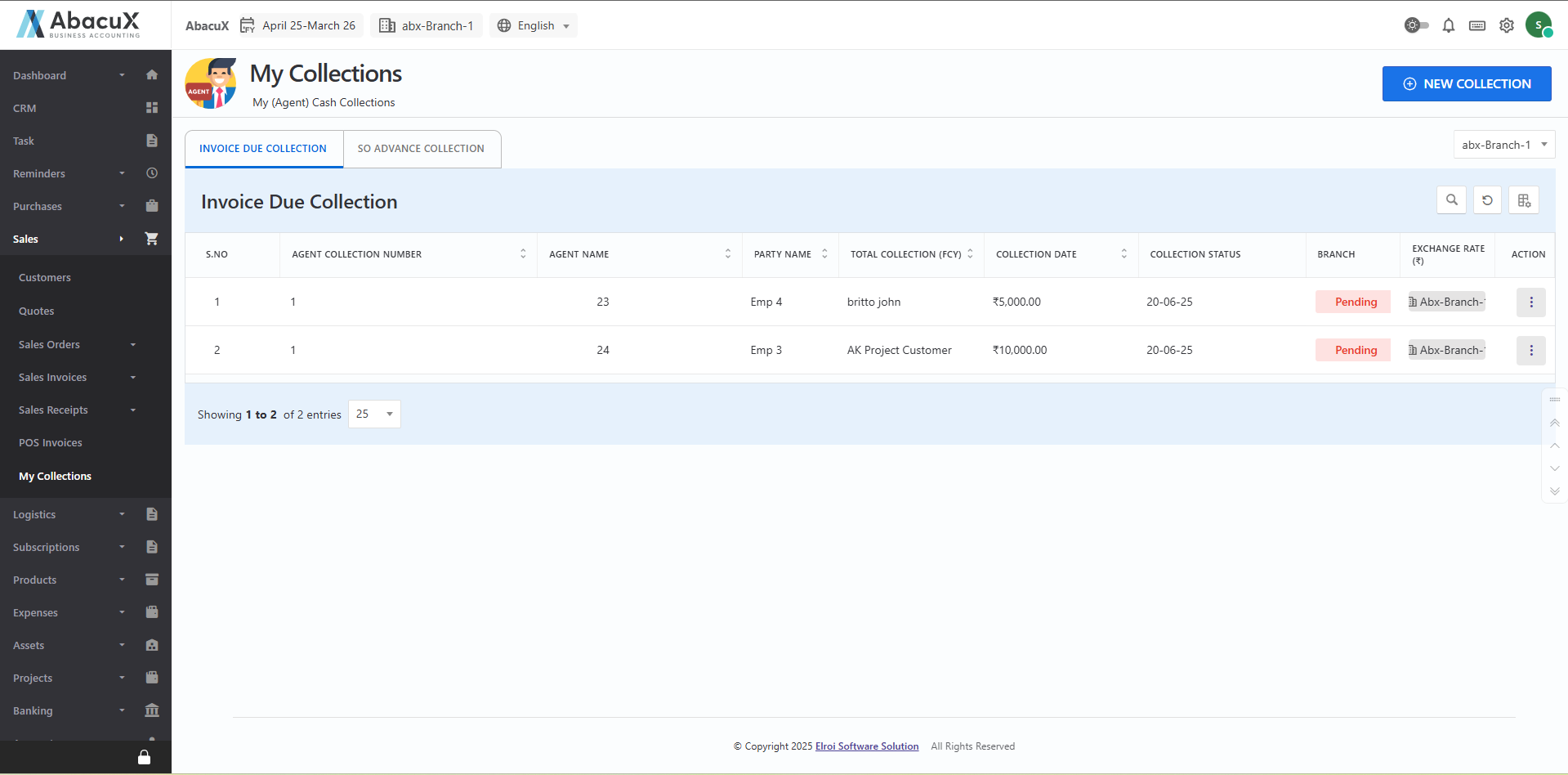
The My Collections module allows agents to manage and track invoice due collections assigned to them. This section provides access to the list of collections and facilitates the entry of new collections made directly from customers.
Steps to Access and Manage My Collections
- Click on the "My Collections" menu under the Sales section to view the list of invoice due collections assigned to the logged-in agent.
-
To add a new collection, click the "New Collection" button located at the top right corner of the screen.
-
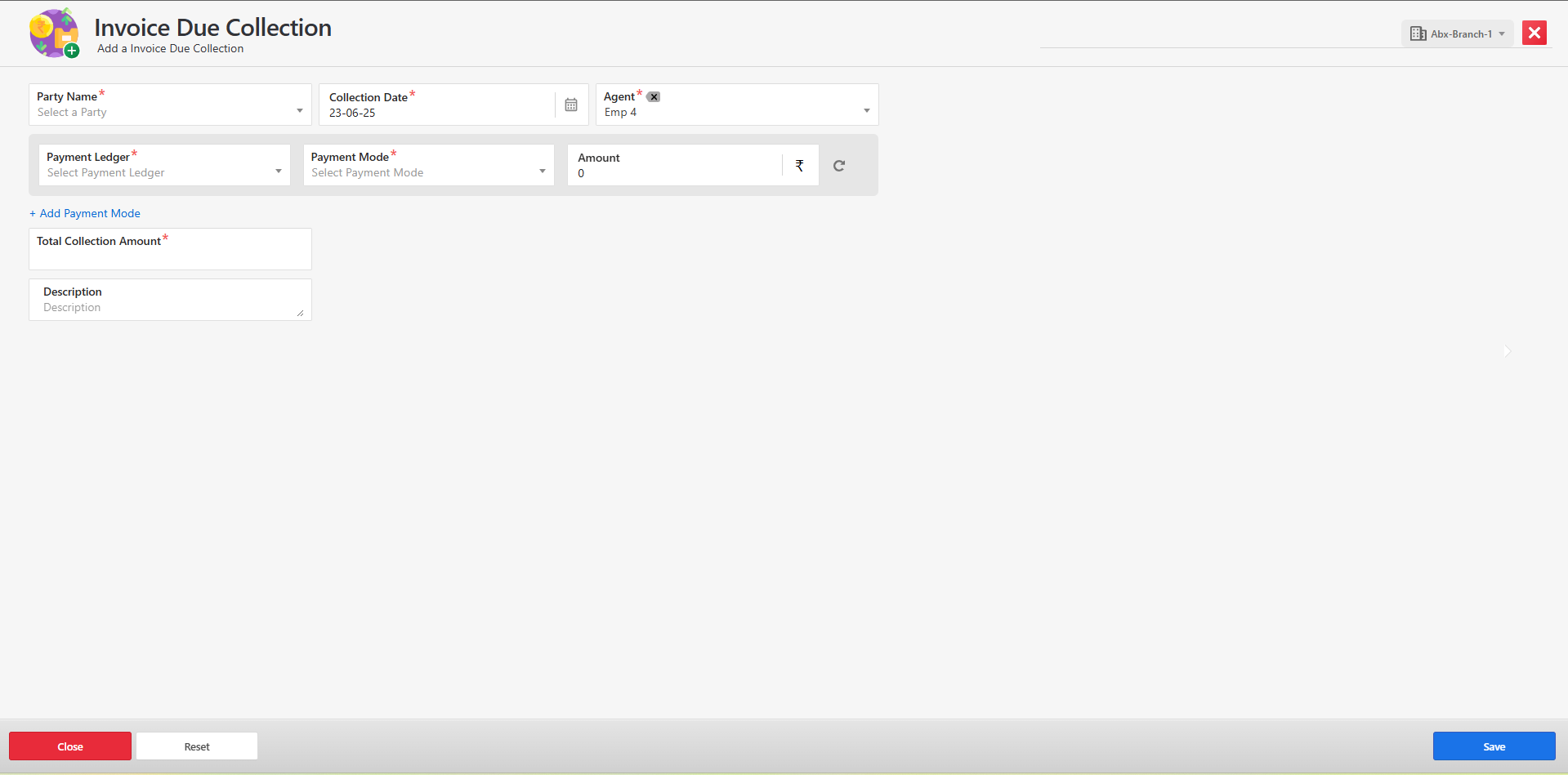
This will open the collection entry form where you can input the relevant invoice and payment details.
-
Fill in all the required fields in the form, such as:
-
Customer name
-
Invoice number
-
Collected amount
-
Payment mode
-
Collection date
-
-
nce all required information is entered, click the Save button to submit the form.
-
If the form is saved successfully, a success message will be displayed and the new entry will appear in the collection list.
-
If there are any errors during submission, the form will display appropriate error messages for correction.
Available Actions in the Collection List
Edit – Modify existing collection details.
Review – Mark the collection for internal verification or approval.
Delete – Remove incorrect or unwanted entries.
Benefits
-
Ensures agents can manage their collections efficiently.
-
Enhances accuracy and accountability in payment tracking.
-
Streamlines the communication between field staff and accounting teams.
SO Advance Collection
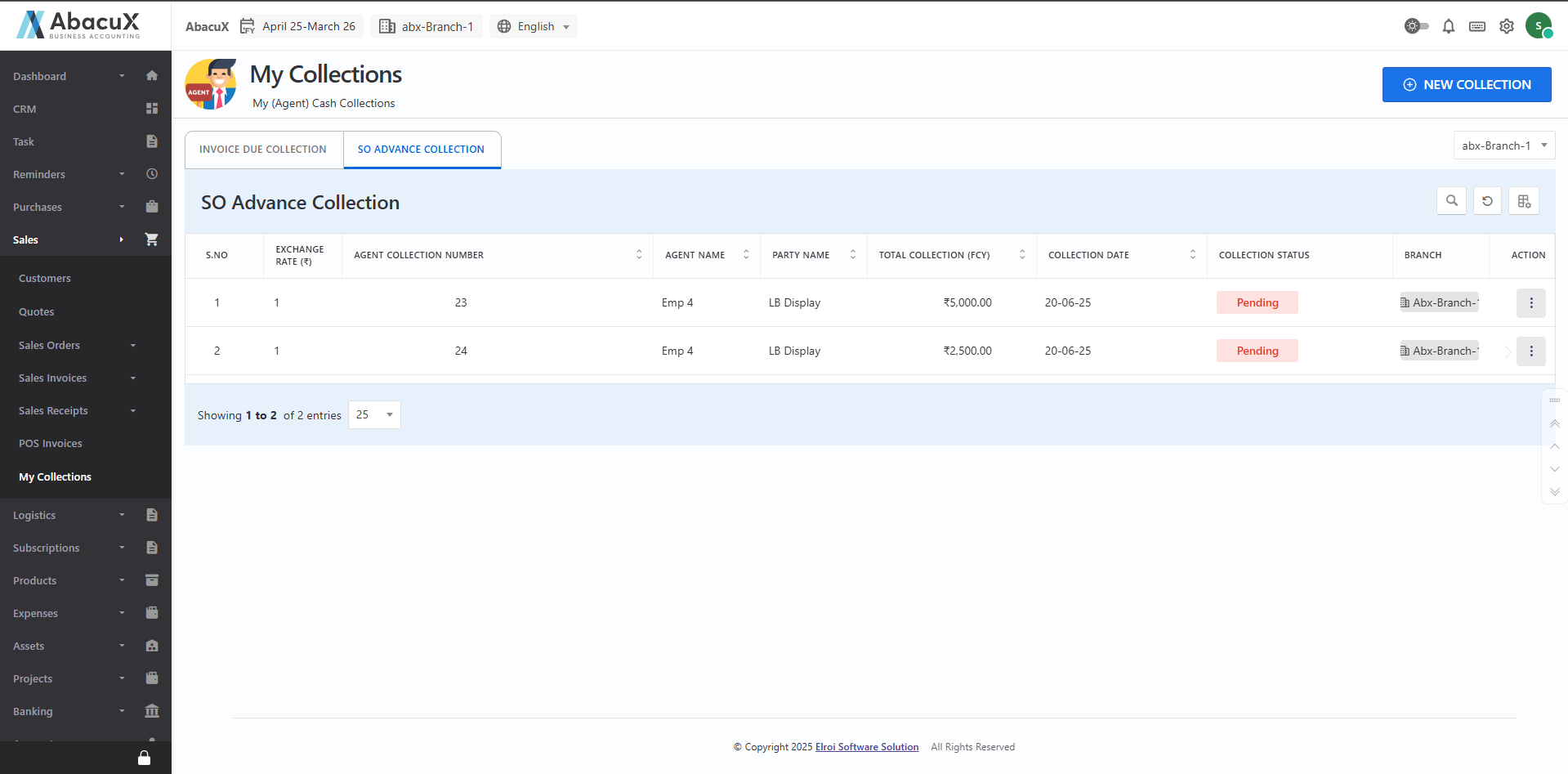
The SO Advance Collection module allows agents to manage and track advance payments received against Sales Orders (SO). This feature ensures accurate recording of upfront payments and provides visibility into the status of advance collections handled by the logged-in user.
Steps to Access and Manage SO Advance Collections
- Click on the "SO Advance Collection" menu to view the list of Sales Order advance collections recorded by you.
-
To add a new advance collection, click the "New Collection" button located at the top right corner of the screen.
-
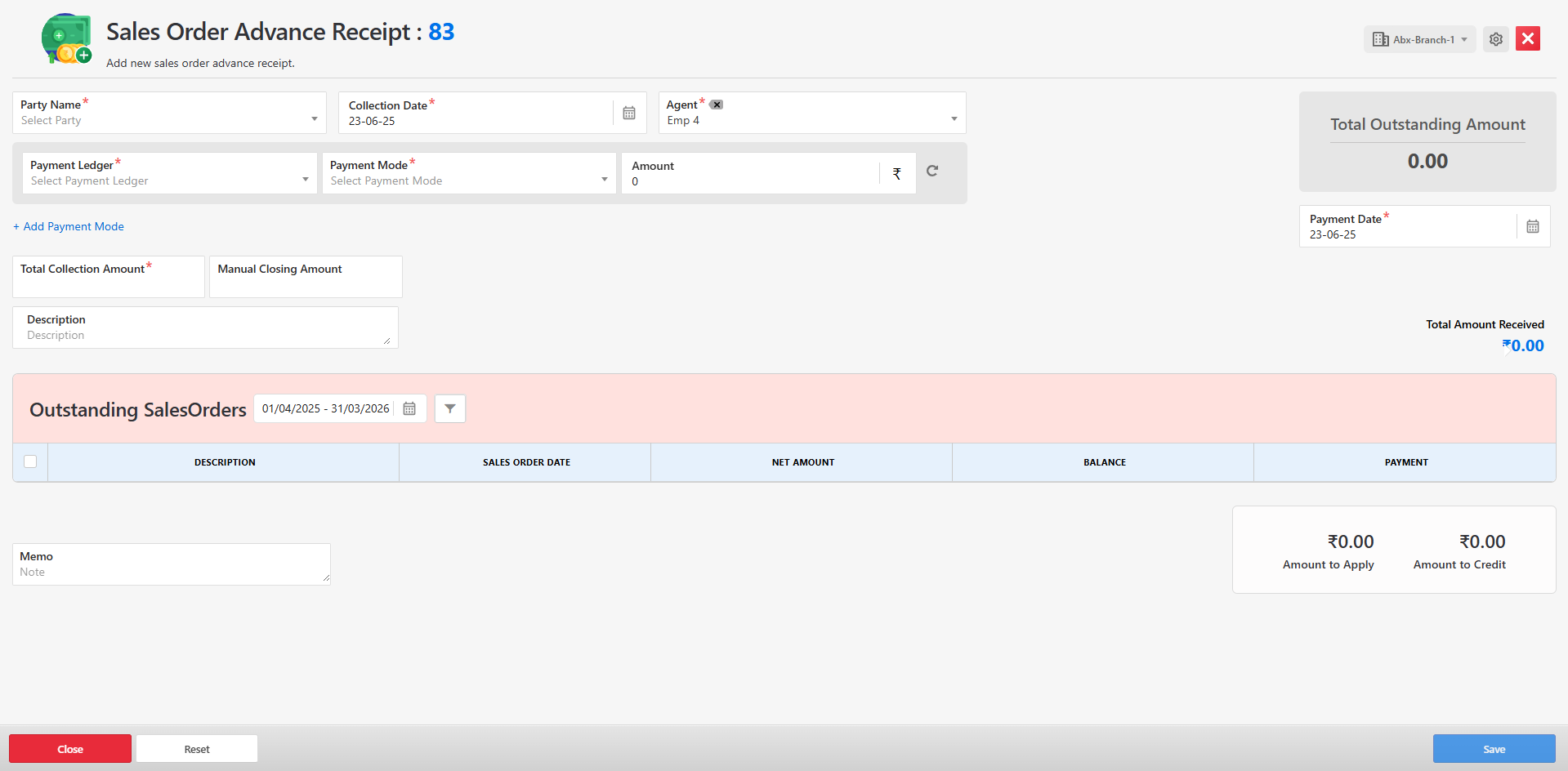
A form will open, allowing you to enter the necessary details related to the SO advance collection.
-
Fill in all required fields, such as:
-
Customer Name
-
Sales Order Reference
-
Advance Amount
-
Payment Mode
-
Collection Date
-
-
After completing the form, click the Save button to submit the details.
-
If the form is saved successfully, a success message will appear, and the entry will be added to the list.
-
If there are any errors during form submission, the system will display error messages on the form for correction.
Available Actions in the Collection List
Edit – Modify the details of an existing SO advance collection.
Review – Mark the entry for verification or approval by an authorized user.
Delete – Remove entries that are incorrect or no longer required.
Benefits
-
Provides accurate tracking of advance payments for Sales Orders.
-
Facilitates financial reconciliation and reporting.
-
Ensures accountability and transparency in agent-level collections.