Stock Transfer
Stock Transfer
Overview: The Stock Transfer module is designed to facilitate the movement of inventory items between warehouses or storage locations within an organization. It ensures accurate tracking of stock levels across all locations, preventing shortages or overstocking.
Key Features:
Initiate Transfer Requests:
-
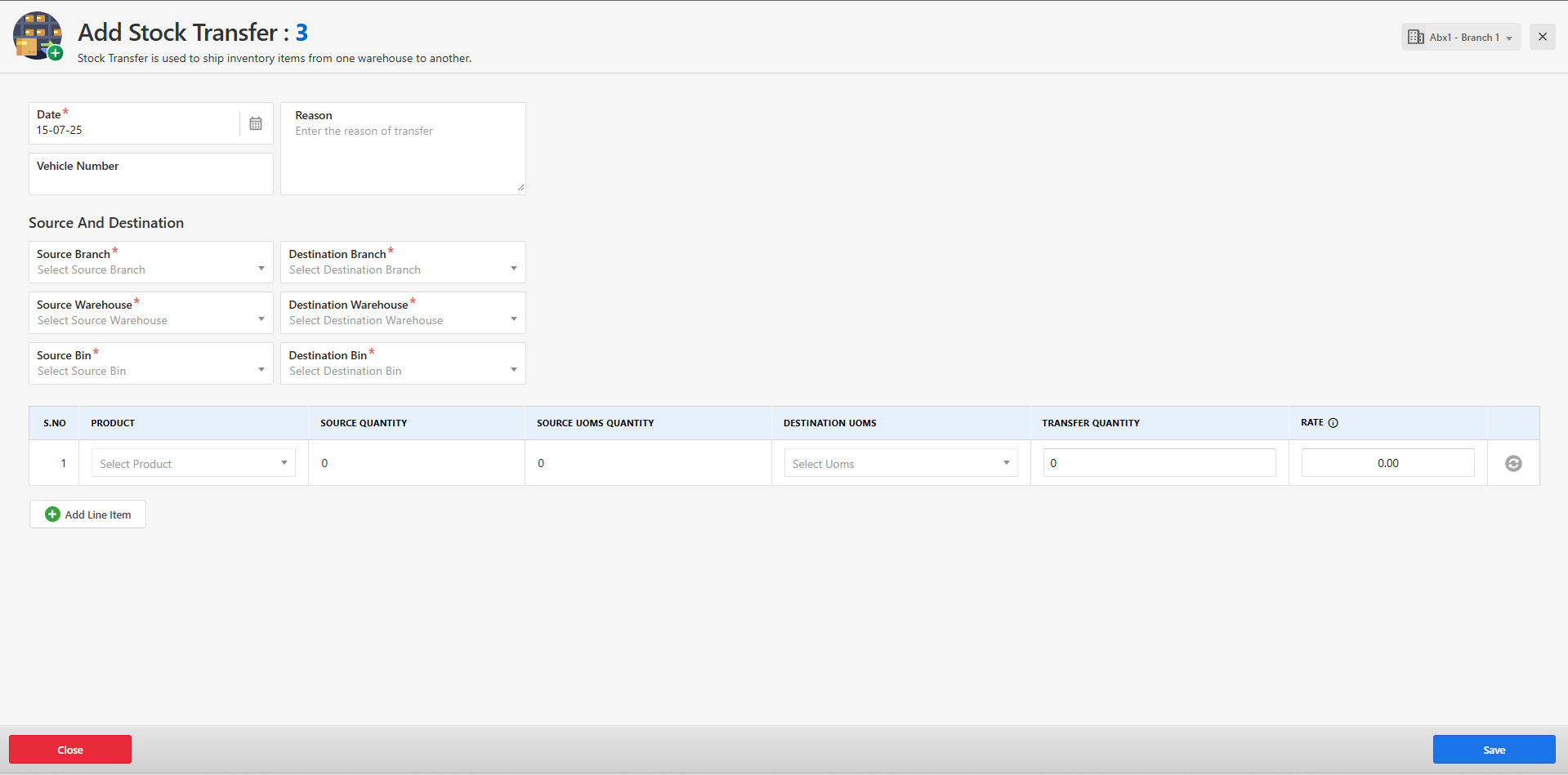
Users can create new stock transfer requests by selecting the source and destination warehouses.
-
The form includes fields for transfer date, reference number, and remarks.
Item Selection:
-
Users can select one or more inventory items to be transferred.
-
Quantity validation ensures that requested quantities do not exceed available stock in the source warehouse.
Transfer Status Tracking:
-
Each stock transfer request can have statuses such as:
Draft
Pending
In Transit
Received
Cancelled
Transfer Acknowledgement:
-
Once items are physically received at the destination, the receiving warehouse staff can mark the transfer as Received.
-
Received quantities can be reviewed and verified before confirming.
Audit Trail:
- Each stock transfer is logged for traceability and inventory audit purposes.
Stock Transfer
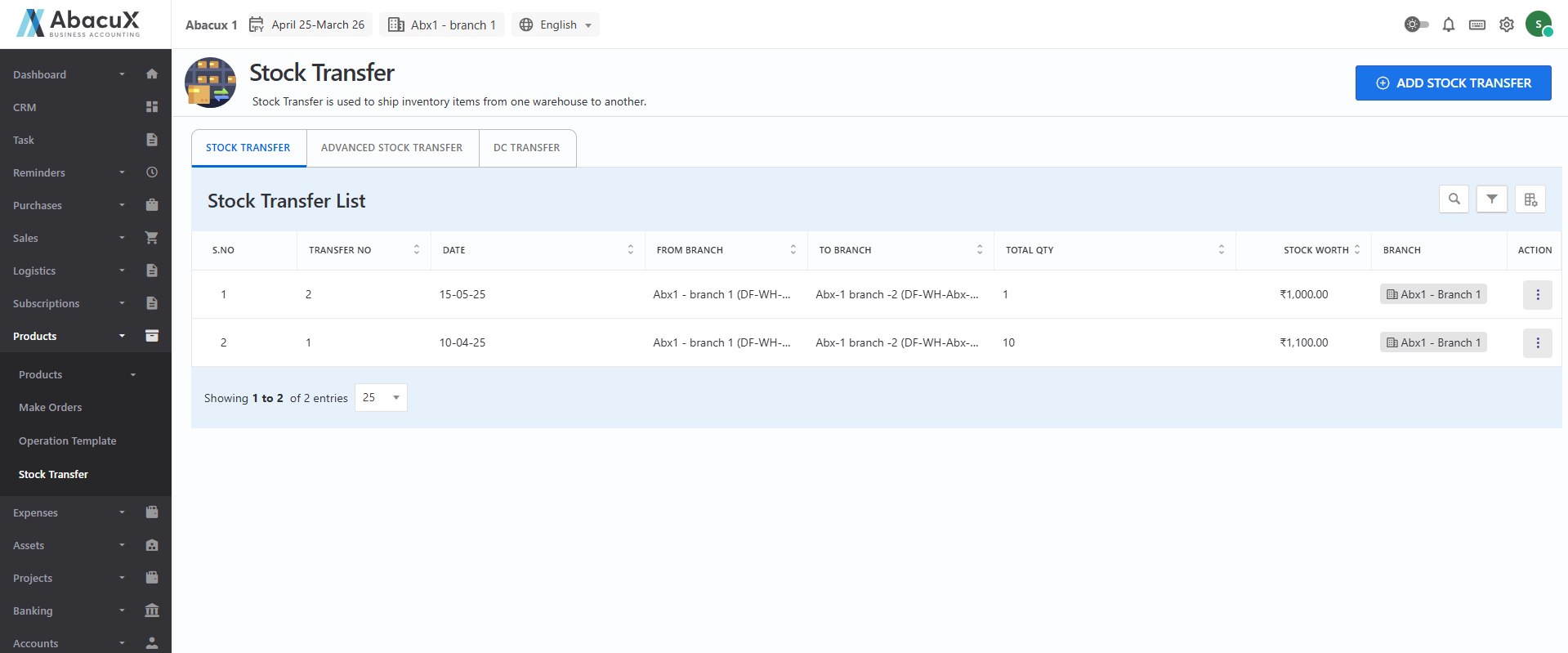
- Navigate to the Stock Transfer section to view the list of all stock transfer records.
-
To initiate a new stock transfer, click the "Add Stock Transfer" button located at the top-right corner of the page.
-
A form will open to capture the necessary stock transfer details.
-
Fill in all the required fields and click Save to create the stock transfer record.
-
Upon successful submission, a success message will be displayed on the listing page.
-
If there is any error during the form submission, an appropriate error message will be displayed on the form.
-
The stock transfer list allows you to perform the following actions:
Edit – Modify an existing stock transfer.
View – View detailed information of the stock transfer.
Delete – Remove a stock transfer record.
Convert to DC – Convert the stock transfer into a Delivery Challan (DC).
Advanced Stock Transfer
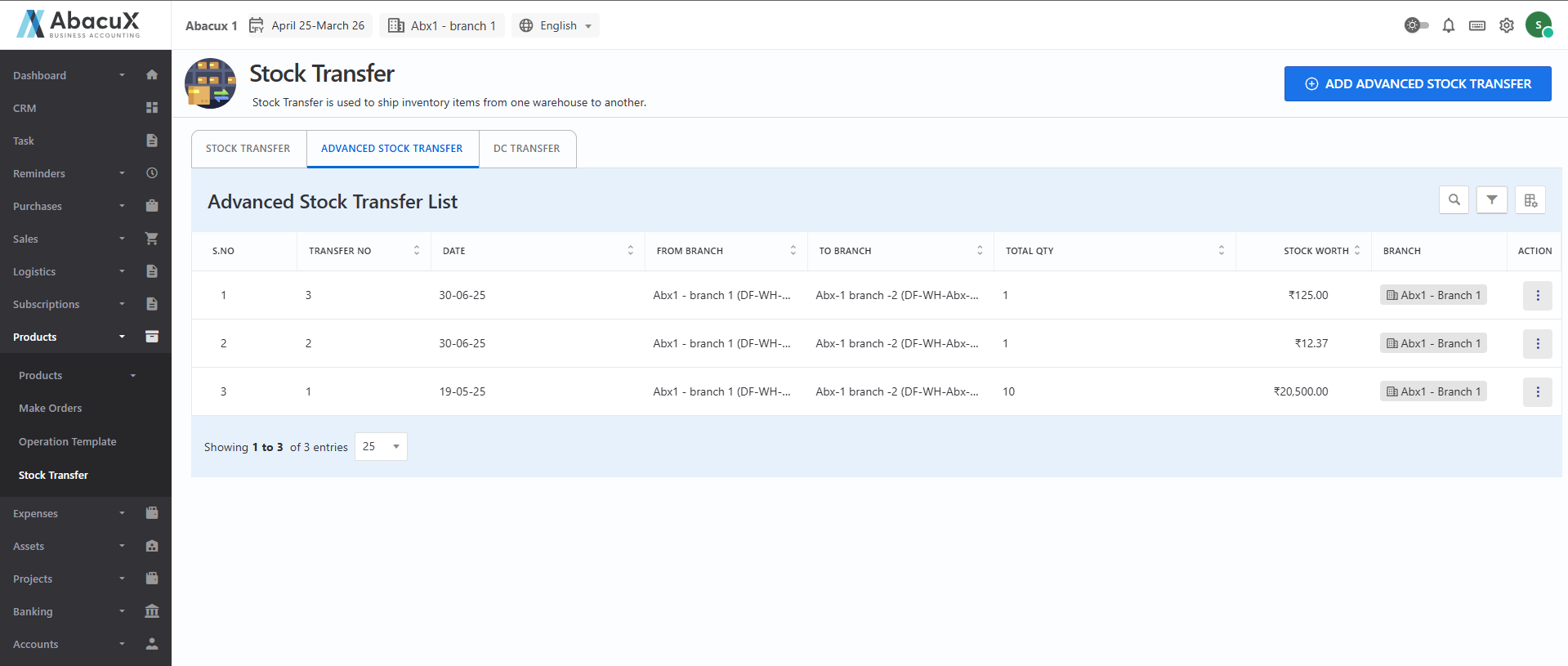
- Navigate to the Advanced Stock Transfer tab to view the list of all advanced stock transfer records.
-
To create a new advanced stock transfer, click the "Advanced Stock Transfer" button located at the top-right corner of the page.
-
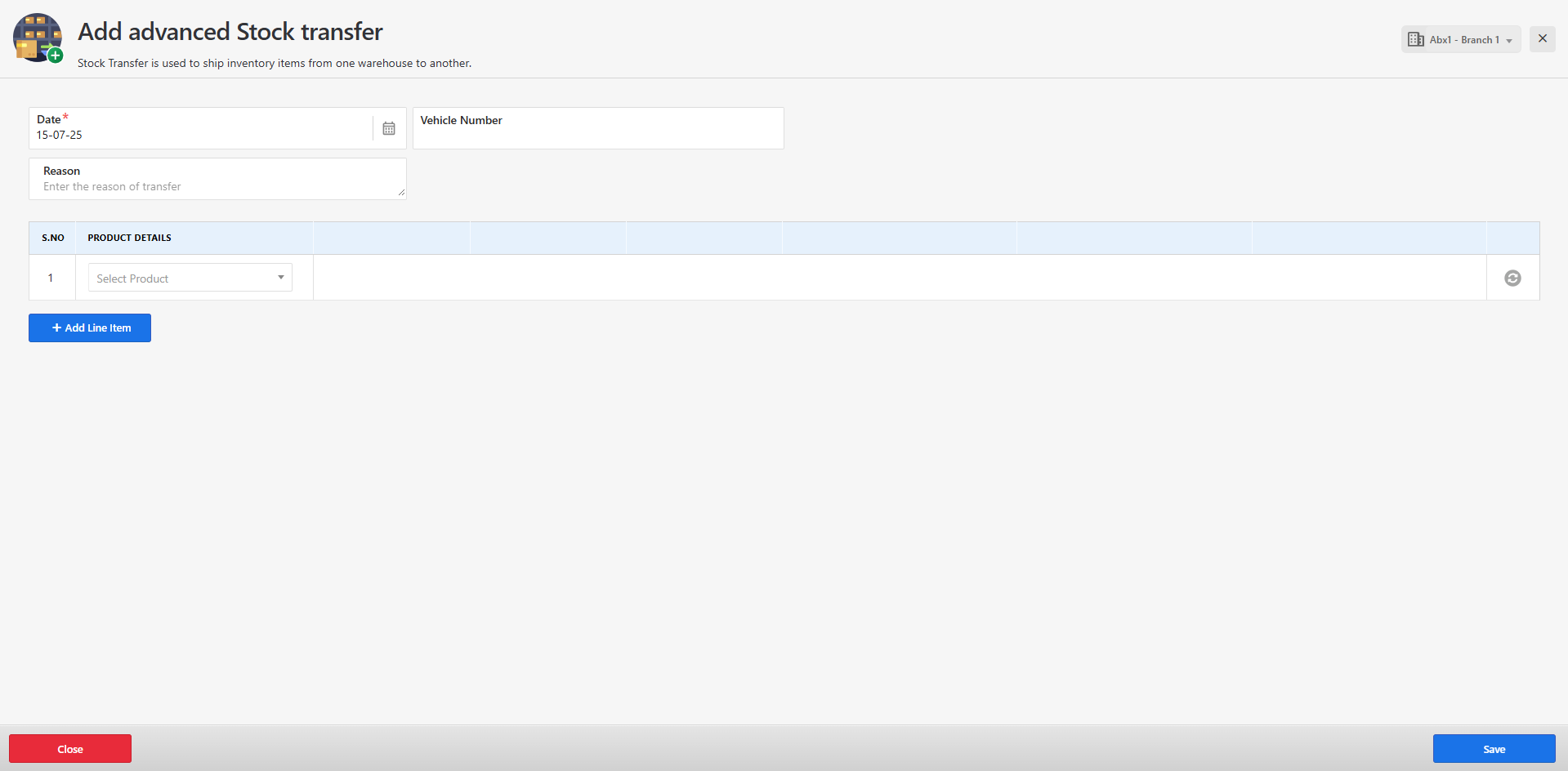
A form will open to capture the advanced stock transfer details.
-
Complete all the required fields in the form and click Save to submit.
-
Upon successful submission, a success message will appear on the listing page.
-
If there is any issue during submission, an appropriate error message will be displayed on the form.
-
You can manage the advanced stock transfers using the following available actions:
Edit – Modify the selected stock transfer.
View – View the detailed information.
Delete – Remove the selected record.
DC Converted – Indicates whether the stock transfer has been converted to a Delivery Challan.
DC Transfer
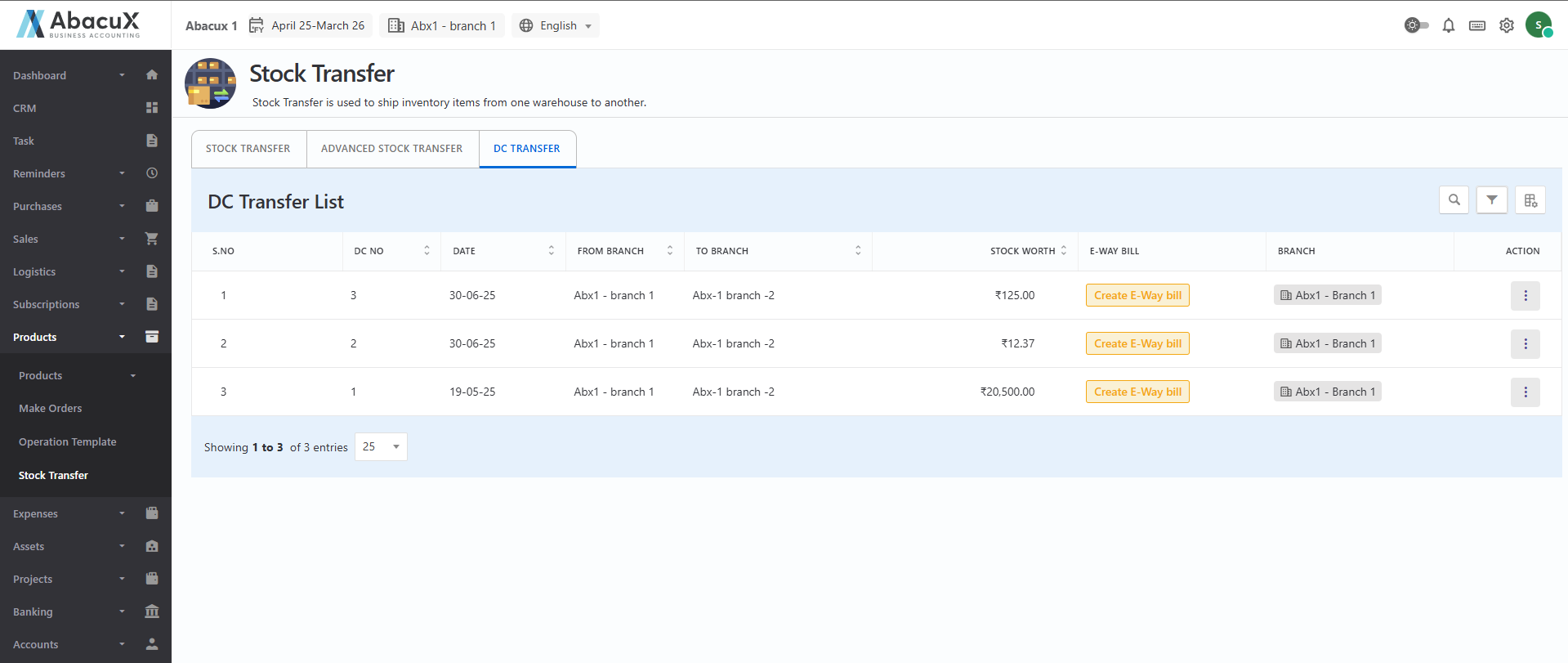
- Click on the DC Transfer tab to view the list of Delivery Challan (DC) transfers.
-
The DC transfer list includes the following available actions for each record:
Print – Print the Delivery Challan.
Delete – Delete the selected Delivery Challan.
-
Each record in the list includes a "Create E-way Bill" button.
-
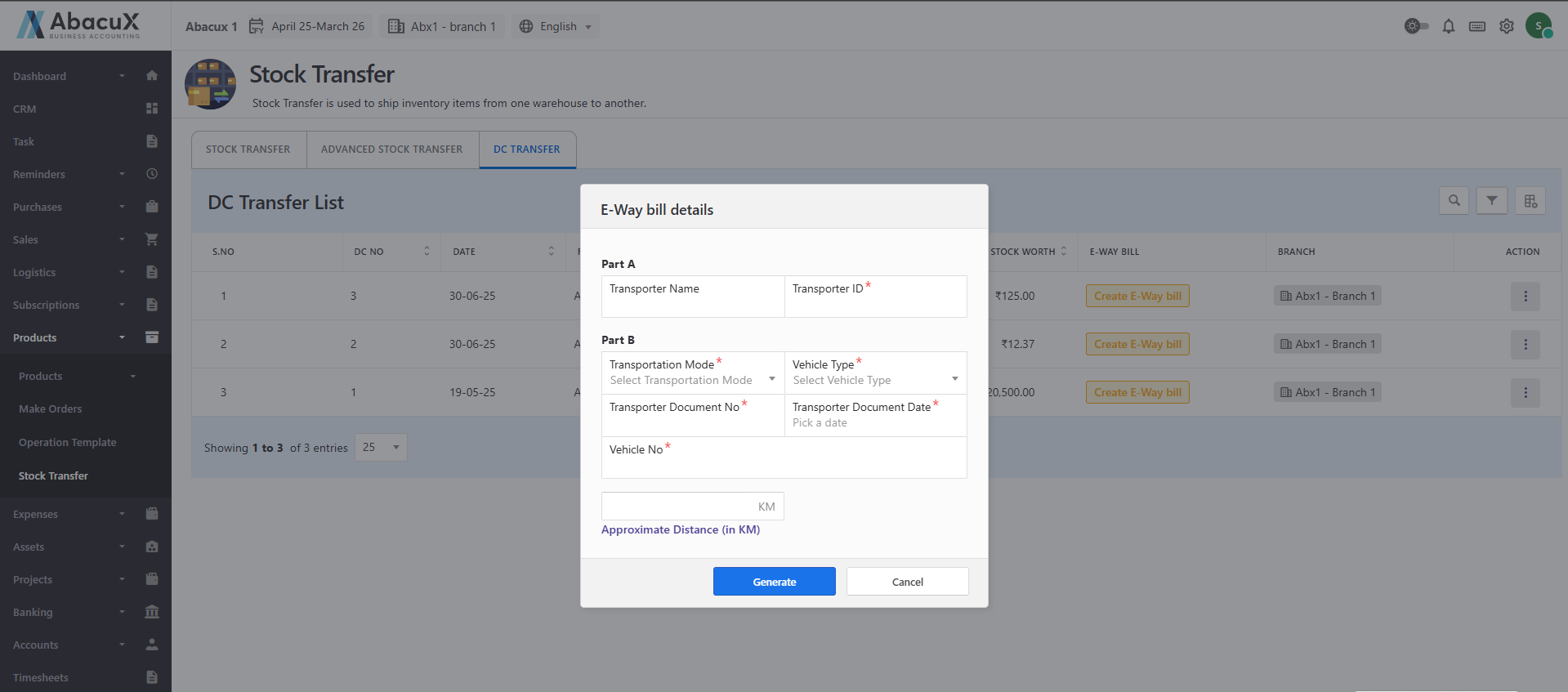
Click the "Create E-way Bill" button to initiate the E-way bill generation process.
-
A form will open to enter the necessary E-way bill details.
-
Fill in all required fields and click Save to proceed.
-
Upon successful submission, a success message will be displayed.
-
If any errors occur during submission, an error message will be shown on the form.