Role and Permission
Create new role and permissions
To create a new role, follow the steps outlined below:
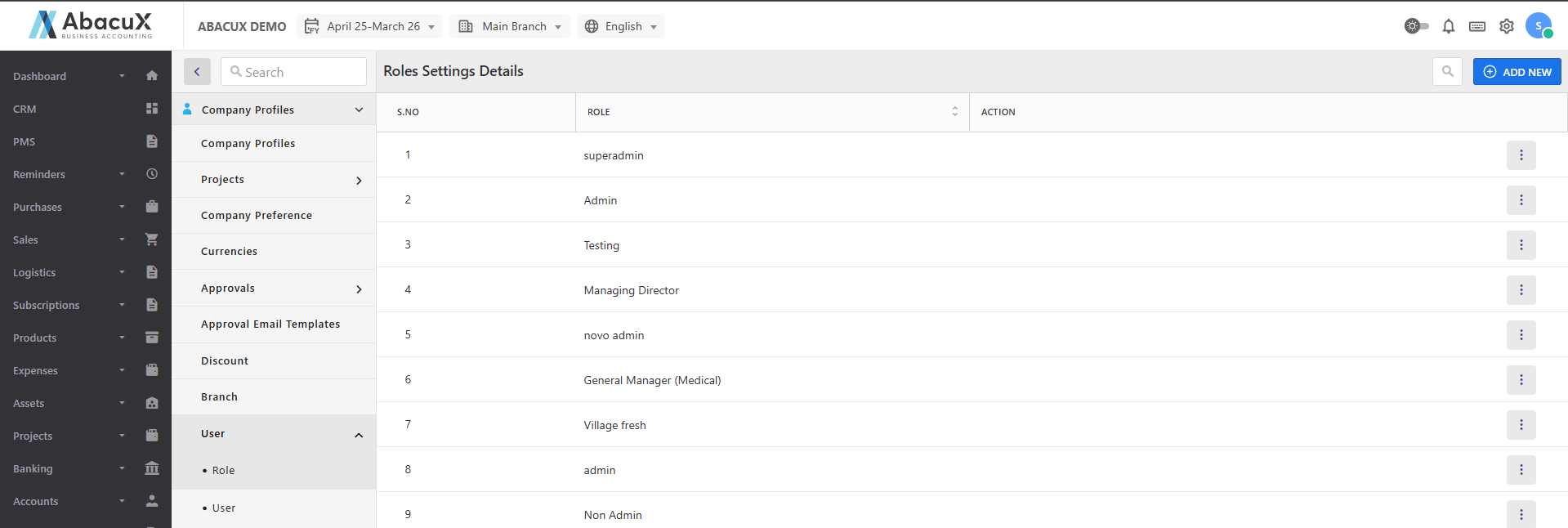
- Navigate to the Role section under Company Profiles in the Settings menu.
-
Click the "+ Add New" button located at the top-right corner of the Roles List page.
-
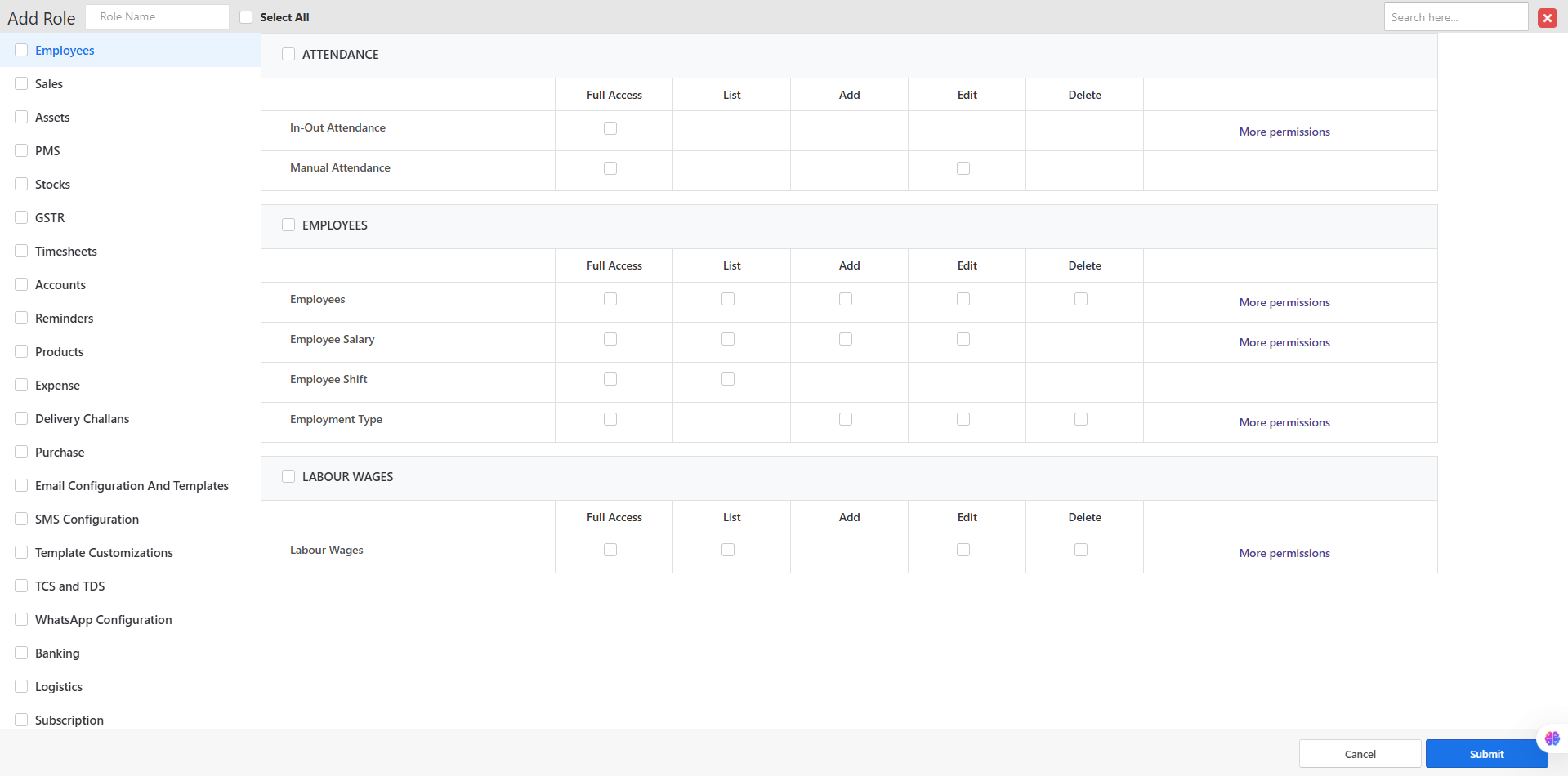
A modal popup will appear, displaying a form to enter the role name and assign permissions.
-
Enter a name for the new role.
-
Review the list of available permissions and select the appropriate ones to assign to the role.
-
You may assign module-based permissions individually, or click the "Select All" checkbox at the top to assign all available permissions.
-
Once all required information has been provided, click "Submit" to submit the form and create the role with the selected permissions.
-
Upon successful creation, a confirmation notification will appear on the Roles List screen.
-
If there are any errors during submission, they will be displayed within the form for correction.
-
After the role is successfully created, you may proceed to assign it to users as needed.
Basic settings available here.