Create a branch
A default company along with a default branch is automatically created based on your registration details.
Default Company: "Your Company Name..."
Default Branch: "Main Branch"
Create new branch
To create a new branch, navigate to the Branch section under Company Profiles in the Settings menu.
- Click the "+ Add New" button located in the top-right corner of the Branches List page.
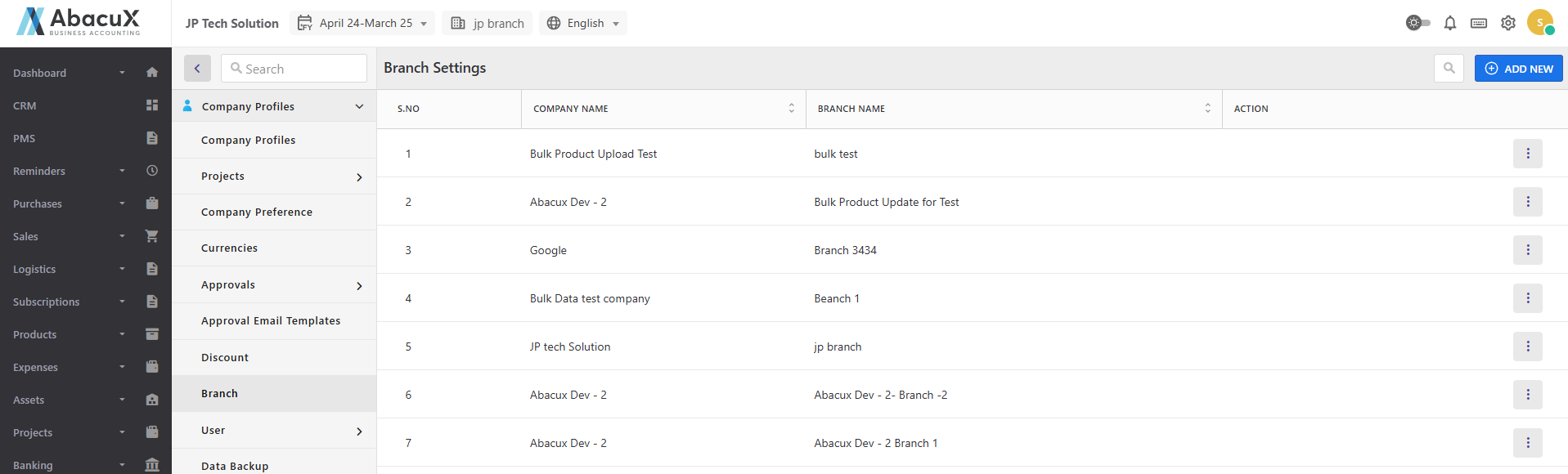
- A modal popup will appear with a form to enter the new branch details.
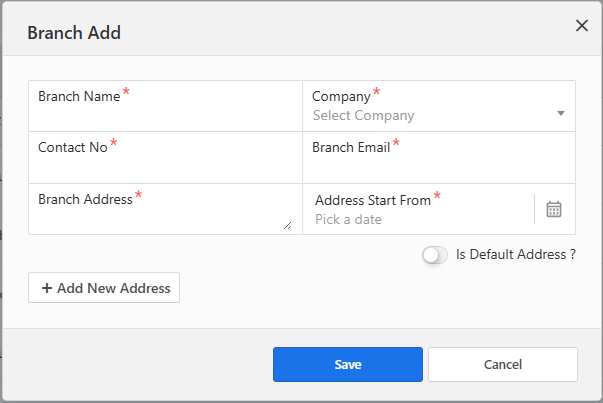
-
Fill in the required information for the new branch.
-
If you wish to add a new address for the branch, click the "Add New Address" button within the branch popup.
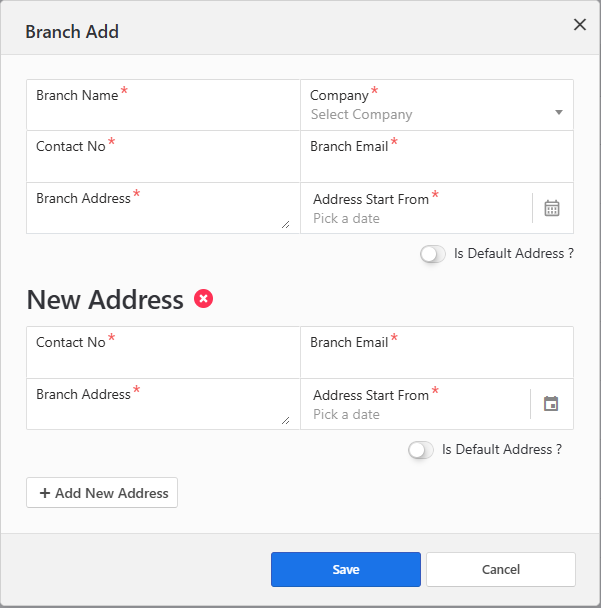
-
A new section will appear at the bottom of the form where you can enter the address details.
-
Once all the information is entered, click "Save" to submit the form and create the branch.
-
If the branch is created successfully, a success notification will appear on the list screen.
-
Any errors encountered during submission will be displayed within the form.
-
After successfully creating a branch, you may proceed to create a user for the new branch.
Basic settings available here.