Create a User
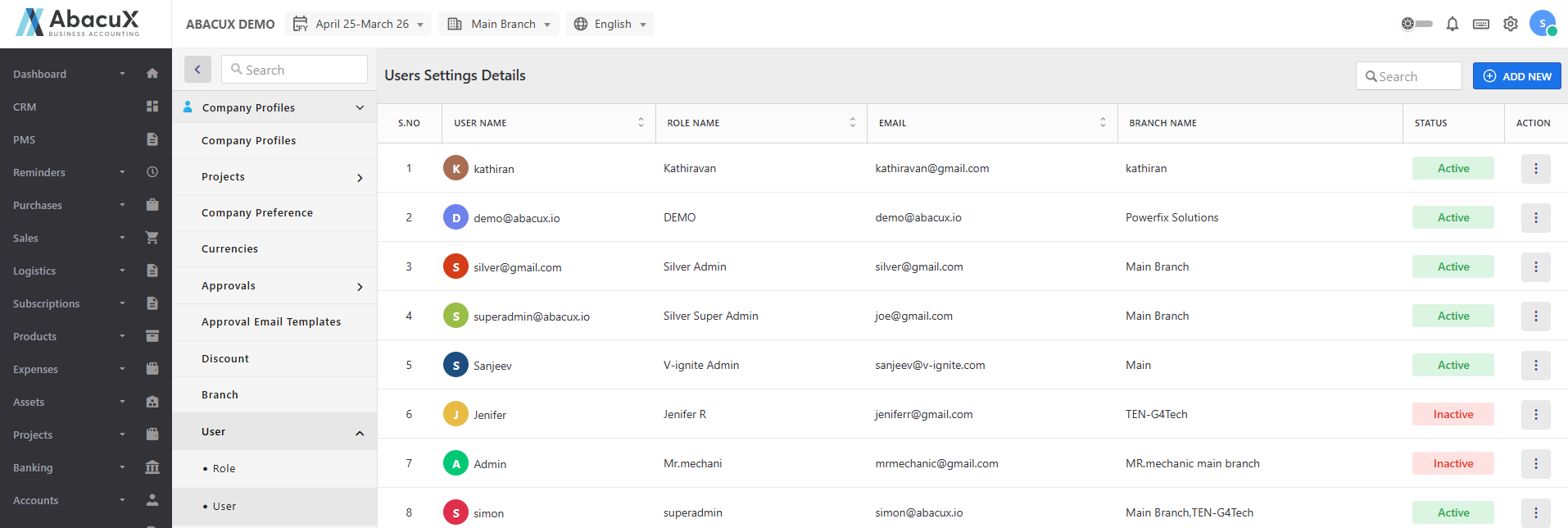
An admin user is created by default for your company during registration. To create additional users, navigate to the User section under Company profile in the Settings menu.
Create new user
To create a new user, follow the steps below:
- Navigate to the User section under Company Profiles in the Settings menu.
-
Click the "+ Add New" button located at the top-right corner of the Users List page.
-
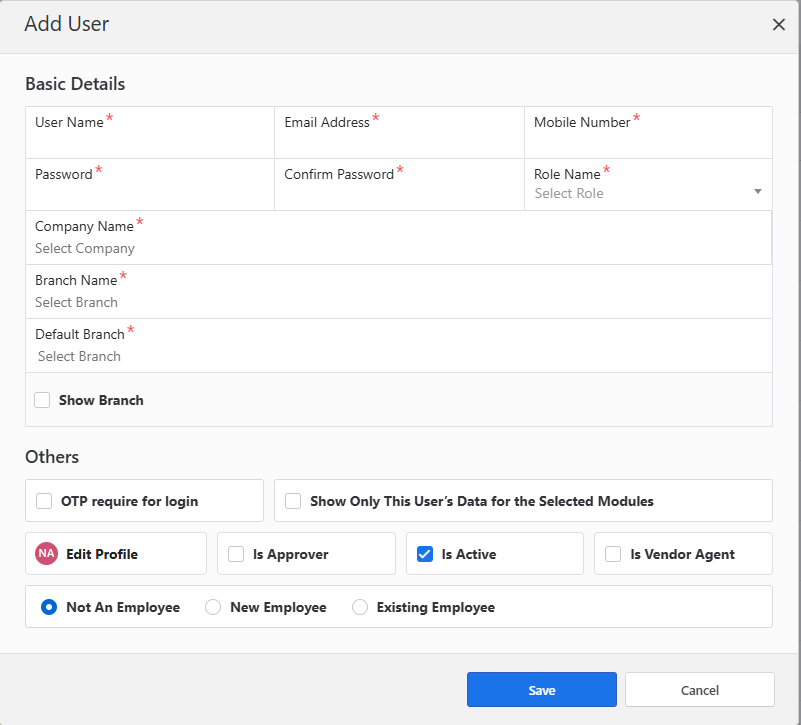
A modal popup will appear, presenting a form to enter the new user’s details.
-
Fill in the required information for the new user.
-
If you wish to enable additional options—such as requiring OTP for login, displaying user data only, or designating the user as an Employee or Vendor Agent—select the appropriate option. Based on your selection, additional fields will be displayed.
-
Complete the newly displayed section at the bottom of the form with the relevant information.
-
Once all the required details are filled in, click "Save" to submit the form and create the user.
-
Upon successful creation, a success notification will be displayed on the Users List screen.
-
If any errors occur during submission, they will be displayed within the form for correction.
-
After the user is successfully created, you may proceed to log in using the new user credentials.
Basic settings available here.