Chart of Accounts
All Chart of Accounts
The Chart of Accounts (COA) is a structured list of all financial accounts used in a company’s general ledger. It serves as the foundation for the accounting system by organizing and categorizing every transaction into predefined accounts. Each account within the COA is assigned a unique code and name to ensure accurate recording, tracking, and reporting of financial data.
In the ERP application, the Chart of Accounts allows businesses to manage their financial operations by clearly defining and maintaining different types of accounts, such as:
-
Assets (e.g., cash, inventory, fixed assets)
-
Liabilities (e.g., loans, payables)
-
Equity (e.g., retained earnings, owner’s capital)
-
Revenue (e.g., sales, service income)
-
Expenses (e.g., salaries, utilities, rent)
Key Features
-
Account Categorization: Accounts are grouped by category and type to simplify financial reporting and compliance.
-
Hierarchical Structure: Supports parent-child account relationships to allow detailed sub-account tracking under broader categories.
-
Customizable: Allows creation of custom account codes, names, and descriptions based on the organization’s financial structure.
-
Integration: Seamlessly integrates with all financial modules like Journal Entries, Payments, Invoices, Purchase Orders, and Expense Tracking.
-
Control Accounts: Special accounts used for automated transactions linked to other modules (e.g., Accounts Receivable, Accounts Payable).
-
Status Management: Accounts can be activated or deactivated based on business needs.
Benefits
-
Ensures consistency and accuracy in financial records.
-
Facilitates easier audit and regulatory compliance.
-
Provides better financial insight through structured reports and analytics.
-
Supports multi-level account configuration for complex organizations.
Manage Chart of Accounts (COA)
- Navigate to the Chart of Accounts under the Accounts menu to view the list of available accounts.
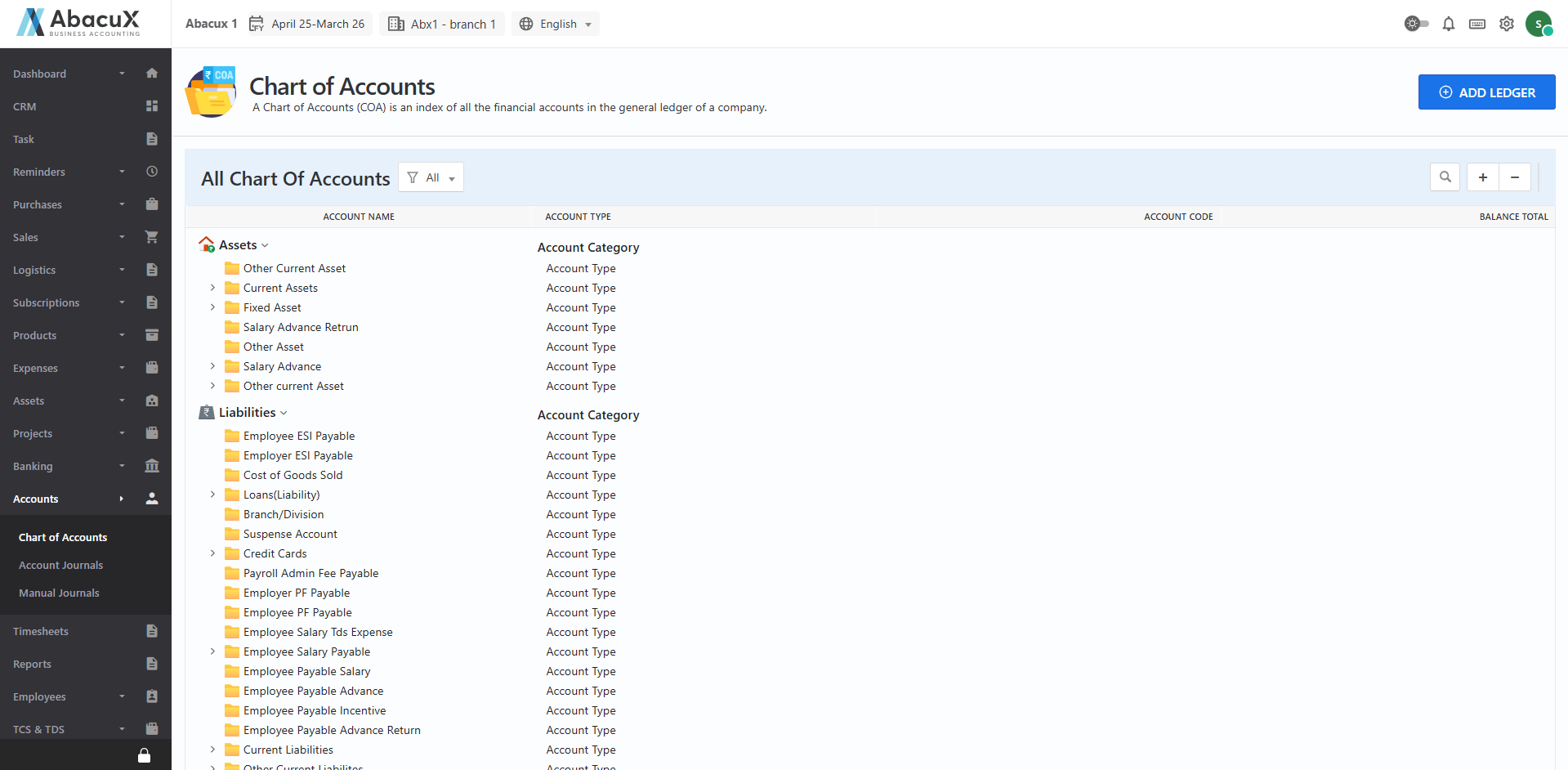
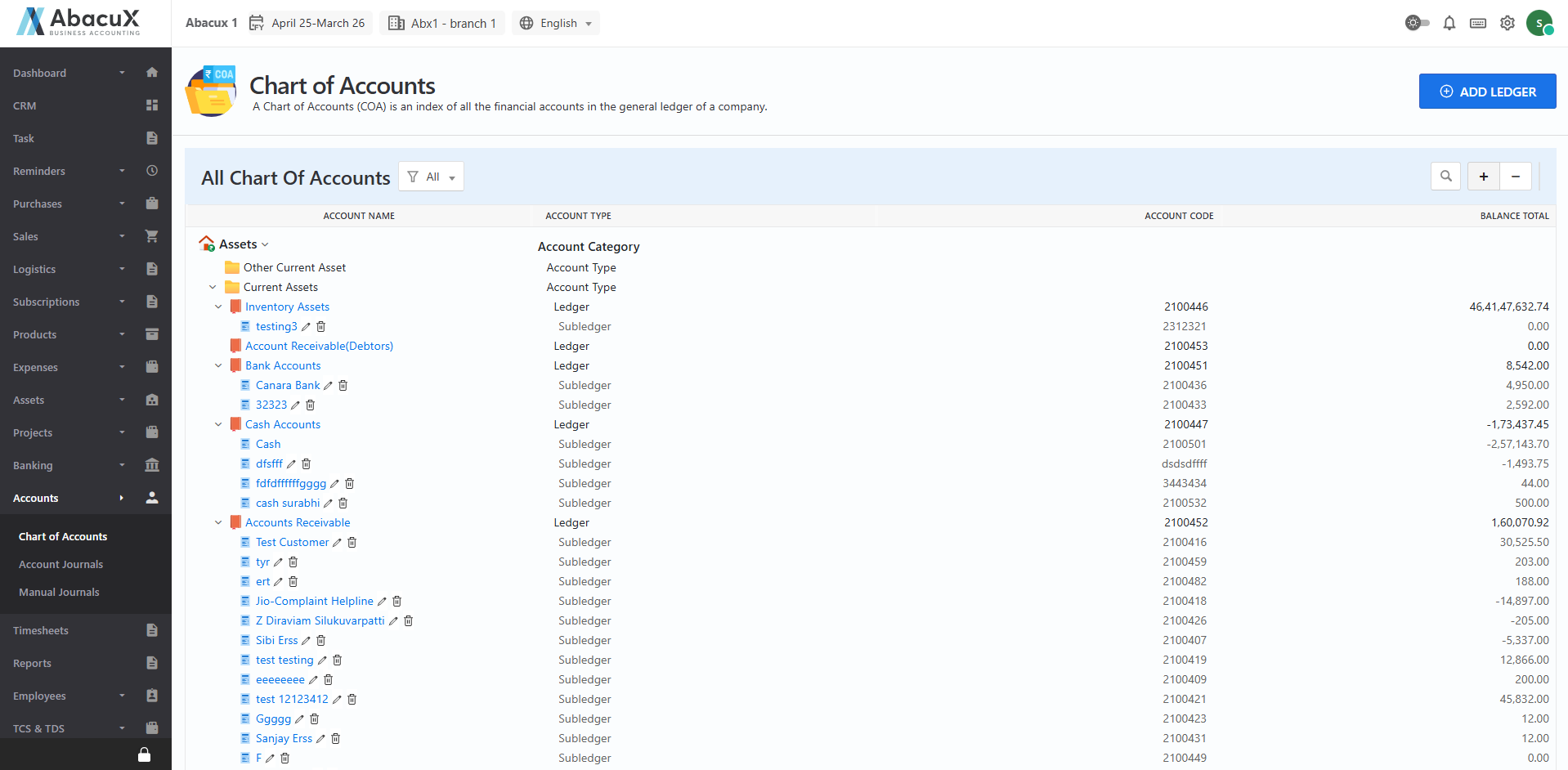
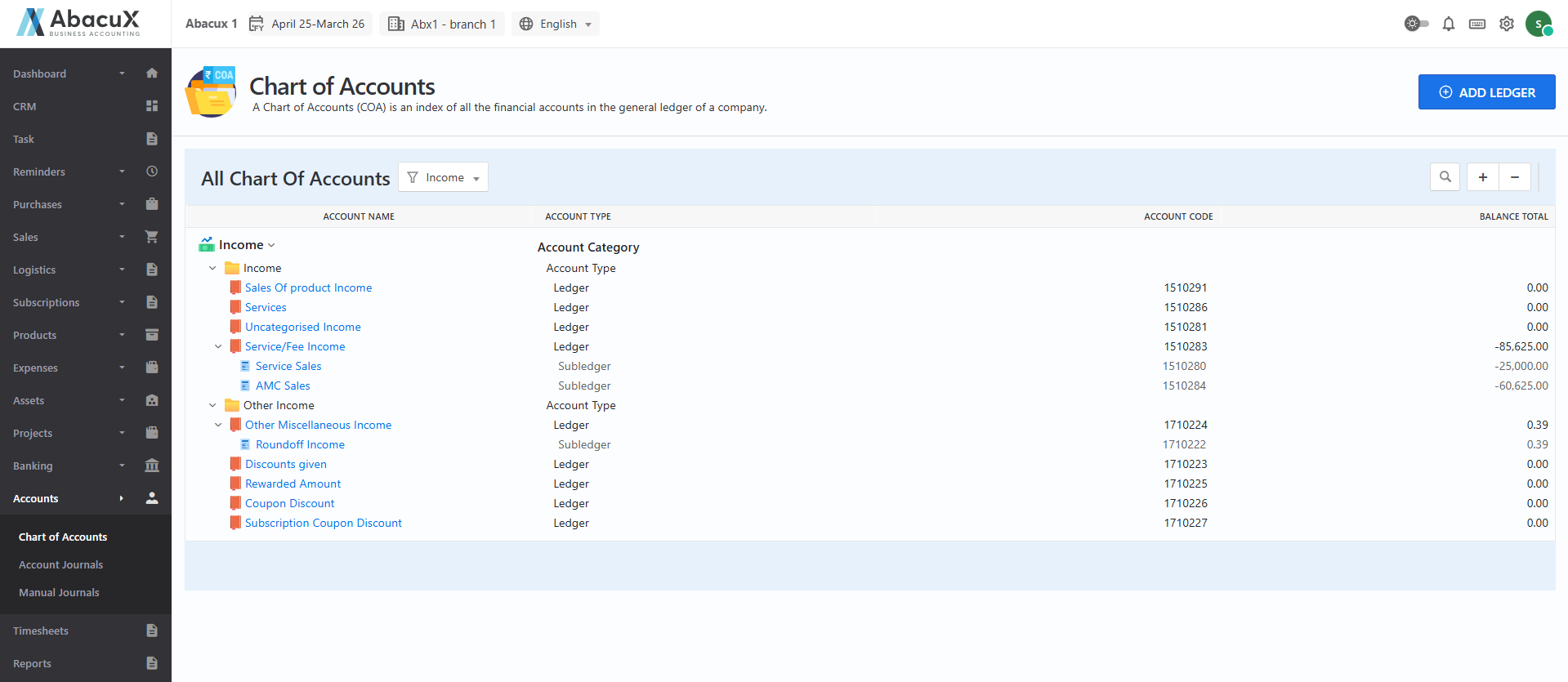
- Click the ‘+’ icon located at the top-right corner to expand the view and display the Account Categories, Account Types, Ledgers, and Sub-Ledgers.
-
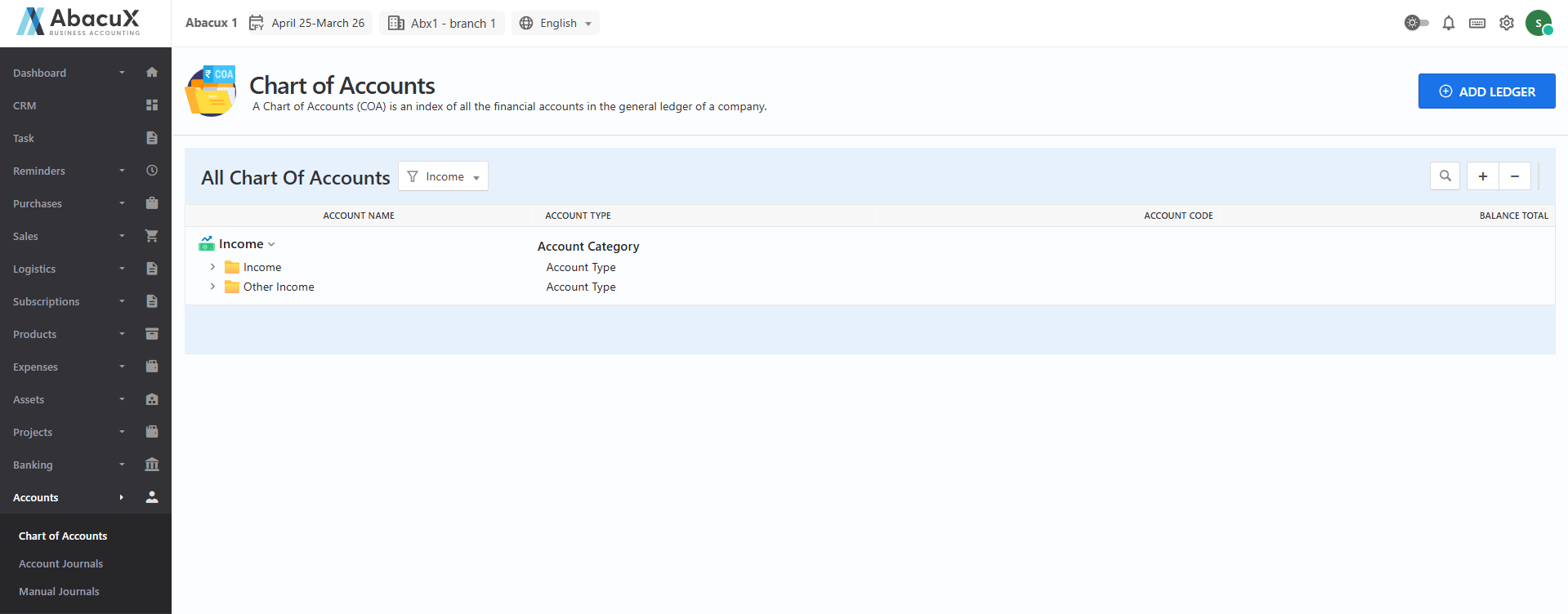
To filter by a specific Account Category, select the desired category from the dropdown or filter option at the top.
-
Once an Account Category is selected, its corresponding Account Types will be displayed.
-
To expand a selected Account Category, click the ‘+’ icon next to it.
-
This will reveal the list of Ledgers and Sub-Ledgers associated with the selected Account Type.
-
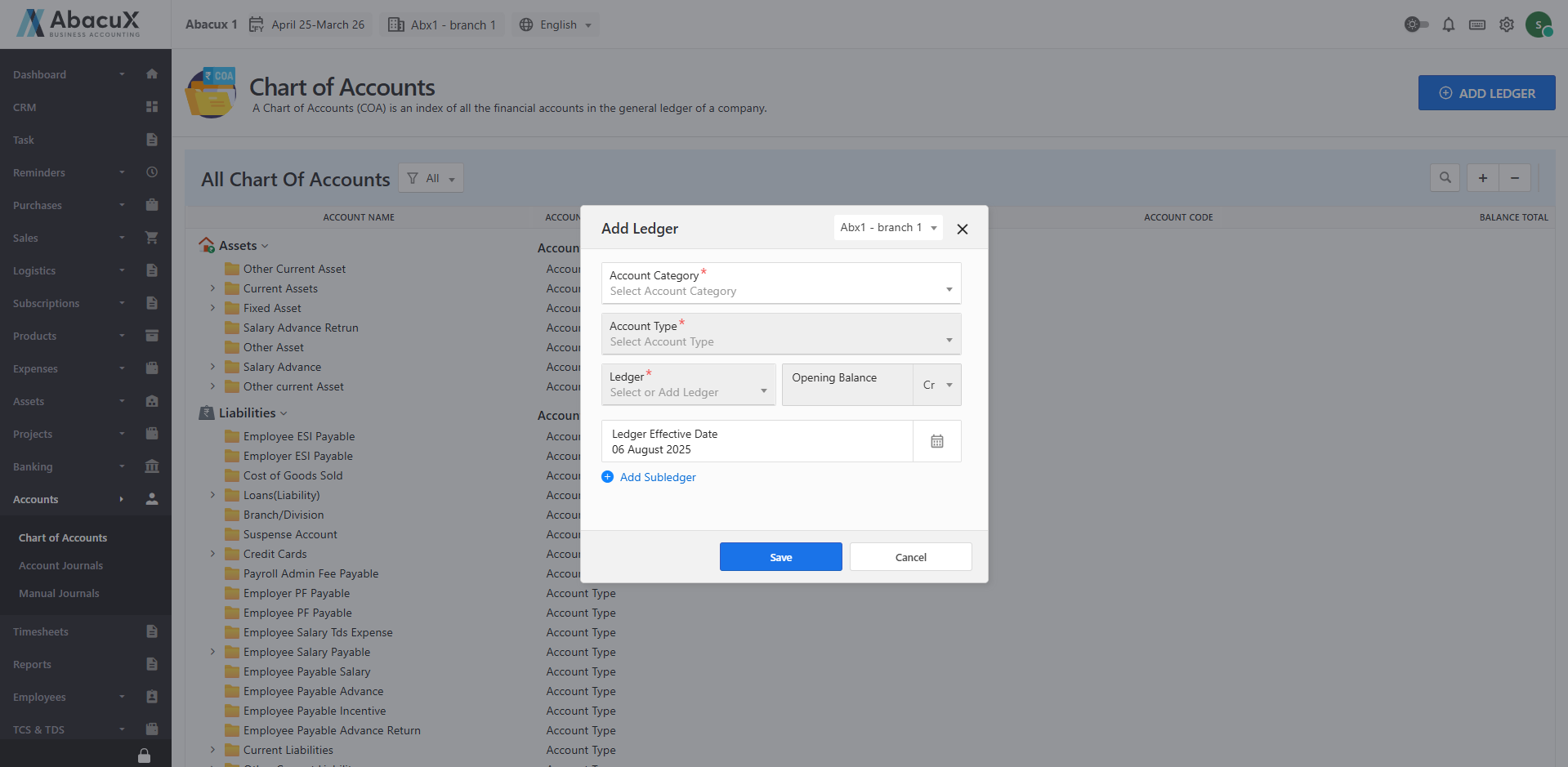
To add a new Ledger, click the "Add Ledger" button at the top-right corner.
-
A form will appear to enter the Ledger details.
-
Fill in all the required fields and click Save to create the new ledger.
-
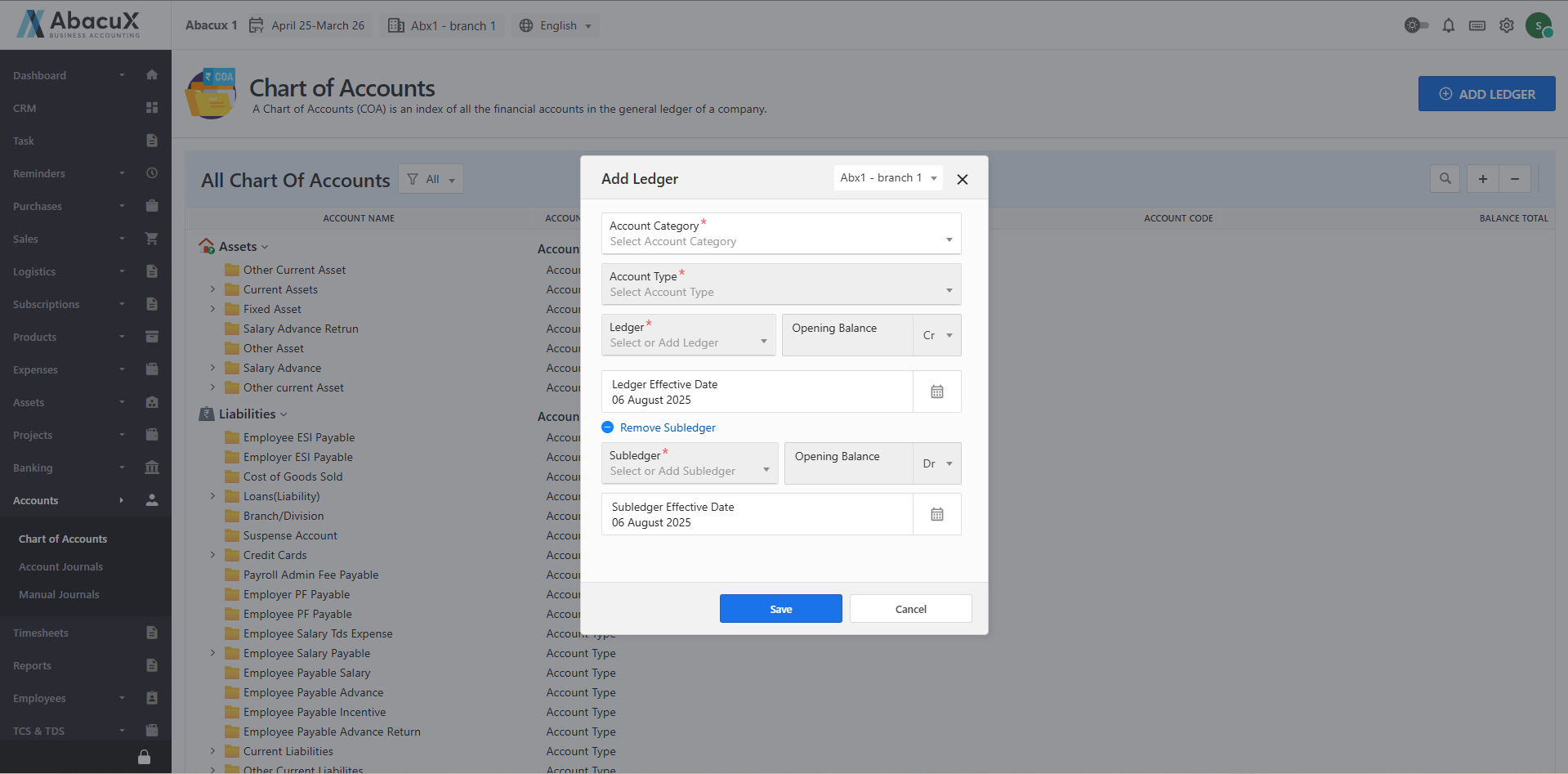
To add a Sub-Ledger, click on the "Add Sub-Ledger" link within the ledger form.
-
The form will expand to allow you to enter the Sub-Ledger details.
-
Upon successful submission of the form, a success message will appear on the listing page.
-
If there is any error while saving the form, an error message will be displayed on the form itself.
-
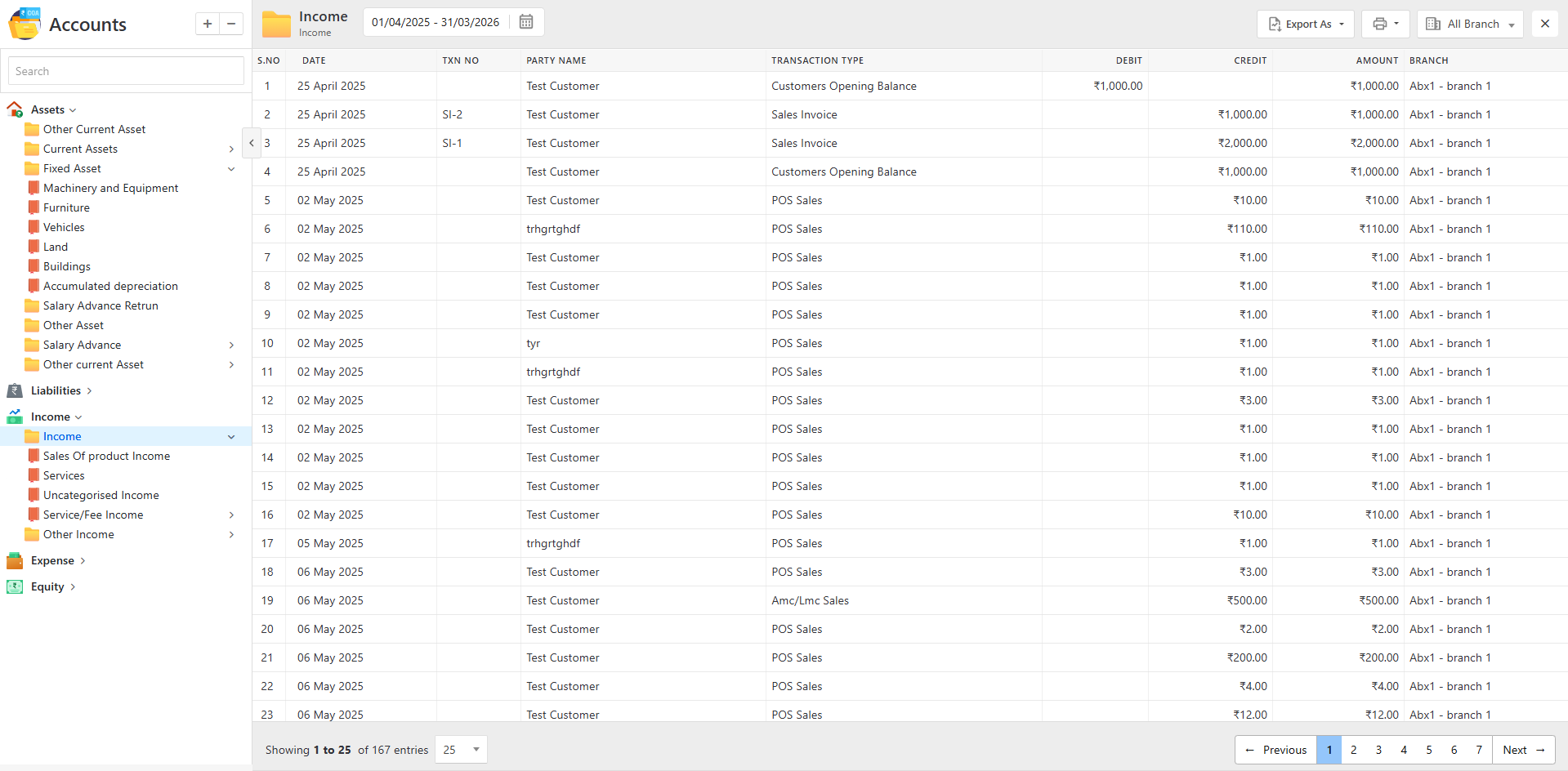
Clicking on an Account Type or Ledger will redirect you to the details page.
-
The details page displays the list of transactions related to the selected Account Type or Ledger.