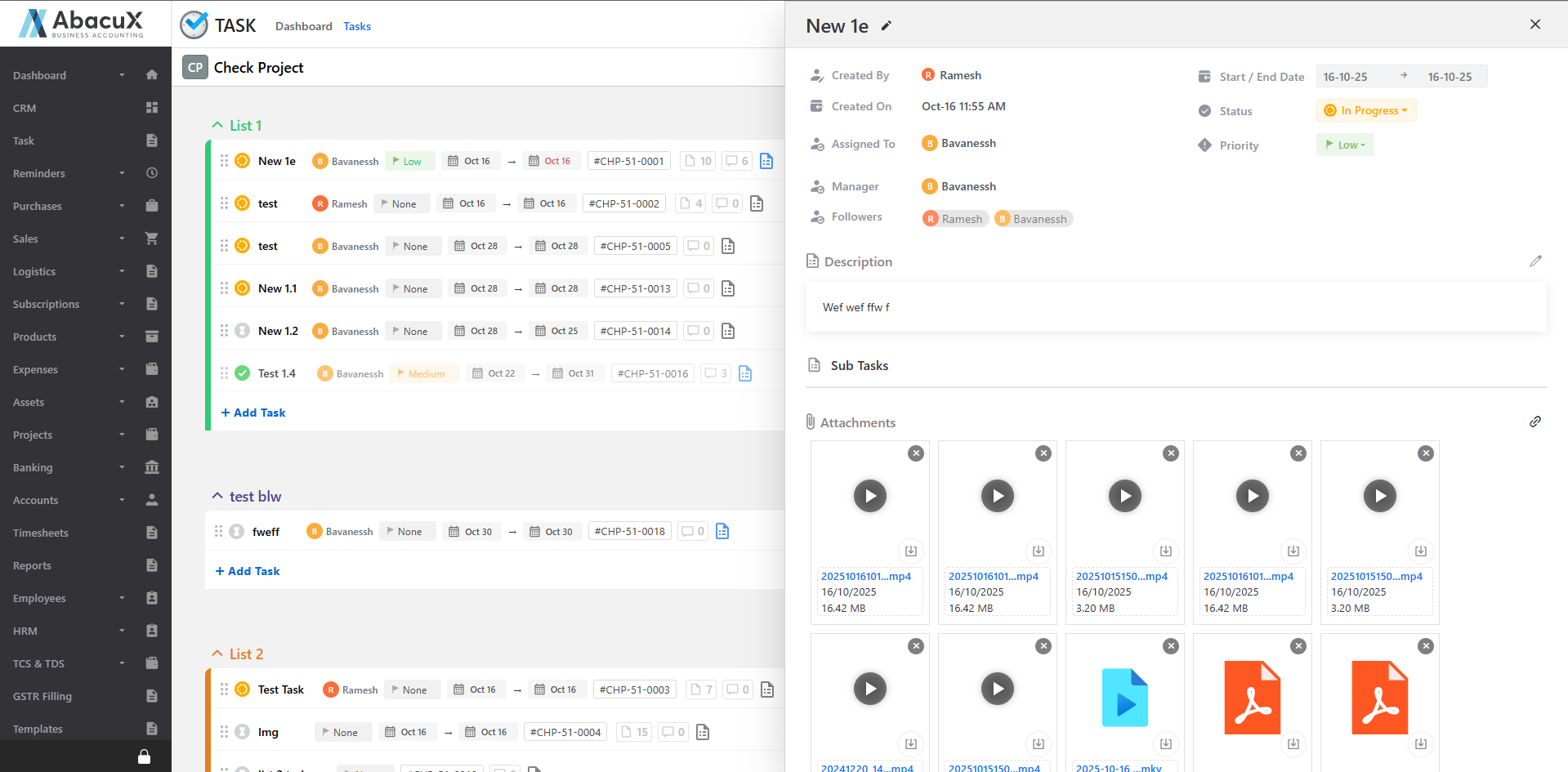
Tasks
Task Management
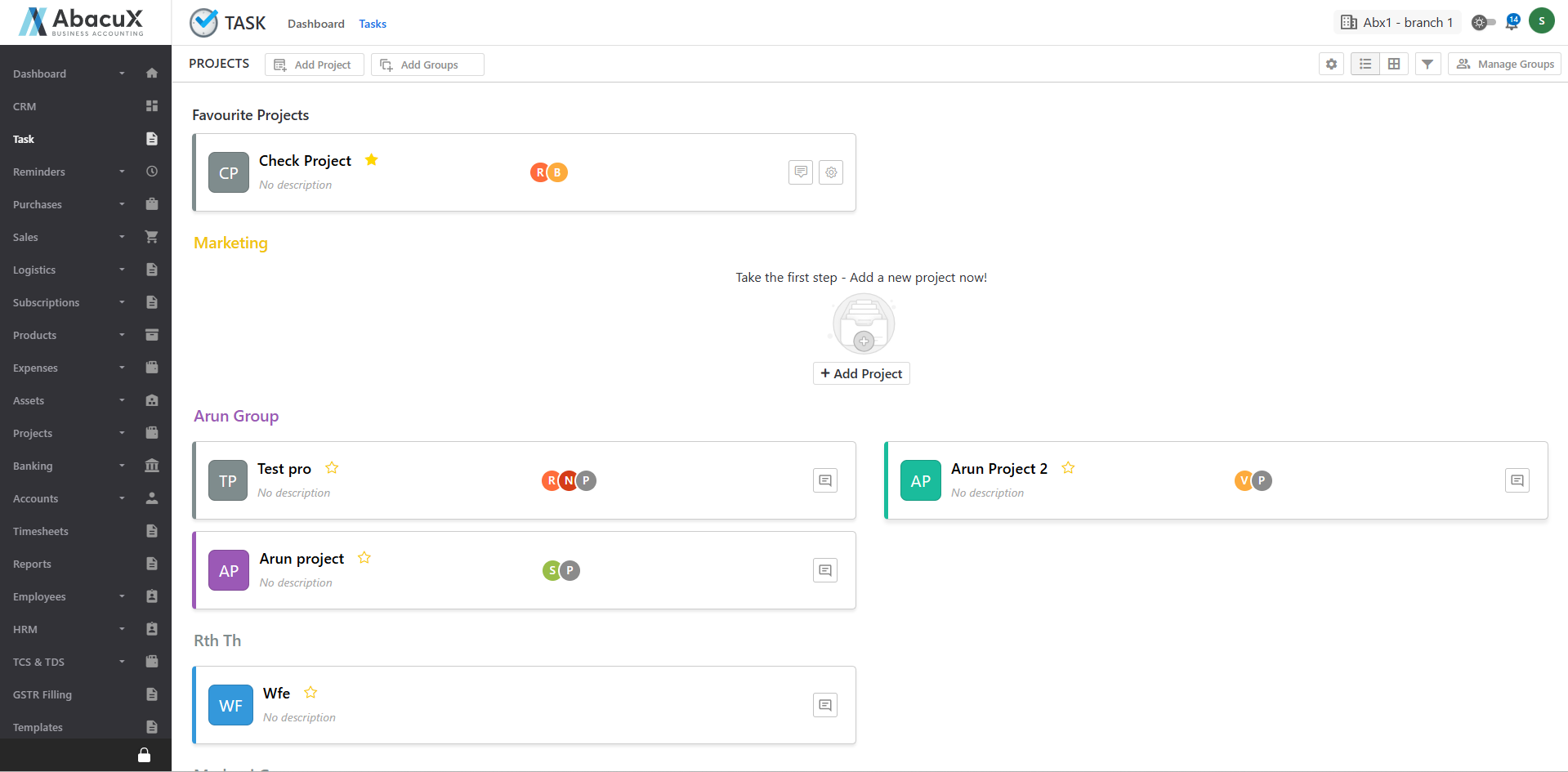
- Click on the Task option under the Task main menu to view the list of task groups.
-
Click on a Group Title to expand and view the tasks associated with that specific group.
-
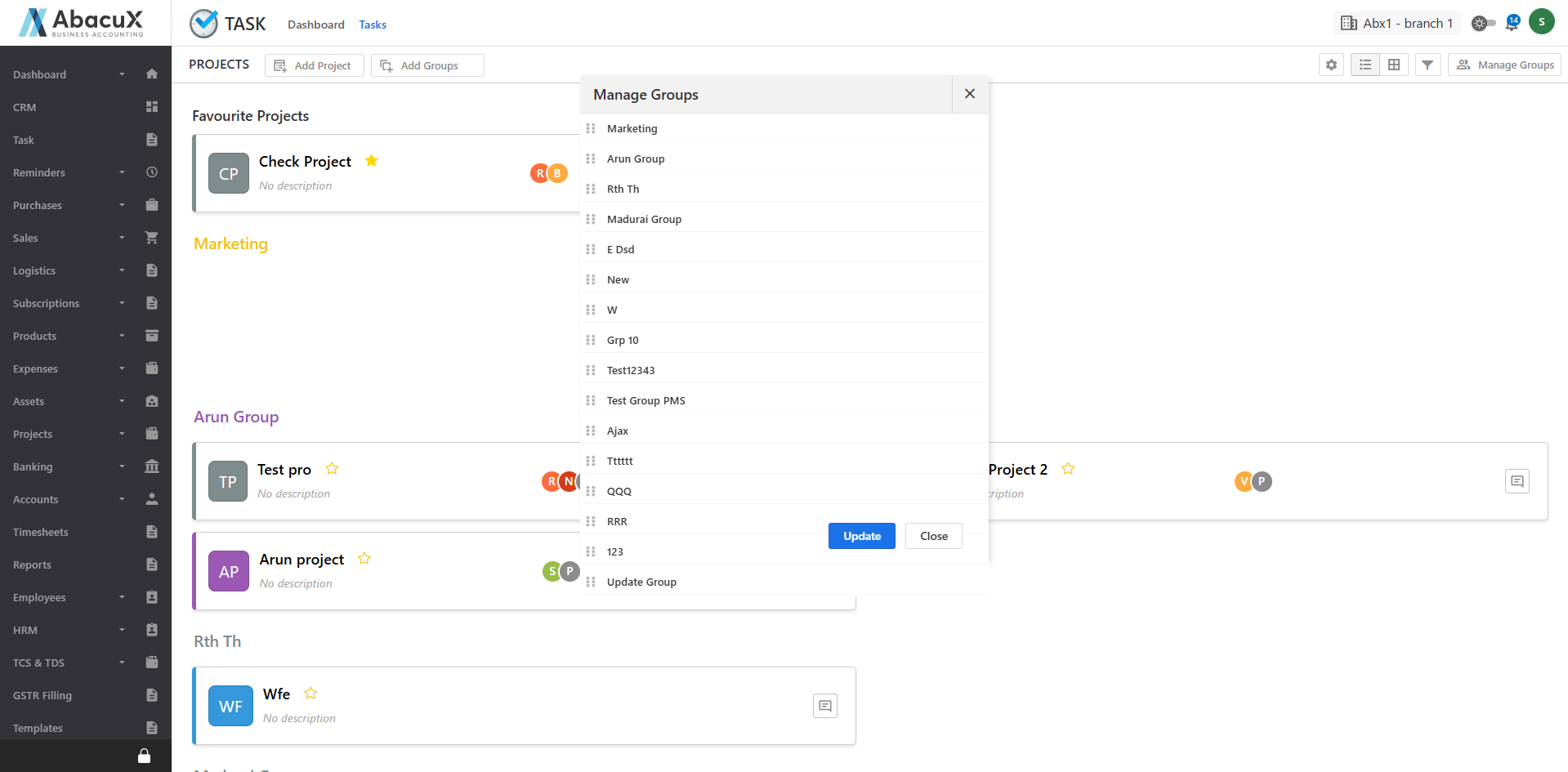
Click the Manage Groups button to organize or modify existing groups.
-
The Manage Groups option opens a popup displaying all available groups.
-
You can reorder groups using drag and drop functionality.
-
You can edit or delete existing groups as required.
-
-
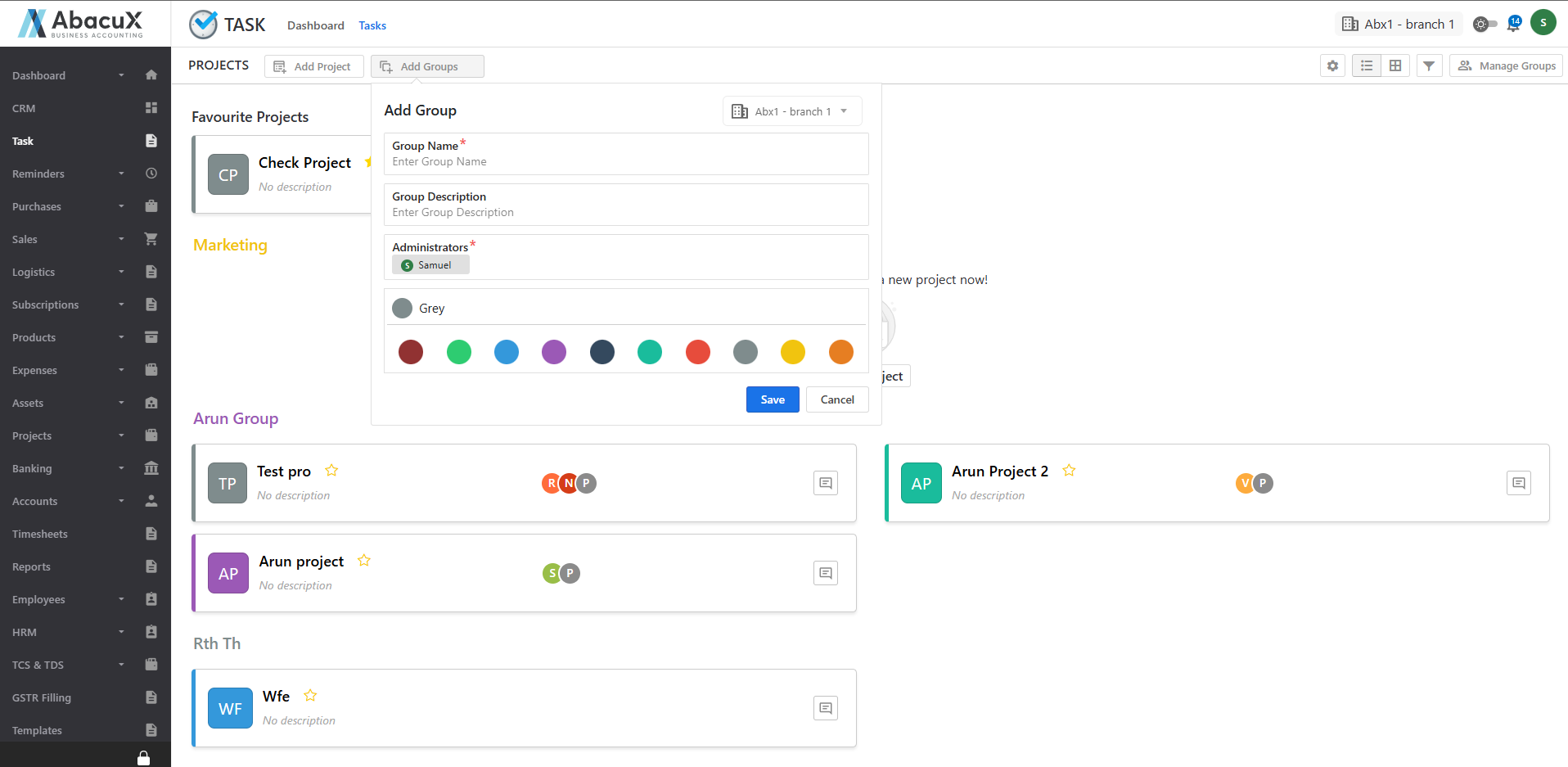
Click the Add Group button to create a new task group.
-
A form will appear where you can enter the required group details and save the information.
-
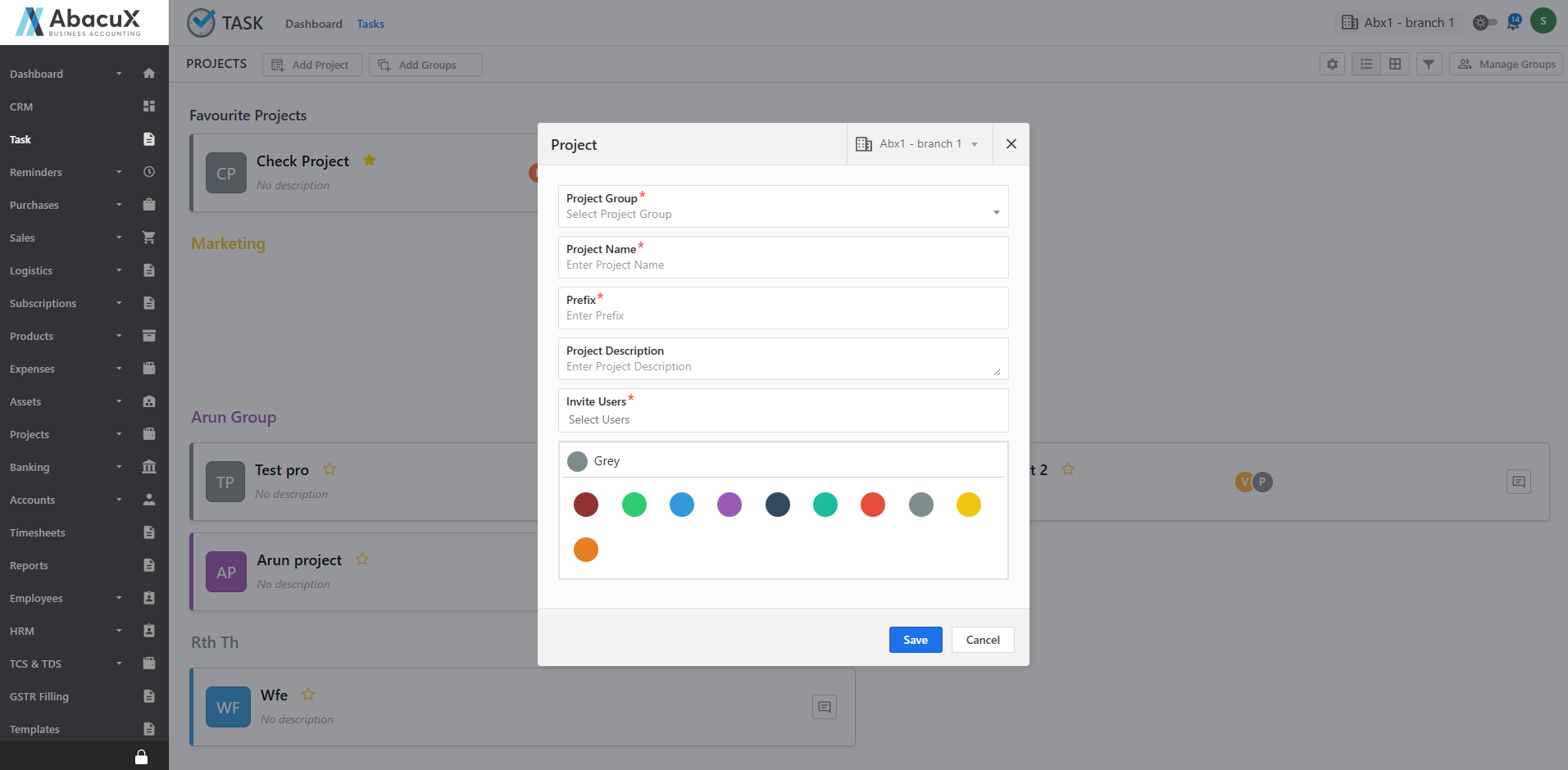
Click the Add Project button to add a new project within a group.
-
A form will open to capture the project details. Fill in the required fields and save the form to create the project.
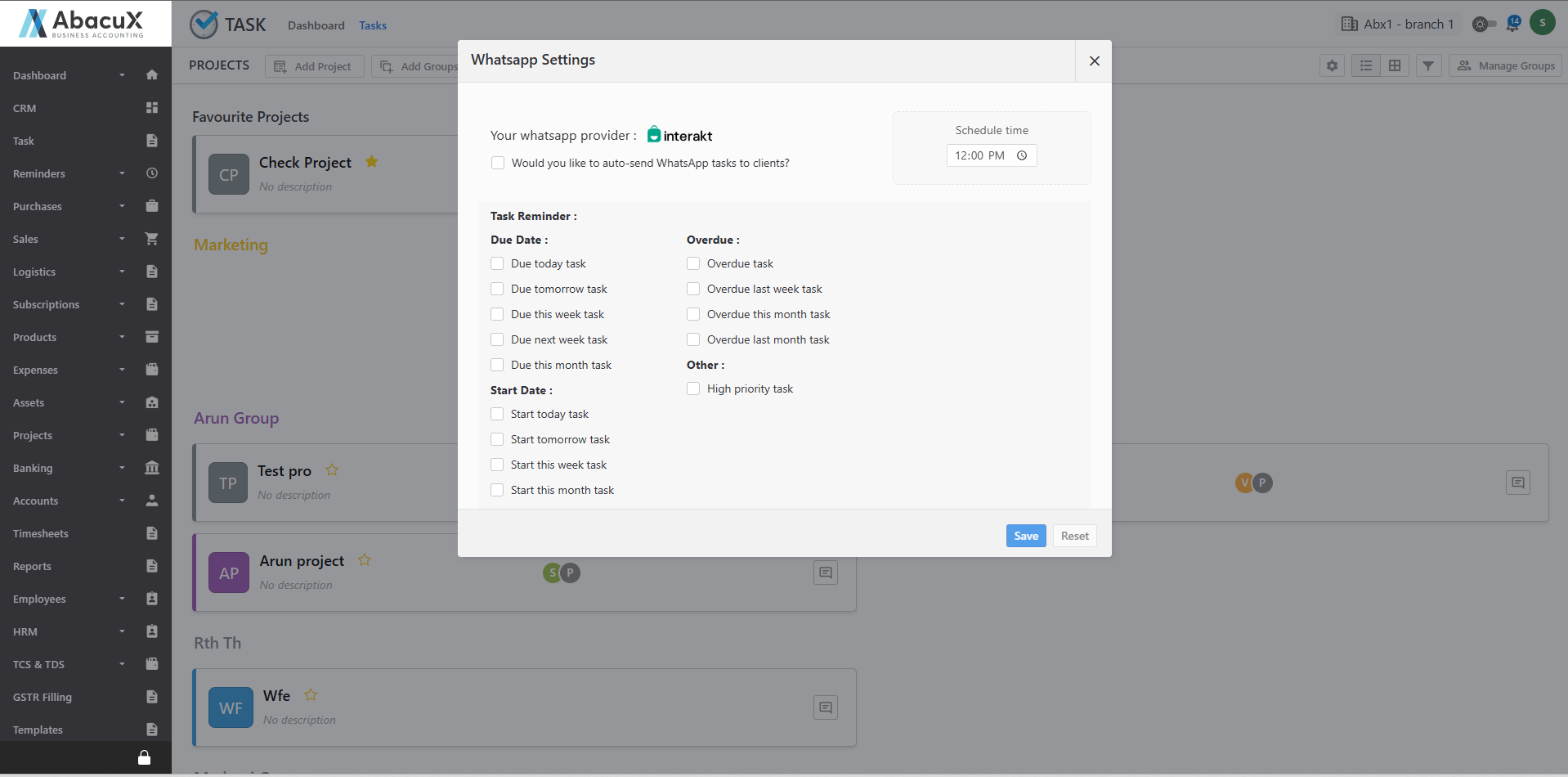
- Click the Settings icon to configure additional options such as setting reminders and sending tasks via WhatsApp.
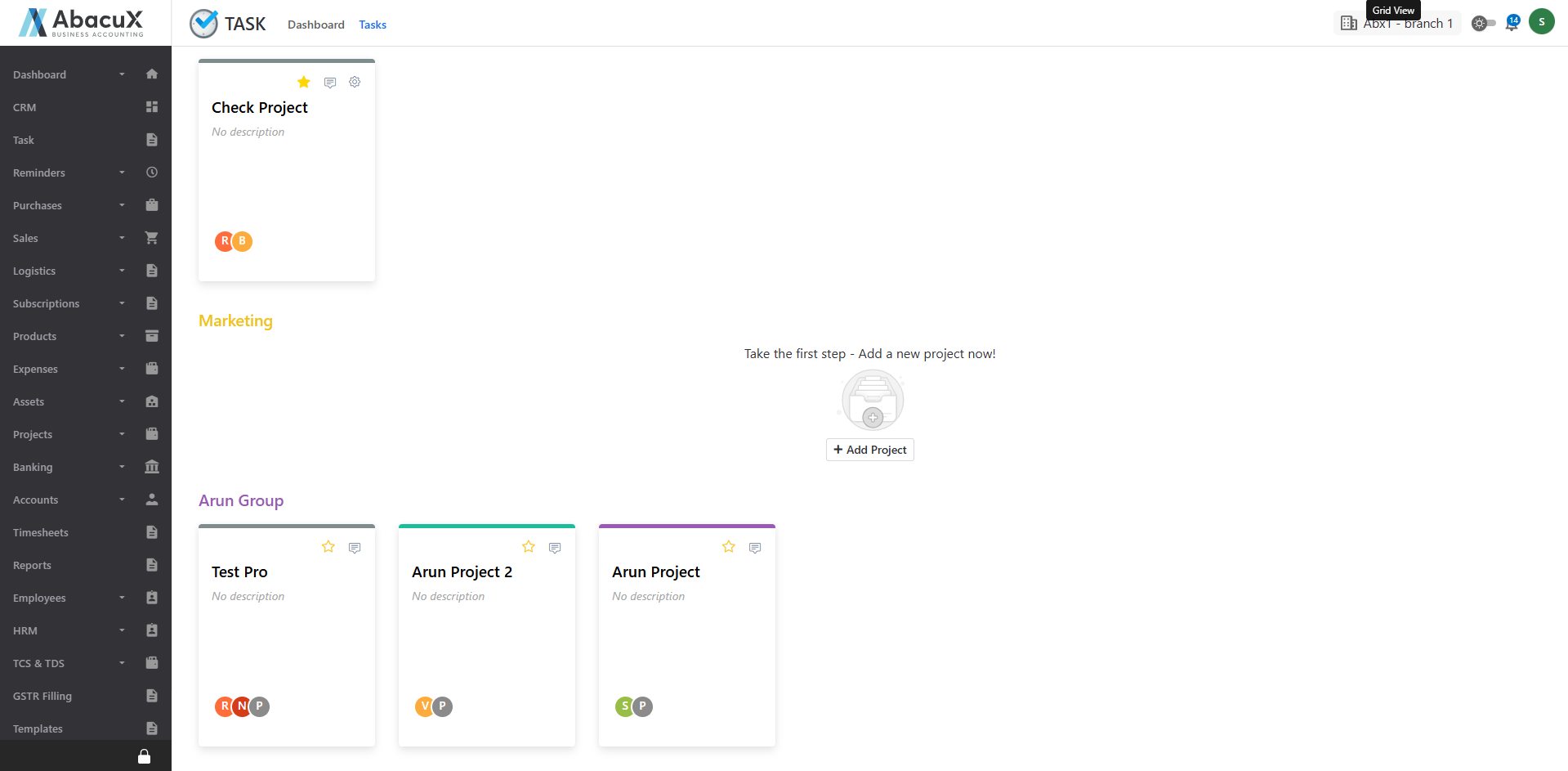
- Use the List View or Grid View icons to switch between different display formats for viewing task groups.
-
Click on a Project Group to open the Project List page.
-
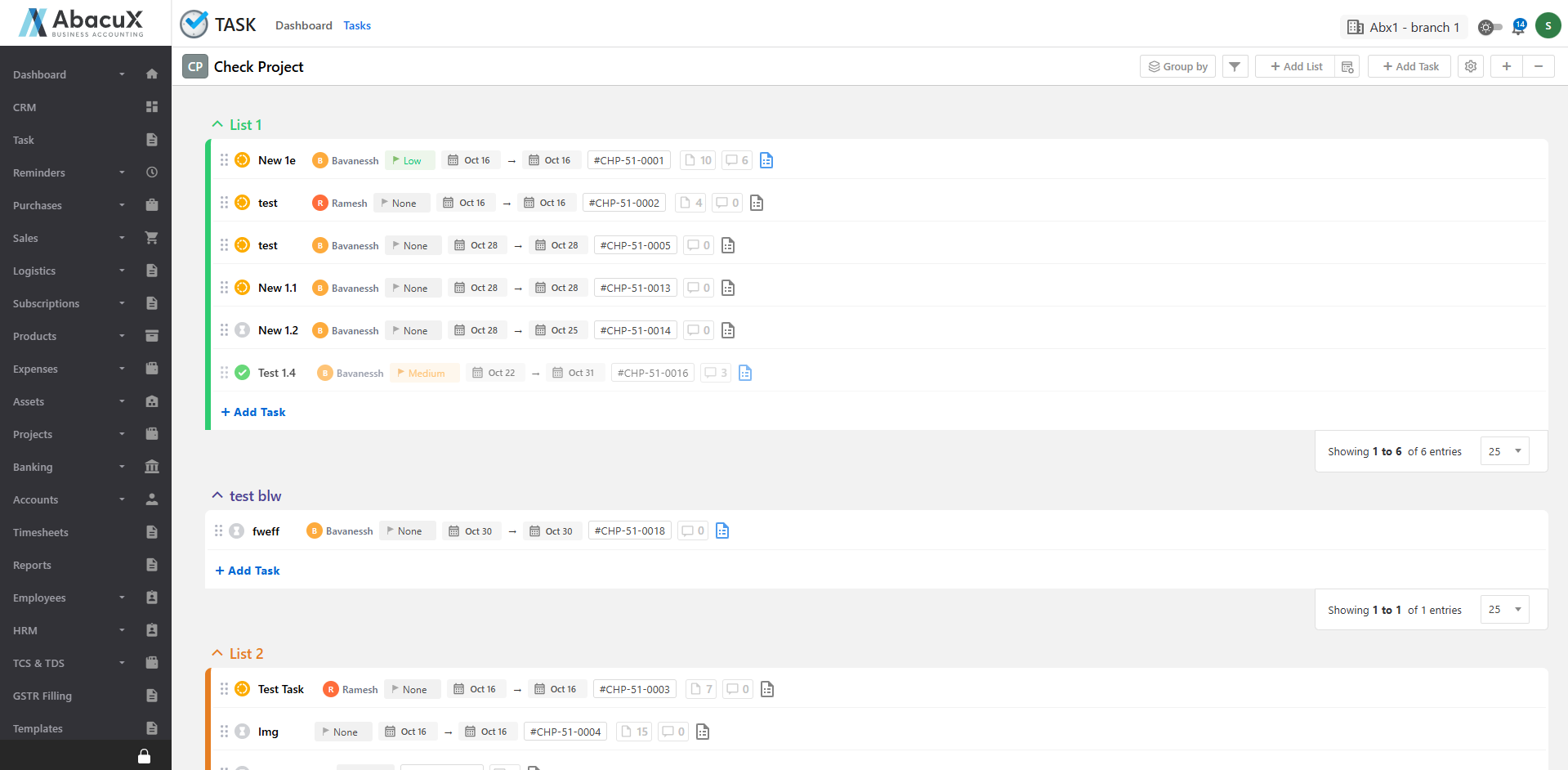
The Project List page includes options to expand or collapse projects for easier navigation.
-
Click on a Project Title to view or edit project details.
-
Click the Eye icon in the task list to open the detailed Task View page, where you can see comprehensive task information.