Pay Expenses
Pay Expenses
Pay Expenses refers to the process of recording payments made towards previously entered expense bills in the system. This feature ensures that all outgoing payments related to operational costs, purchases, or other expenditures are accurately tracked and accounted for.
Key Features:
Linked to Expense Bills: Payments can only be made against approved and saved expense bills to maintain financial accuracy and audit trails.
Multiple Payment Modes: Supports payments through cash, bank transfer, cheque, UPI, or other configured modes.
Partial and Full Payments: Allows both partial and full settlement of expense bills, helping businesses manage cash flow efficiently.
Payment History Tracking: Maintains a record of all past payments made against an expense bill for reference and reconciliation.
Automated Status Updates: Once payment is recorded, the status of the expense bill is updated accordingly (e.g., "Paid", "Partially Paid").
Attach Supporting Documents: Users can attach payment receipts, bank slips, or other supporting files while processing the payment.
Manage Pay Expenses
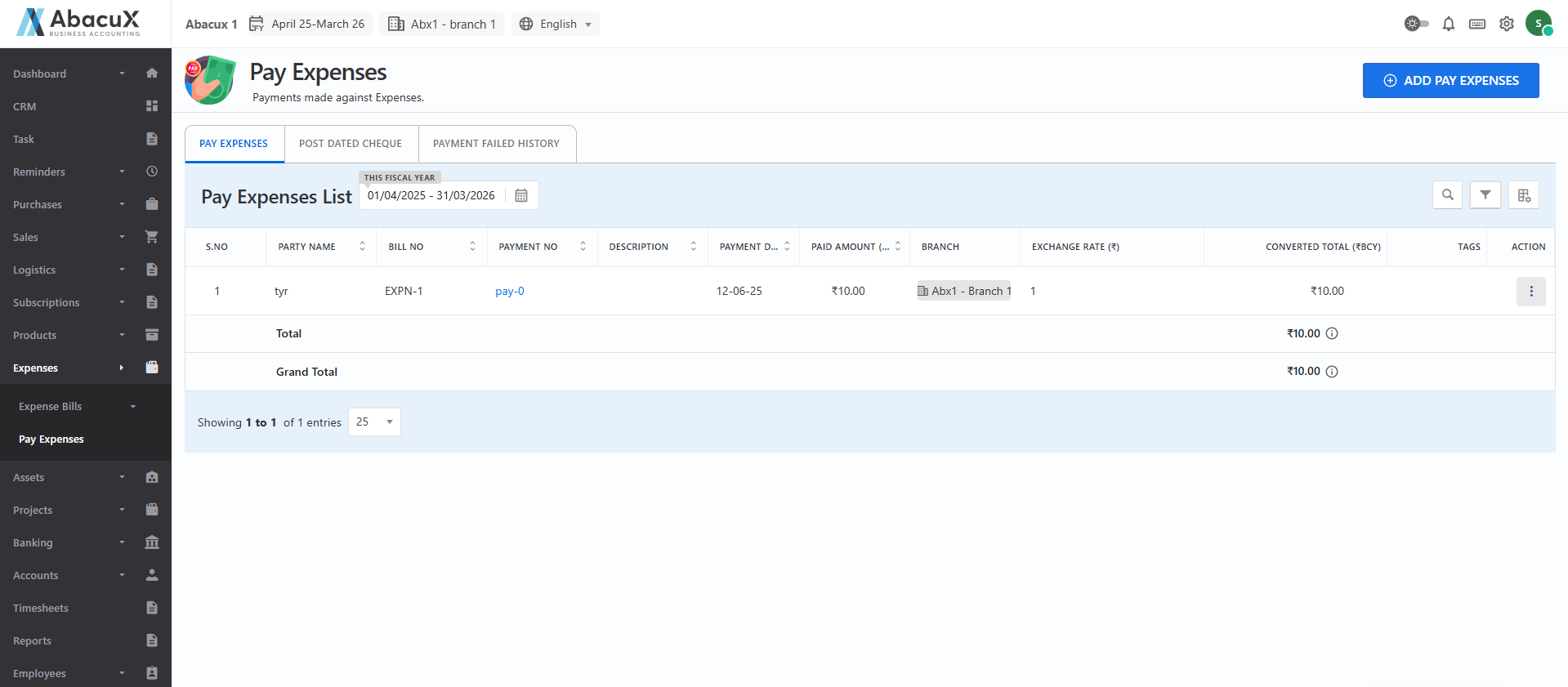
- Navigate to the Pay Expenses section under the Expenses menu to view the list of recorded pay expenses.
-
To add a new pay expense, click the "Add Pay Expense" button located at the top right corner.
-
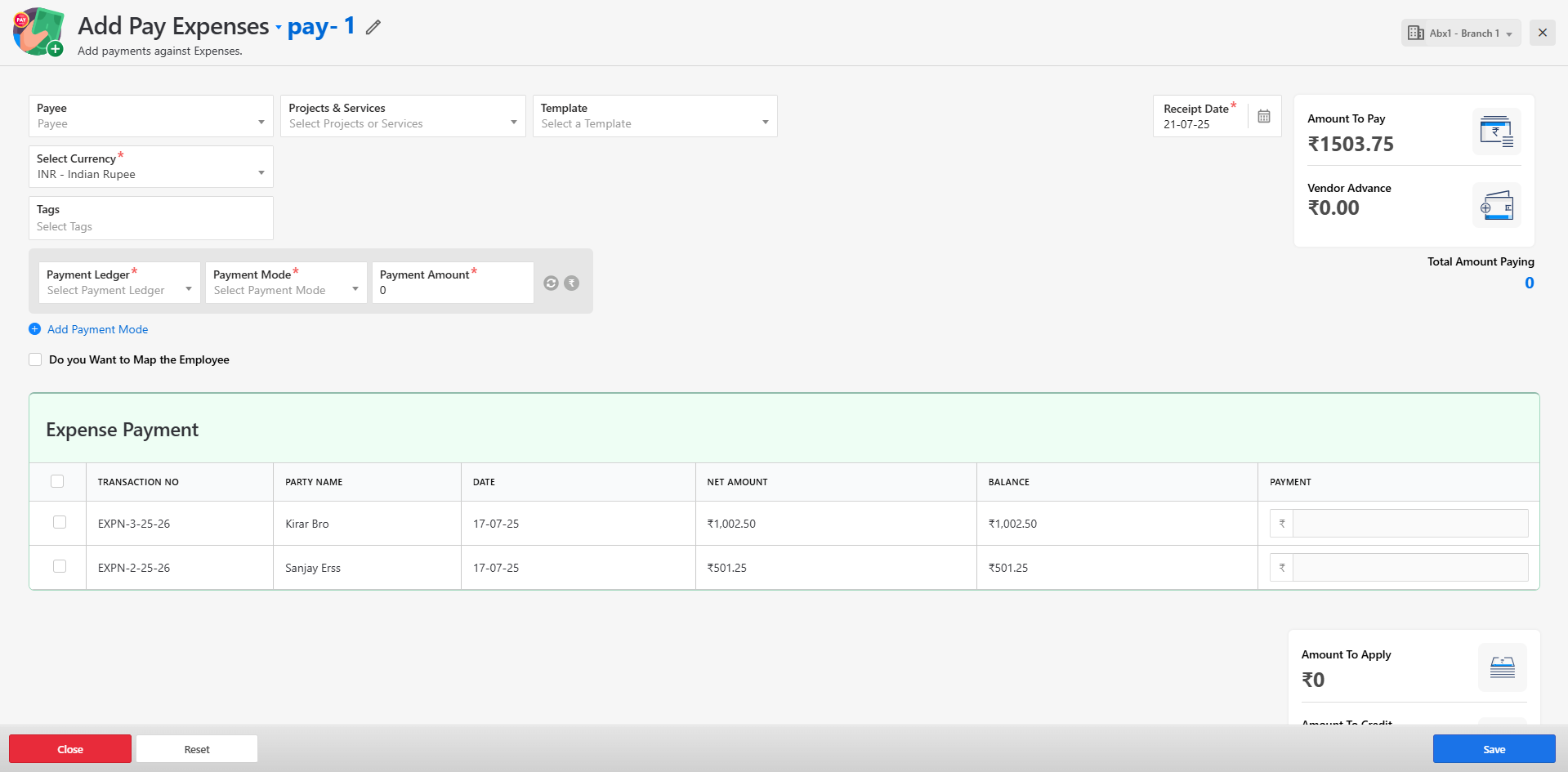
A form will open to enter the required pay expense details.
-
Fill in the mandatory fields and submit the form to save the record.
-
If the form is saved successfully, a success message will be displayed on the list page.
-
If there is any error during the submission, an error message will be shown on the form itself.
-
You can manage the pay expense entries using the following actions:
-
View
-
Delete
-
Print
-
Mark as Payment Failed
-
Post-Dated Cheque – Expense Bills
A Post-Dated Cheque (PDC) under Expense Bills refers to a cheque that is issued to a vendor with a future date, indicating that the payment should be processed only on or after the specified date. This feature is particularly useful for managing scheduled vendor payments while maintaining accurate cash flow records.
In the ERP system, the Post-Dated Cheque – Expense Bills section allows you to:
-
Track all cheques issued to vendors that are scheduled for future clearance.
-
Monitor the status of each cheque, such as Pending, Cleared, or Bounced.
-
Update the status of cheques manually based on their bank clearance status.
-
Record key details such as vendor name, cheque number, amount, issue date, due date, and bank information.
This functionality helps in:
-
Ensuring transparency in future-dated obligations.
-
Avoiding duplicate or early payments.
-
Aligning vendor payment cycles with cash availability.
Manage Post-Dated Cheque
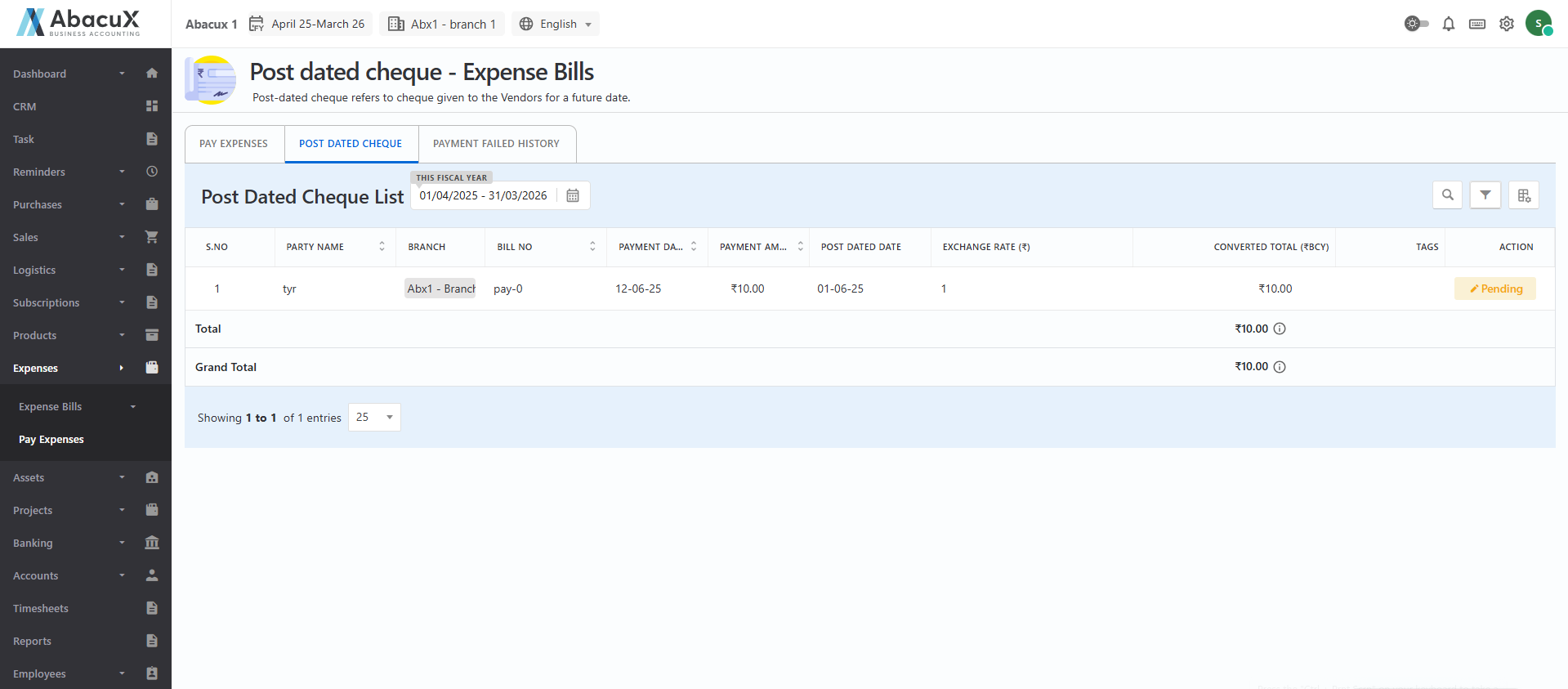
- Navigate to the Post-Dated Cheque tab to view the list of issued post-dated cheques related to expense bills.
-
To update the status of a cheque, click the status button available in the Status column.
-
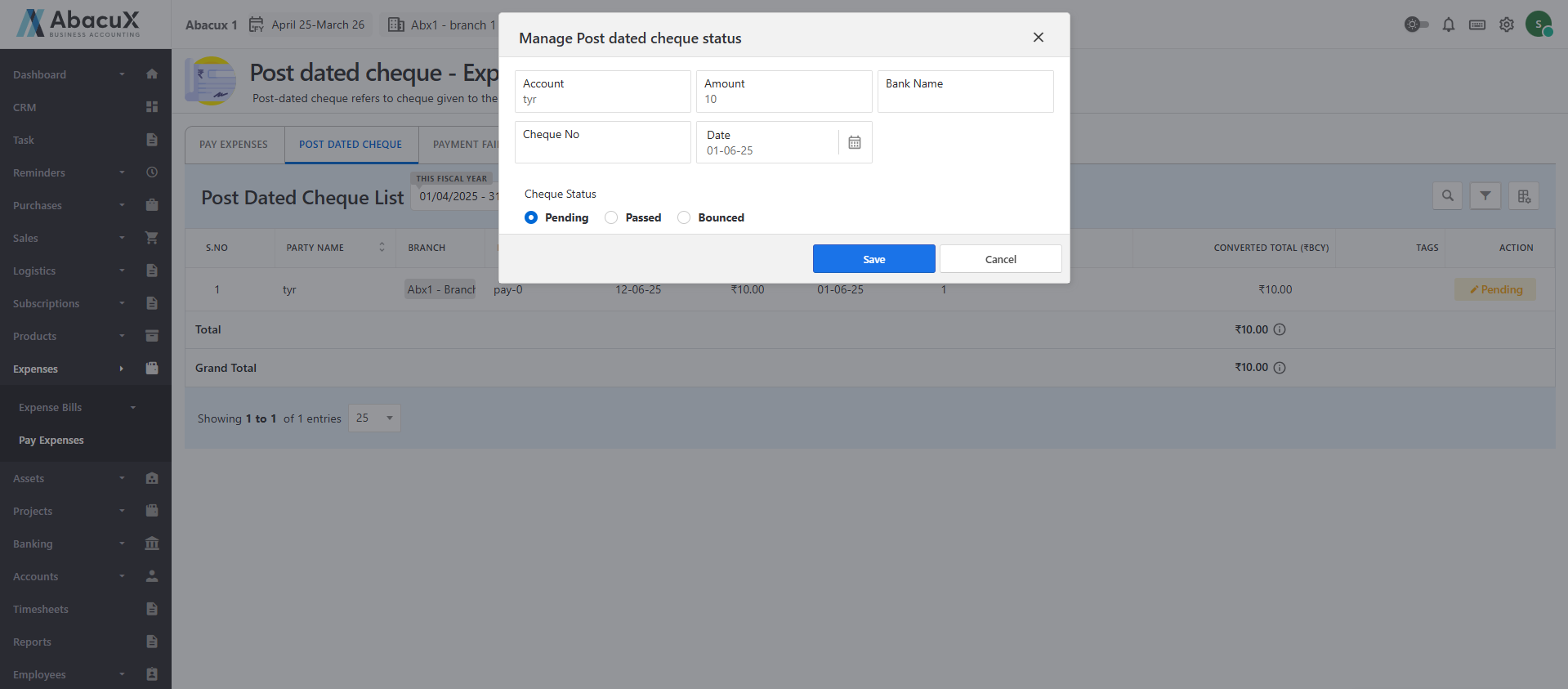
A form will appear displaying the cheque details and providing options to update the status. Available status options include:
-
Pending
-
Passed
-
Bounced
- Select the appropriate status and save the form. The updated status will be reflected in the list automatically.
Expense Payments – Failed History
The Expense Payments Failed History module provides a record of all failed transactions made against expense bills. These failed attempts could be due to reasons such as insufficient funds, incorrect payment details, network errors, or issues with payment gateways.
Purpose:
This section helps in tracking and auditing failed expense payments so that corrective actions can be taken promptly.
Key Features:
-
List of Failed Transactions: Displays a chronological list of all failed payments made against expense bills, including relevant details such as:
-
Vendor Name
-
Expense Bill Number
-
Payment Method
-
Attempted Amount
-
Failure Reason
-
Attempted Date and Time
-
-
Retry Payment: Allows users to retry the failed payment by opening the associated expense record and initiating the payment again.
-
Status Indicators: Each failed payment is marked with a distinct status (e.g., Failed, Pending Retry) to help users identify unresolved transactions.
-
Audit Trail: Logs all retry attempts and user actions for accountability and reference.
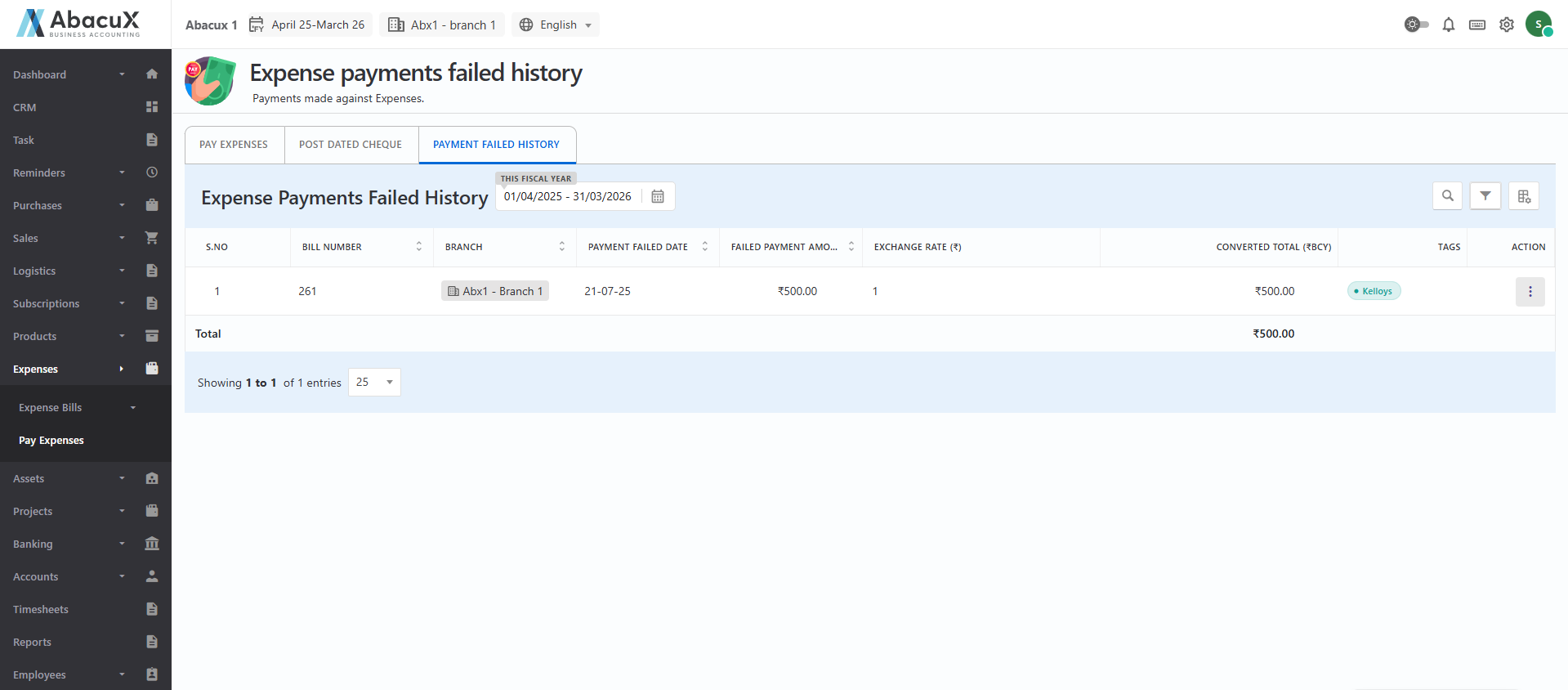
Expense Payment Failed History
- Navigate to the Payment Failed History tab to view the list of failed expense payment entries.
-
You can manage the failed entries with the following available action:
Delete – Remove the selected failed payment record from the list.