Company Assets
Company Assets
The Company Assets module in the ERP system is designed to help businesses efficiently track, manage, and maintain all physical and intangible assets owned by the organization. This includes machinery, equipment, furniture, vehicles, IT hardware, software licenses, and more.
By maintaining a centralized asset register, organizations can ensure better asset lifecycle management, improve audit readiness, and reduce the risk of loss or duplication.
Key Features:
Asset Register: Maintain a detailed record of all company assets, including asset name, category, purchase date, value, vendor, location, and assigned department or employee.
Depreciation Tracking: Automatically calculate and track depreciation for applicable asset types based on defined depreciation methods and useful life.
Bulk Entry Support: Utilize the bulk entry feature to quickly and seamlessly insert large datasets of assets, significantly reducing manual data entry time.
Asset Status Monitoring: Track the current status of each asset (e.g., active, under maintenance, disposed, transferred).
Asset Transfer & Disposal: Record asset transfers between departments or locations and log asset disposals with appropriate remarks and dates.
Document Attachments: Attach relevant documents such as invoices, warranty cards, and service agreements for each asset.
Manage Assets:
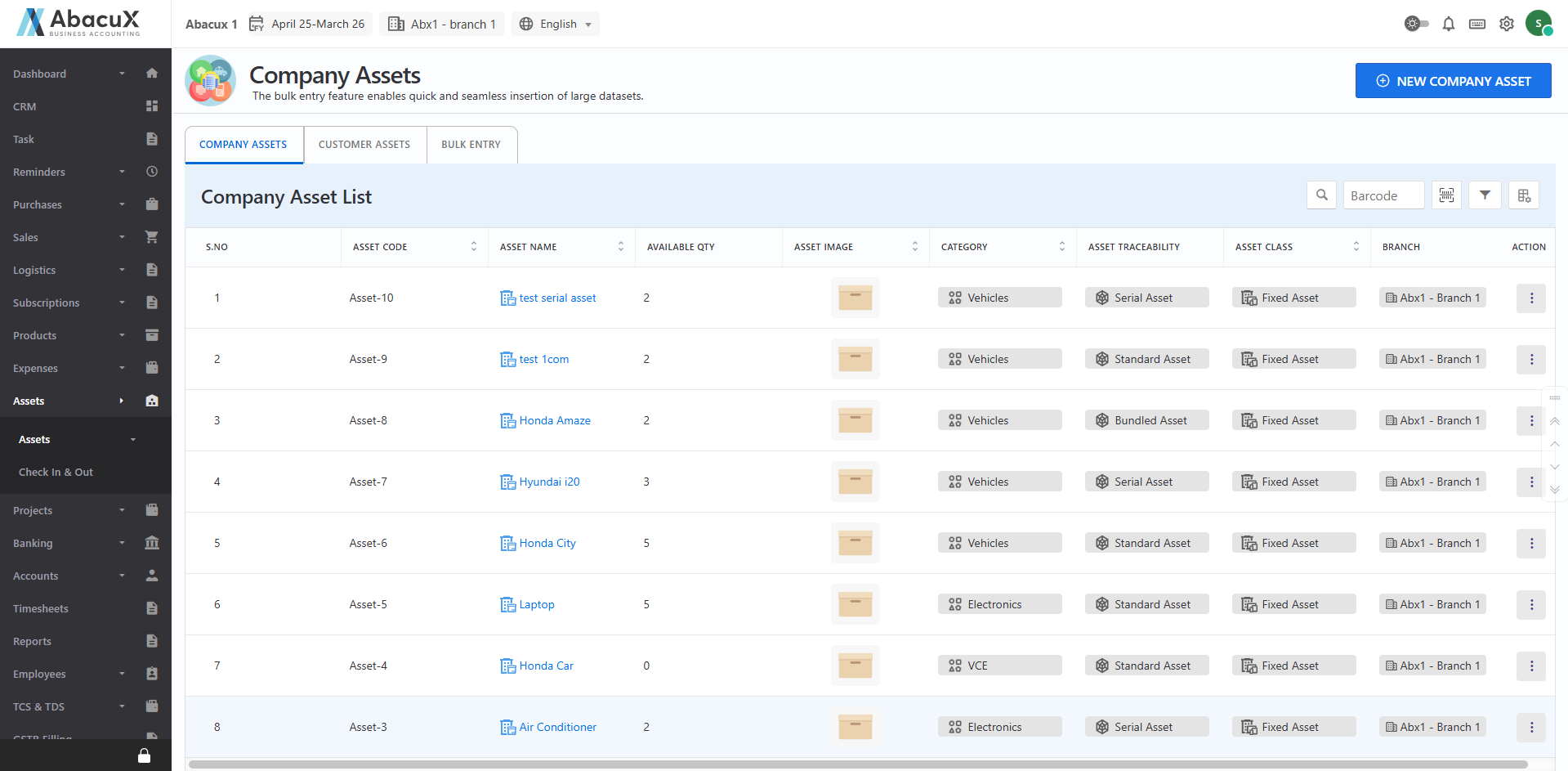
- Navigate to the Assets menu to view the list of all company assets.
-
To add a new company asset, click the "New Company Asset" button located at the top-right corner of the page.
-
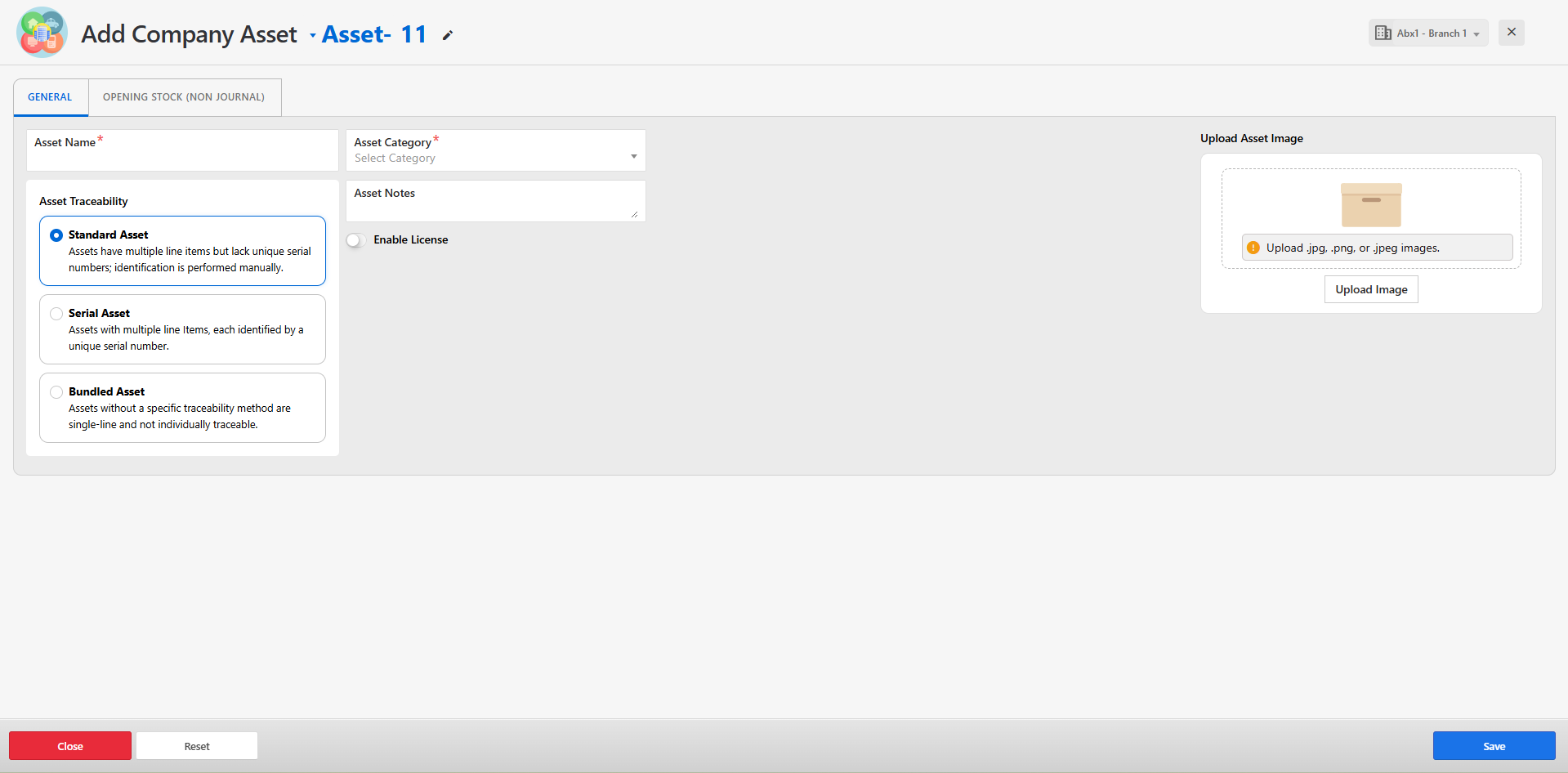
A form will open to capture the asset details.
-
Fill in all the required fields and click Save to submit the form.
-
Upon successful submission, a success message will be displayed.
-
If there are any errors while saving the form, an error message will be shown on the form itself.
-
You can manage the listed company assets using the following actions:
View – View detailed information about the asset.
Edit – Modify existing asset details.
Delete – Remove an asset record from the list.
Add Company Asset – Quick access to create a new asset record.
Customer Assets
The Customer Assets module allows you to manage and track the assets assigned or sold to your customers. It supports individual entries as well as bulk uploads, enabling efficient management of large datasets. This feature is essential for organizations that handle multiple client assets and need streamlined visibility into their usage, allocation, and history.
Key Features:
-
Maintain a detailed register of customer-owned or customer-assigned assets.
-
Quickly add or update records via the Bulk Entry feature.
-
Track asset status and history for service, support, or compliance purposes.
-
Enable role-based access for asset management across departments.
Manage Customer Assets
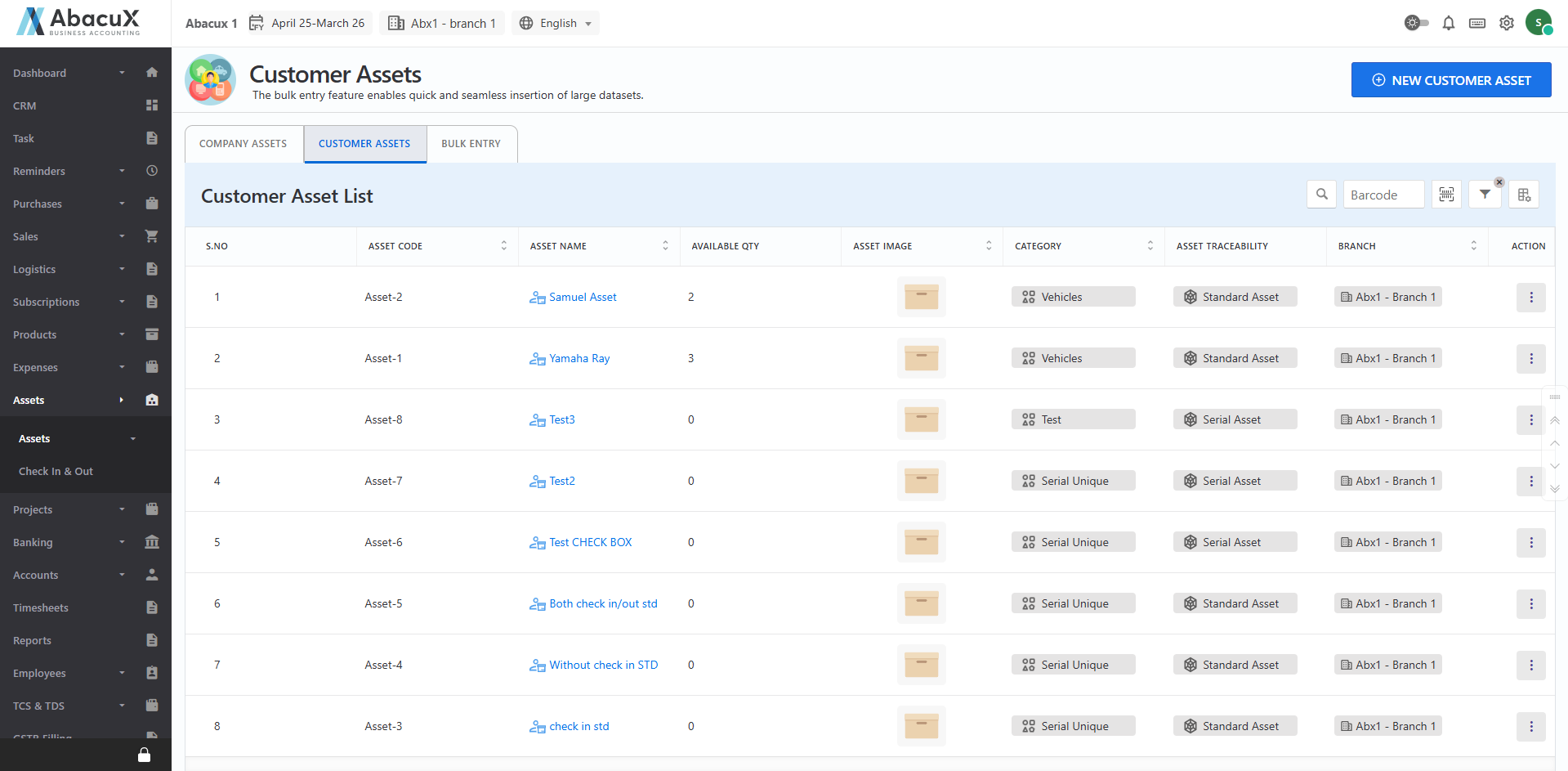
- Click the "Customer Assets" tab to view the list of customer assets.
-
To add a new customer asset, click the "New Customer Asset" button located at the top-right corner.
-
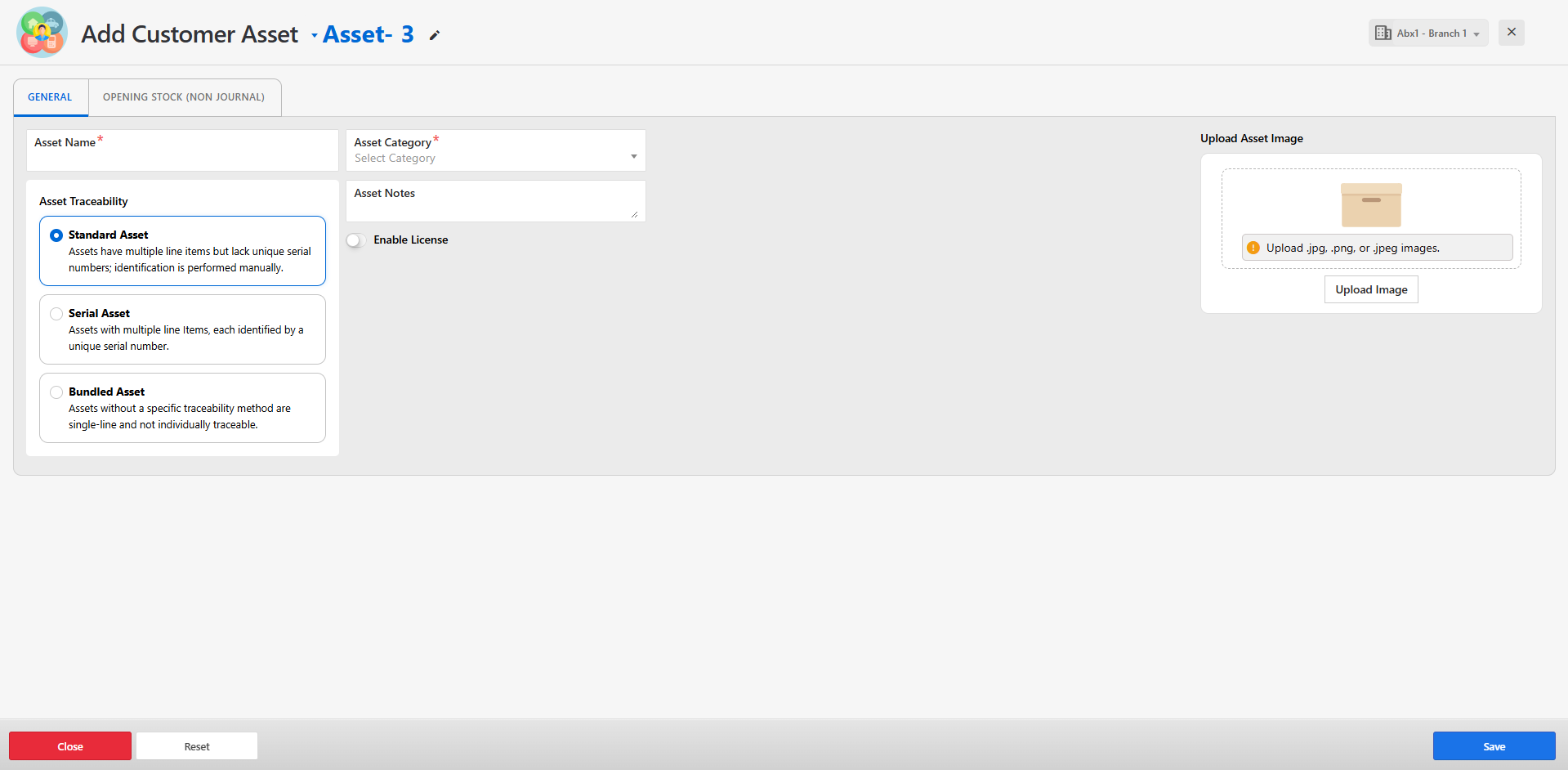
This will open a form to enter the customer asset details.
-
Fill in all the required fields and click Save.
-
If the form is saved successfully, a success message will be displayed on the screen.
-
If there are any errors during submission, appropriate error messages will appear on the form.
-
You can manage the customer asset list using the following actions:
-
View
-
Edit
-
Delete
-
Bulk Entry
The Bulk Entry feature in the ERP application enables users to efficiently add large volumes of data in a single operation. This functionality is designed to save time and reduce manual effort, particularly when handling repetitive or extensive records such as assets, inventory, customer details, or transactions.
Key Highlights:
Quick Data Insertion: Upload multiple records at once instead of entering them individually.
-
Predefined Format: Users are required to download a template (usually in Excel or CSV format) and fill in the necessary data as per the defined structure.
-
Data Validation: The system validates each row of data before importing to ensure that all mandatory fields are filled and that data types and formats are correct.
-
Error Handling: If any errors are detected during upload, the system highlights them with specific messages, allowing the user to correct and re-upload the file.
-
Success Notification: Upon successful import, the user receives a confirmation message, and the data becomes available immediately within the respective module.
-
Use Cases: Commonly used for importing company assets, customer assets, inventory, expense entries, or any master data.
Manage Bulk Entry
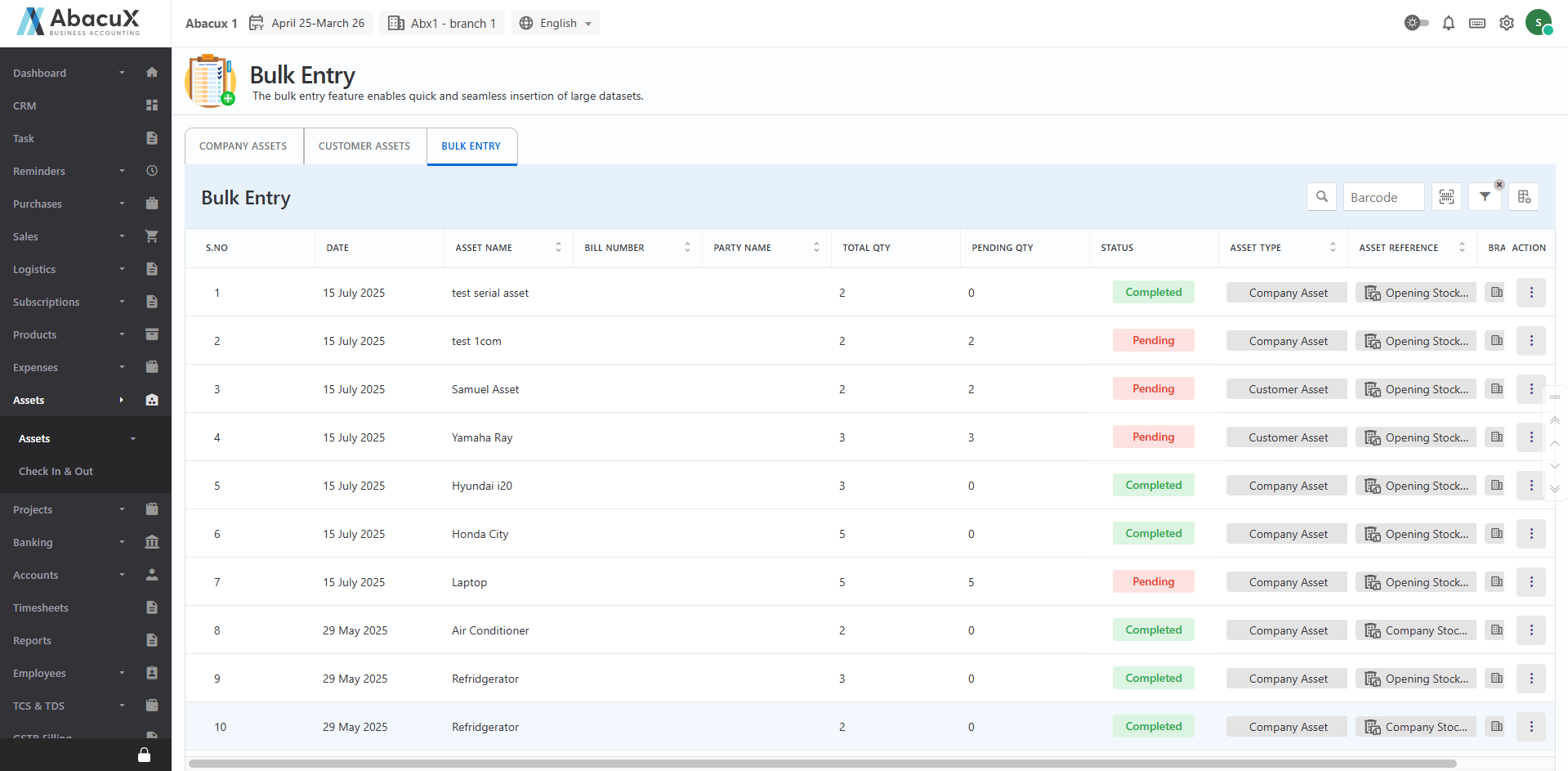
- Click on the Bulk Entry tab to view the list of asset items.
-
The list displays each asset item along with its current status (e.g., Completed, Pending).
-
You can manage the list using the available actions:
-
Add
-
Edit
-
-
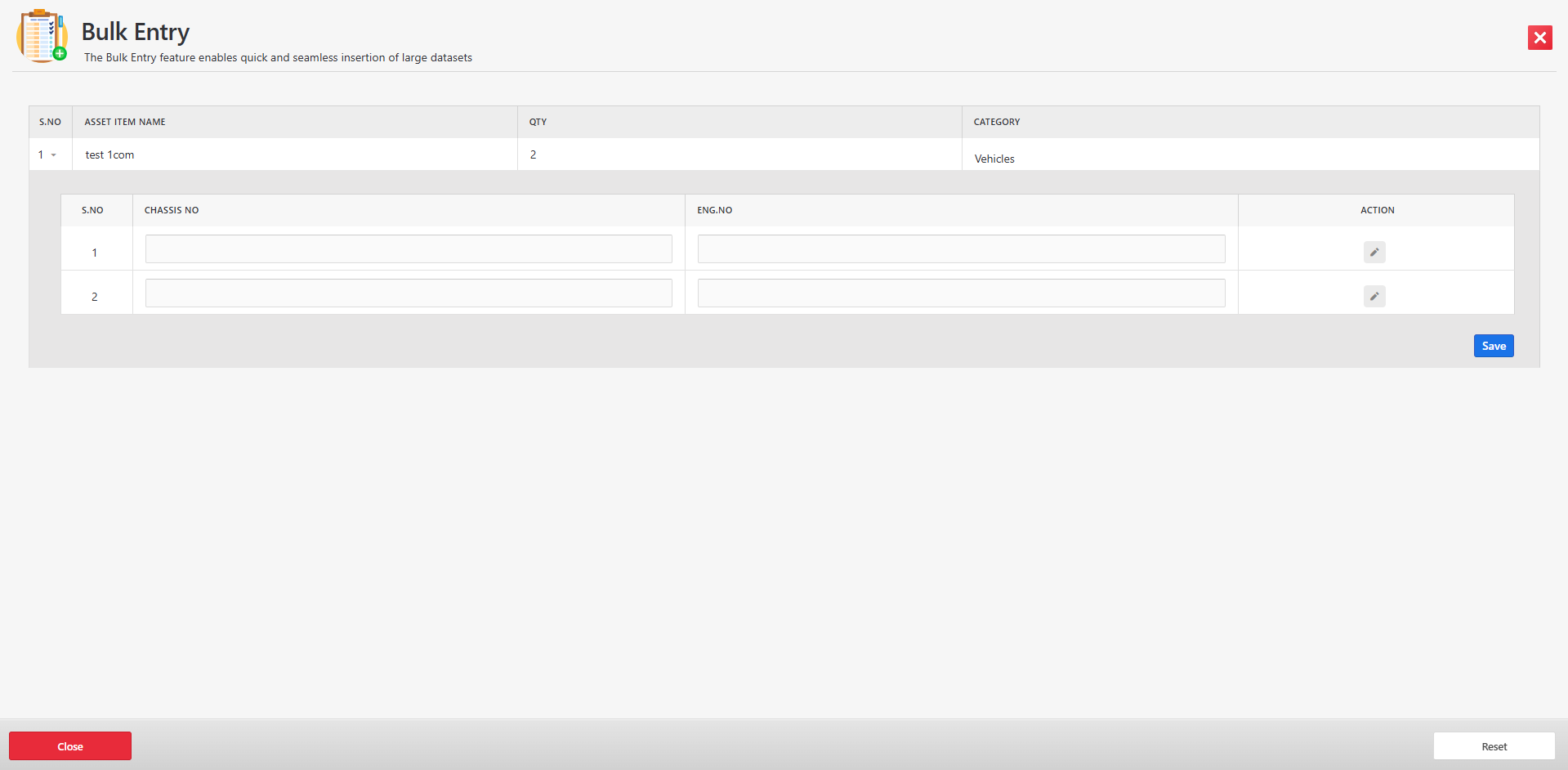
When you click Add/Edit Bulk Entry from the action column, a form will open to capture or update the asset details.
-
In the form, you can:
-
Modify existing asset properties
-
Add additional properties to the asset
-
-
After filling in the required fields, click Save to submit the form.
-
If the form is saved successfully, a success message will appear on the screen.
-
If there is an error during submission, an error message will be displayed on the form indicating what needs to be corrected.