Shortcut Menu
Access all accounting menus in a single view. Click on any menu to navigate to its corresponding page. Available options include Sales, Purchase, Products, and Expenses.
Sales
The Sales module in the AbacuX application manages the complete sales lifecycle—from initial customer interaction through quoting, order placement, fulfillment, billing, and collection. This module is designed to enhance sales efficiency, ensure accurate invoicing, manage agent commissions, and support recurring and AMC-based billing.
It supports both B2B and B2C workflows and integrates seamlessly with inventory, accounting, and CRM components of the ERP.
Benefits of the Sales Module
-
Streamlined sales workflow from quote to cash.
-
Accurate inventory and billing synchronization.
-
Enhanced visibility on customer and agent performance.
-
Automated recurring billing reduces manual effort.
-
Strong reporting and audit trail for compliance.
Customers
Click the Customers card to view the list of customers. To add a new customer, click the  icon located at the top right corner of the card. view more
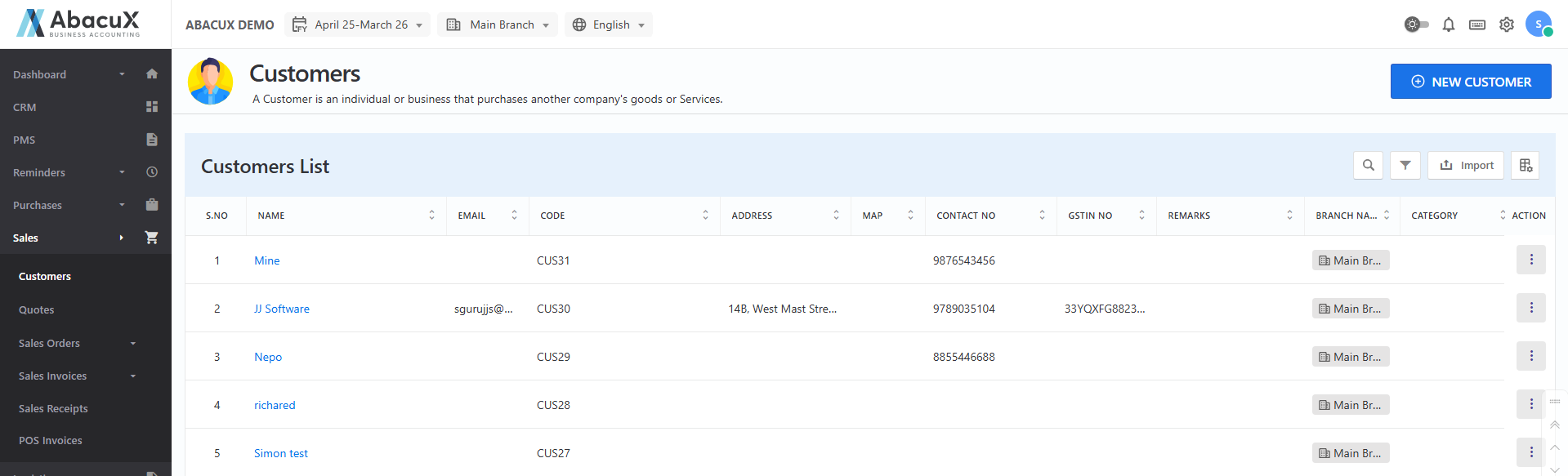
Purpose: Manage all sales-related customer details.
Features:
-
Create, view, update, and deactivate customer profiles.
-
Store contact details, billing/shipping addresses, tax information (e.g., GSTIN).
-
Define credit limits and payment terms.
-
Maintain customer-wise pricing or discount structures.
Quotes
Click the Quotes card to view the list of quotes. To add a new quote, click the icon located at the top right corner of the card. view more
Purpose: Generate and manage sales quotations.
Features:
-
Create and send quotations to customers.
-
Include items, pricing, taxes, terms, and validity.
-
Convert quotes directly to sales orders or invoices.
-
Track quote status (e.g., Pending, Approved, Rejected, Converted).
-
Print or email quotes in PDF format.
Sales Order
Click the Sales Order card to view the list of sales orders. To add a new sales order, click the icon located at the top right corner of the card.
Purpose: Record confirmed sales from customers.
Features:
-
Create orders based on approved quotes or manual entry.
-
Reserve inventory and plan deliveries.
-
Allow partial or full order fulfillment.
-
Track status: Open, Fulfilled, Invoiced, Cancelled.
-
Link to delivery challan and invoices.
Delivery Challan
Click the Delivery Challan card to view the list of Delivery Challans. To add a new Delivery Challan, click the icon located at the top right corner of the card.
Purpose: Handle delivery of goods before or with invoices.
Features:
-
Generate delivery notes for physical dispatch.
-
Track dispatched vs. delivered quantities.
-
Map to corresponding sales orders.
-
Print or share digitally with transport details.
-
Compliant with transport and GST regulations (if applicable).
Sales Invoice
Click the Sales Invoice card to view the list of Sales Invoices. To add a new Sales Invoice, click the icon located at the top right corner of the card.
Purpose: Bill customers for goods or services sold.
Features:
-
Generate tax-compliant invoices with itemized details.
-
Support discounts, multiple taxes, and shipping charges.
-
Auto-link with sales orders or challans.
-
Support for credit terms, due dates, and aging.
-
Generate invoice PDF for print/email.
POS Invoice
Click the POS Invoice card to view the list of POS Invoices. To add a new POS Invoice, click the icon located at the top right corner of the card.
Purpose: Manage retail or counter sales.
Features:
-
Quick bill generation with barcode/item search.
-
Integrated with cash, card, or UPI payments.
-
Auto-update inventory in real-time.
-
Print POS-style receipts with thermal printer support.
-
Option to link customer profile or sell as guest.
Sales Receipts
Click the Sales Receipts card to view the list of Sales Receipts.
Purpose: Record payments received from customers.
Features:
-
Accept multiple payment modes (Cash, Cheque, NEFT, UPI).
-
Link receipts to specific invoices.
-
Handle advance payments and outstanding adjustments.
-
Update customer ledger and balance.
-
Generate receipt vouchers or acknowledgment slips.
Credit Notes
Click the Credit Notes card to view the list of Credit Notes. To add a new Credit Notes, click the icon located at the top right corner of the card.
Purpose: Manage sales returns or invoice corrections.
Features:
-
Issue credit notes for returned goods or overbilling.
-
Link to original invoice and customer.
-
Adjust against future invoices or refund process.
-
Compliant with taxation rules.
-
Inventory auto-updates on returns.
Agent Collections
Click the Agent Collections card to view the list of Agent Collections. To add a new Agent Collections, click the icon located at the top right corner of the card.
Purpose: Manage collections done by sales agents on behalf of the company.
Features:
-
Record collection entries per agent and customer.
-
Link collections to invoices or outstanding amounts.
-
Track commission eligibility and performance.
-
Secure access control for agents.
My Collections
Click the My Collections card to view the list of Collections. To add a new Collection, click the icon located at the top right corner of the card.
Purpose: Personalized collection dashboard for logged-in agents.
Features:
-
View assigned customers and pending collections.
-
Log collections in real-time.
-
View historical collections and receipts.
-
Restricted access to only assigned accounts.
Amc Invoice
Click the AMC Invoice card to view the list of AMC Invoices. To add a new AMC Invoice, click the icon located at the top right corner of the card.
Purpose: Bill customers for yearly maintenance services.
Features:
-
Create AMC plans with validity and pricing.
-
Auto-generate invoices based on contract terms.
-
Track AMC start/end dates and reminders.
-
Link to service module for scheduling visits.
-
Handle renewals and escalations.
Recurring Sales Invoice
Click the Recurring Sales Invoice card to view the list of Recurring Sales Invoices. To add a new Recurring Sales Invoice, click the icon located at the top right corner of the card.
Purpose: Automate periodic billing for services or subscriptions.
Features:
-
Set up recurring schedules (monthly, quarterly, yearly).
-
Auto-generate and email invoices.
-
Pause, resume, or cancel recurring profiles.
-
Link to customer’s payment and invoice history.
-
Useful for SaaS, rentals, or service contracts.
Purchase
The Purchase module governs the entire procure-to-pay cycle—right from vendor onboarding and purchase requisition to receipt, billing, and supplier payment. It links tightly with inventory, costing, and accounts-payable so that stock, landed cost, and financial ledgers stay in sync. The module supports single-vendor and multi-vendor scenarios, barcode workflows, and serial-number–tracked items.
Benefits of the Purchase Module
-
End-to-End Visibility: Track a requisition through PO, receipt, invoice, and payment in one chain.
-
Cost Control: Automated price validations and landed-cost capture stop profit leakage.
-
Supplier Performance: Dashboard insights on delivery and quality KPIs drive informed sourcing decisions.
-
Compliance & Audit: 3-way match, serial tracking, and paperless vouchers simplify audits.
-
Efficiency: Barcode and bulk import tools slash data-entry time; multi-vendor PO reduces paperwork.
Vendor
Click the Vendor card to view the list of Vendors. To add a new Vendor, click the icon located at the top right corner of the card.
Purpose: Maintain a master list of all suppliers and their commercial terms.
Features
• Create, view, update, deactivate vendor profiles.
• Capture contacts, banking details, tax IDs (GSTIN/PAN), preferred currency, payment terms, credit limits, and rating.
• Attach contracts, certifications, and compliance documents.
• Maintain vendor-wise price lists or blanket agreements for automatic price pulls.
• Track historical performance (OTD, quality score, return ratio).
Multi Vendor PO
Click the Multi Vendor PO card to view the list of Multi Vendor POs. To add a new Multi Vendor PO, click the icon located at the top right corner of the card.
Purpose: Consolidate demand for the same item from multiple vendors in a single document while retaining line-level vendor attribution.
Features:
• Select multiple vendors for a single requisition.
• Compare quotations (price, lead time, MOQ) side-by-side.
• Auto-split PO lines by chosen vendor; issue individual PDFs/emails to each supplier.
• Aggregate receiving and billing back into a unified view for finance.
• Optional approval workflow for high-value MV-POs.
Purchase Orders
Click the Purchase Orders card to view the list of Purchase Orders. To add a new Purchase Order, click the icon located at the top right corner of the card.
Purpose: Formal commitment to buy goods/services.
Features:
• Create PO manually, from MRP suggestions, or by converting an approved requisition/RFQ.
• Line-level taxes, discounts, landed-cost factors (freight, insurance, duty).
• Revision management with version history.
• Status flow: Draft → Approved → Sent → Partially Received → Closed/Cancelled.
• Print/email PO with company letterhead and digital signature.
Purchase Receives
Click the Purchase Receives card to view the list of Purchase Receives. To add a new Purchase Receive, click the icon located at the top right corner of the card.
Purpose: Record inbound deliveries, trigger stock increase, and initiate QC.
Features:
• Match against PO (3-way match ready: PO → GRN → Bill).
• Support partial receipts and back-order quantities.
• Auto-generate put-away tasks or storage location tags.
• Capture lot/serial numbers, expiry dates, and attachment of supplier CoA or packing list.
• Configurable quality-inspection steps with pass/fail and rejection handling.
Purchase Bills
Click the Purchase Bills card to view the list of Purchase Bills. To add a new Purchase Bill, click the icon located at the top right corner of the card.
Purpose: Record accounts-payable liabilities.
Features:
• Automatic PO/GRN data pull to reduce keying errors.
• Validate quantity, price, tax, and landed-cost surcharges; highlight variances.
• Multi-currency with auto conversion to base currency and posting to AP.
• Support debit/credit memos, pre-payments, and progressive billing (e.g., 30/60/10%).
• Generate PDF voucher for audit; store scanned invoice attachment for reference.
Serial Number Allocation
Click the Serial Number Allocation card to view the list of Serial Number Allocations.
Purpose: Ensure traceability for serialized or warranty-tracked items.
Features:
• Allocate serial numbers at receipt, or defer until assembly/dispatch.
• Bulk import of serials via CSV or handheld scanner.
• Search inventory and service history by serial number.
• Compliance support for industries requiring end-to-end traceability (electronics, medical devices).
Barcode (Bills)
Click the Barcode (Bills) card to view the list of Barcode (Bills).
Features:
• Generate a barcode sticker for each supplier invoice or GRN for quick retrieval.
• Scan to open the bill screen, update status, or attach documents.
Barcode (Products)
Click the Barcode (Products) card to view the list of Barcode (Products).
Features:
• Print product/inner-pack barcodes (EAN-13, Code-128, QR) at receipt if supplier did not provid
• Scan during put-away, picking, production, and sales for error-free stock moves.
Pay Bills
Click the Pay Bills card to view the list of Pay Bills. To add a new Pay Bill, click the icon located at the top right corner of the card.
Purpose: Settle supplier invoices via multiple payment modes.
Features:
• Batch selection of due bills by vendor, due date, or cash-flow priority.
• Integrate with banking APIs for NEFT/RTGS/ACH file uploads.
• Partial payments, advance adjustments, and TDS/GST-TCS deductions.
• Automatic posting to ledger and update of vendor balance/aging report.
• Payment approval workflows with dual sign-off thresholds.
Debit Notes
Click the Debit Notes card to view the list of Debit Notes. To add a new Debit Note, click the icon located at the top right corner of the card.
Purpose: Record purchase returns, short-receipts, or price corrections that reduce vendor liability.
Features:
• Issue debit note against a specific bill or stand-alone.
• Link to GRN for quantity returns (inventory auto-decrease).
• Reflect in vendor aging and future payments.
• GST-compliant debit-note number series and tax impact calculations.
Products
The Products Module is the foundation of your ERP system’s inventory and sales/purchase operations. It centralizes the creation, classification, tracking, and management of all goods, services, and stock items. This module directly impacts how stock is purchased, sold, adjusted, and reported across the system.
✅ Benefits of the Products Module
-
End-to-End Product Control from creation to production to sale.
-
Manufacturing Optimization using reusable operation templates and structured MOs.
-
Accurate Inventory Management with adjustment features and detailed product info.
-
Improved Product Traceability using barcodes, batch, and serial tracking.
-
Better Decision Making with cost insights and real-time inventory visibility.
Products
Click the Products card to view the list of Products. To add a new Product, click the icon located at the top right corner of the card.
📌 Purpose :
To create and manage a centralized product catalog with all required attributes for inventory, pricing, taxation, and reporting.
✅ Key Features Product Master Creation
-
Add goods or services with a unique SKU or internal code.
-
Set product type: stockable, service, consumable, or bundle.
-
Configure product hierarchy (category, sub-category, brand).
Attributes & Configuration
-
Units of Measure (UOM) and conversions (e.g., box → piece).
-
HSN/SAC codes and applicable GST rates.
-
Barcodes (EAN-13, Code-128, QR) for scanning operations.
-
Batch and serial number tracking (if enabled).
-
Minimum stock level and reorder point settings.
Pricing & Costing
-
Define multiple price lists: wholesale, retail, online, agent-specific.
-
Purchase price, standard cost, and last purchase price tracking.
-
Support for price revision history.
Stock Information
-
View real-time stock across warehouses/locations.
-
Identify stock by batch, serial, expiry, or lot if enabled.
Product Images & Documents
- Upload product photos, spec sheets, safety info (PDFs).
Tax and Accounting Integration
-
Assign tax rules (CGST, SGST, IGST, etc.).
-
Link to default inventory, sales, and purchase accounts for auto-posting in the ledger.
Other Features
-
Enable/disable product availability.
-
Track inactive/discontinued products.
-
Map alternate products or substitutes.
Manufacturing Orders
Click the Manufacturing Orders card to view the list of Manufacturing Orders. To add a new Manufacturing Order, click the icon located at the top right corner of the card.
📌 Purpose To manage and execute manufacturing workflows that convert raw materials into finished goods.
✅ Key Features
MO Creation
-
Generate Manufacturing Orders (MO) manually or via demand planning (MRP).
-
Auto-fetch required Bill of Materials (BOM).
Workflow Tracking
-
MO Status: Draft → Released → In Progress → Completed → Closed.
-
Track production by stage/operation and monitor timelines.
Material Planning
-
View required raw materials and check inventory availability.
-
Generate raw material picklists or linked internal transfers.
Production Booking
-
Record raw material consumption.
-
Record finished goods produced with batch/serial details.
Quality Control
- Enable intermediate or final quality checks before moving to inventory.
Costing
- Calculate production cost based on material, labor, and overheads.
Inventory Impact
-
Decrease raw material stock.
-
Increase finished goods stock in real-time.
Operation Template
Click the Operation Template card to view the list of Operation Templates. To add a new Operation Template, click the icon located at the top right corner of the card.
📌 Purpose
To define standard steps or operations in a manufacturing process which can be reused across multiple BOMs or MOs.
✅ Key Features
Operation Master
-
Define operations like Cutting, Welding, Assembly, Painting, QC, Packing.
-
Set sequence/order of execution.
Time & Cost Settings
-
Define expected duration for each operation.
-
Assign labor/machine costs for accurate production costing.
Skill/Machine Mapping
- Link required skill level, workstation, or machinery.
Reusability
- Use templates in multiple BOMs or MOs to standardize production.
Monitoring
-
Actual vs Expected operation duration and cost comparison.
-
Integration with time-tracking or IoT devices (if applicable).
Inventory Adjustments
Click the Inventory Adjustments card to view the list of Inventory Adjustments. To add a new Inventory Adjustment, click the icon located at the top right corner of the card.
📌 Purpose
To manually correct inventory quantities in the system when discrepancies arise due to physical counts, damages, theft, or system errors.
✅ Key Features
Adjustment Types
-
Increase or decrease stock based on physical count or stock audit.
-
Support for location- or batch-specific adjustments.
Reason Capture
- Tag reasons like damage, shrinkage, stock audit, QC rejection, or correction.
Approval Workflow
-
Multi-level approval system for high-value adjustments.
-
Audit trail of who adjusted what, when, and why.
Bulk Adjustment
- Upload adjustments in bulk via Excel or CSV.
Inventory Impact
-
Auto-update warehouse stock balances.
-
Reflect changes in inventory valuation and accounting (if integrated).
Reporting
-
Detailed history of all adjustments by user, product, or date range.
-
Stock discrepancy reports.
Expenses
The Expenses Module manages all non-inventory-related business expenses, ensuring accurate tracking, payment processing, and reporting. It centralizes expense handling for utilities, rent, travel, office supplies, subscriptions, and other overheads. This module ensures expense transparency, approval workflows, and integration with accounting and cash/bank modules.
✅ Benefits of the Expenses Module
-
Centralized Expense Tracking ensures all business costs are logged and categorized.
-
Approval Workflows for expense bills and payments prevent unauthorized transactions.
-
Time Saving with recurring expenses automation.
-
Accurate Financial Reporting by linking all expenses to accounting.
-
Improved Vendor & Budget Management via detailed expense aging and history reports.
Expense Bills
Click the Expense Bills card to view the list of Expense Bills. To add a new Expense Bill, click the icon located at the top right corner of the card.
📌 Purpose To record and manage all business expense bills received from vendors or employees.
✅ Key Features Bill Entry
-
Create expense bills for various heads (e.g., Rent, Electricity, Internet, Travel).
-
Capture vendor/supplier details (if applicable).
-
Attach supporting documents like PDFs, receipts, or scanned invoices.
Expense Categorization
-
Assign each expense to a predefined expense account or category.
-
Multi-line entry support: add multiple expense items in a single bill.
-
Option to assign expenses to departments, projects, or cost centers.
Tax Handling
-
Apply applicable GST (CGST, SGST, IGST) or other local taxes.
-
Automatically record input tax credits (if allowed).
Status Tracking
-
Track bill status: Draft → Approved → Paid.
-
Notify managers or finance teams for approval.
Attachments
- Store physical bills, signed PDFs, or photos as proof of the transaction.
Pay Expenses
Click the Pay Expenses card to view the list of Pay Expenses. To add a new Pay Expense, click the icon located at the top right corner of the card.
📌 Purpose To process payments for recorded expense bills and manage outstanding dues.
✅ Key Features Payment Methods
- Support payments via Cash, Bank, Cheque, Online Transfer, UPI, or Custom Modes.
Partial/Full Payments
-
Pay expenses partially or in full.
-
Track remaining balances on unpaid or partially paid bills.
Vendor/Payee Ledger Update
-
Automatically update vendor account balances.
-
Record debit entries in appropriate expense accounts.
Integration
-
Link with Bank Book, Cash Book, and Journal Vouchers.
-
Seamless accounting journal generation.
Approval Workflow
- Define approval flow for high-value or department-specific payments.
Audit & Security
-
Keep audit trail of who paid, how much, and when.
-
Permissions to restrict payment access to specific roles.
Payment Reference
- Capture bank reference numbers, cheque numbers, or UTRs.
Recurring Expense
Click the Recurring Expense card to view the list of Recurring Expenses. To add a new Recurring Expense, click the icon located at the top right corner of the card.
📌 Purpose
To automate the recording of regularly occurring expenses such as rent, subscriptions, or maintenance fees.
✅ Key Features
Schedule Setup
-
Define recurring frequency: Daily, Weekly, Monthly, Quarterly, Yearly.
-
Set start and end dates for the recurring expense cycle.
Template Creation
- Save templates for common recurring expenses to avoid repetitive entry.
Auto Posting
-
System auto-generates expense bills on scheduled dates.
-
Notifications or email alerts for generated entries.
Edit & Pause
- Option to modify, pause, or cancel recurring schedules.
Reports & Reminders
-
View upcoming recurring expenses for cash flow planning.
-
Report recurring expense impact over time.